
nRF Desktop: Application description
The nRF Desktop application supports common input hardware interfaces like motion sensors, rotation sensors, and buttons matrixes. You can configure the firmware at runtime using a dedicated configuration channel established with the HID feature report. The same channel is used to transmit DFU packets.
The fwupd tools can communicate with devices running the nRF Desktop application with the Background Device Firmware Upgrade feature enabled. For more information on fwupd support in the nRF desktop application, see the nRF Desktop: fwupd support page.
Application overview
The nRF Desktop application design aims at high performance, while still providing configurability and extensibility.
The application architecture is modular, event-driven and build around Common Application Framework. This means that parts of the application functionality are separated into isolated modules that communicate with each other using application events that are handled by the Application Event Manager. Modules register themselves as listeners of events that they are configured to react to. An application event can be submitted by multiple modules and it can have multiple listeners.
Module and component overview
The following figure shows the nRF Desktop modules and how they relate to other components and the Application Event Manager. The figure does not present all the available modules. For example, the figure does not include the modules that are used as hotfixes or only for debug or profiling purposes.
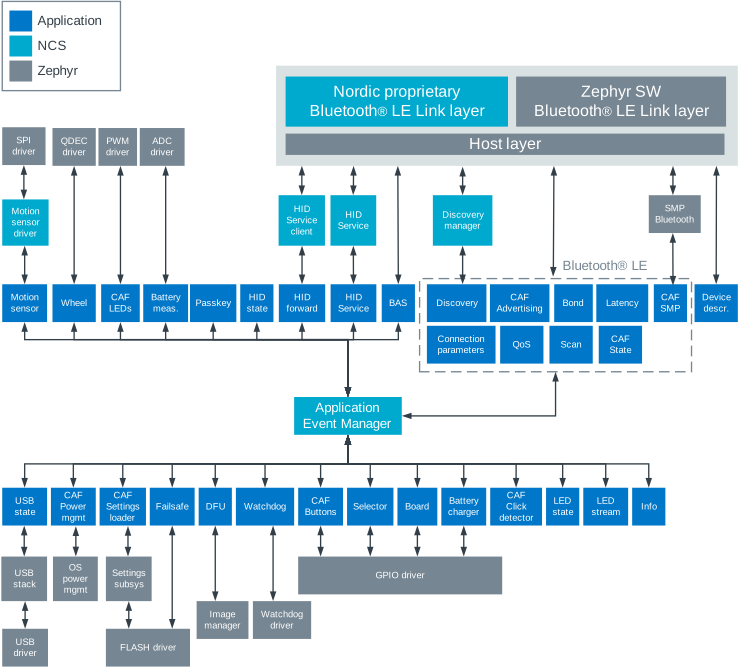
Application high-level design overview
For more information about nRF Desktop modules, see the nRF Desktop: Application internal modules section.
Module event tables
The documentation page of each application module includes a table that shows the event-based communication for the module.
Source module |
Input event |
This module |
Output event |
Sink module |
|---|---|---|---|---|
The module that submits |
|
The module described by the table. |
||
Other module that submits |
||||
The module that submits |
|
|||
|
The module that reacts on |
Each module event table contains the following columns:
- Source module
The module that submits a given application event. Some of these events can have many listeners or sources. These are listed on the Source and sink module lists page.
- Input event
An application event that is received by the module described in the table.
- This module
The module described in the table. This is the module that is the target of the input events and the source of output events directed to the sink modules.
- Output event
An application event that is submitted by the module described in the table.
- Sink module
The module that reacts on an application event. Some of these events can have many listeners or sources. These are listed on the Source and sink module lists page.
Note
Some application modules can have multiple implementations (for example, Motion module). In such case, the table shows the Application Event Manager events received and submitted by all implementations of a given application module.
Module usage per hardware type
Since the application architecture is uniform and the code is shared, the set of modules in use depends on the selected device role. A different set of modules is enabled when the application is working as a mouse, keyboard, or dongle. In other words, not all of the nRF Desktop: Application internal modules need to be enabled for a given reference design.
Modules without reference board configuration
Some application modules are kept in the codebase as part of the full nRF Desktop design, even though none of the reference board configurations currently maintained in the repository enable them. These modules were previously used by nRF52 Series reference designs. Each affected module documentation page includes a note when the module has no enabled reference configuration.
The following modules currently have no enabled reference board configuration:
Gaming mouse module set
The following figure shows the modules that are enabled when the application is working as a gaming mouse:
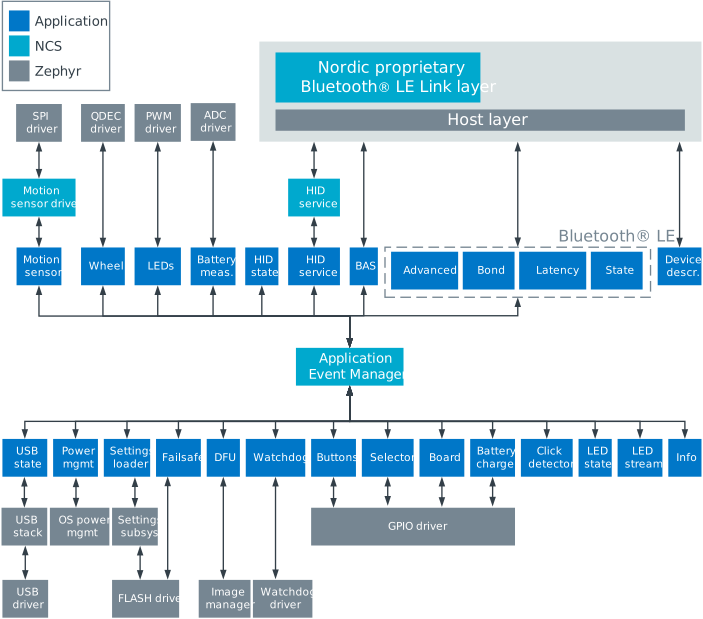
Application configured as a gaming mouse
Desktop mouse module set
The following figure shows the modules that are enabled when the application is working as a desktop mouse:
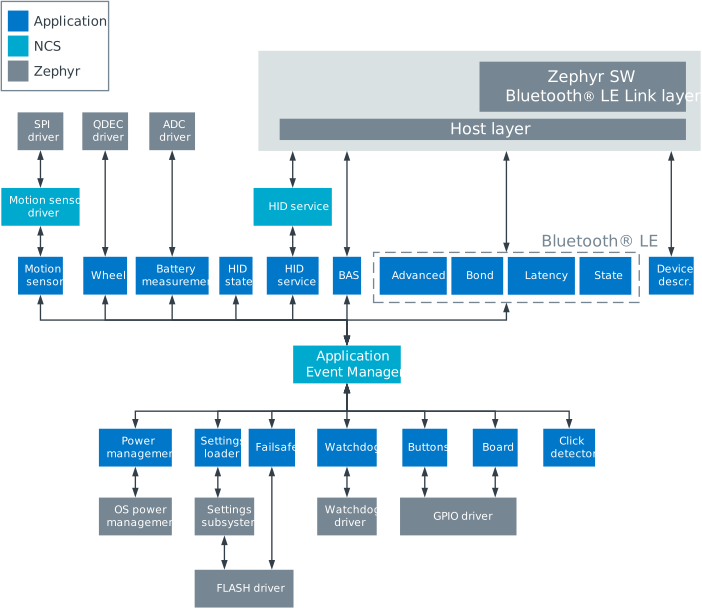
Application configured as a desktop mouse
Keyboard module set
The following figure shows the modules that are enabled when the application is working as a keyboard:
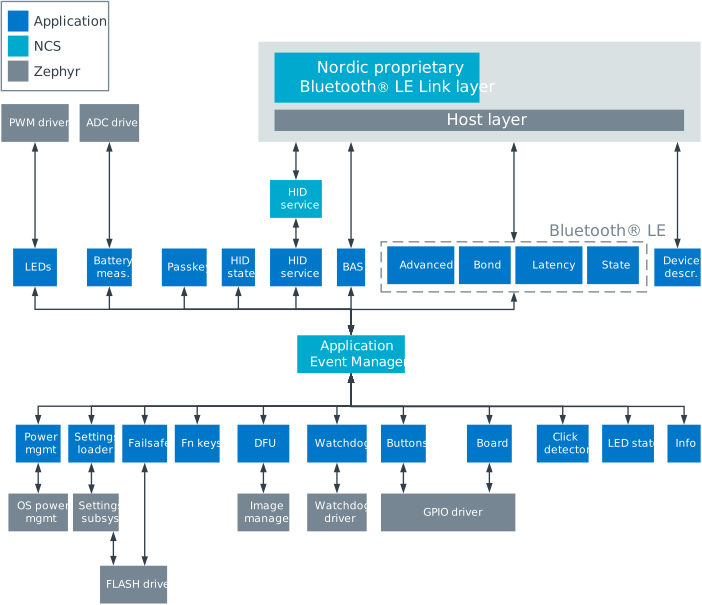
Application configured as a keyboard
Dongle module set
The following figure shows the modules that are enabled when the application is working as a dongle:
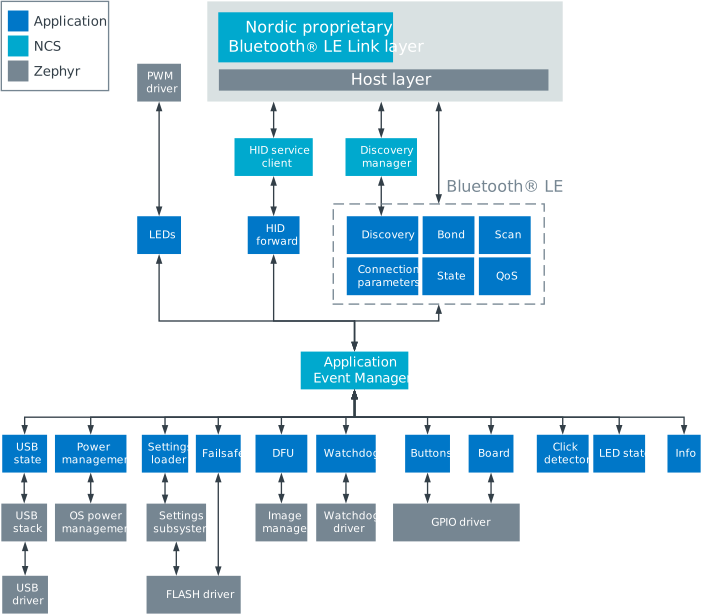
Application configured as a dongle
Thread usage
The application limits the number of threads in use to the minimum and does not use the user-space threads.
The following threads are kept running in the application:
- Application-related threads
Motion sensor thread (running only on mouse)
Settings loading thread (enabled by default only on keyboard)
QoS data sampling thread (running only if Bluetooth LE QoS feature is enabled)
Most of the application activity takes place in the context of the system work queue thread, either through scheduled work objects or through the Application Event Manager callbacks (executed from the system workqueue thread). Because of this, the application does not need to handle resource protection. The only exception are places where the interaction with interrupts or multiple threads cannot be avoided.
Memory allocation
Most of memory resources that are used by the application are allocated statically.
The application uses dynamic allocation to:
Create the Application Event Manager events. For more information, see the Application Event Manager page.
Temporarily store the HID-related data in the HID state module and HID forward module. For more information, see the documentation pages of these modules.
When configuring heap, make sure that the values for the following options match the typical event size and the system needs:
CONFIG_HEAP_MEM_POOL_SIZE- The size must be big enough to handle the worst possible use case for the given device.
Important
The nRF Desktop uses k_heap as the backend for dynamic allocation.
This backend is used by default in Zephyr.
For more information, refer to Zephyr’s documentation about Memory Heaps.
HID data handling
The nRF Desktop device and the host can exchange HID data using one of the following HID report types:
HID input report
HID output report
HID feature report
The nRF Desktop application uses all of these report types. See sections below for details about handling given HID report type.
HID input reports
The nRF Desktop application uses HID input reports to transmit information about user input from the nRF Desktop device to a host. The user input can be, for example, button press or mouse motion.
The nRF Desktop supports the following HID input reports:
HID mouse report
HID keyboard report
HID consumer control report
HID system control report
All of these reports use predefined report format and provide the given information. For example, the mouse motion is forwarded as HID mouse report.
An nRF Desktop device supports the selected subset of the HID input reports. For example, an nRF54L Series DK keyboard configuration supports HID keyboard report, HID consumer control report and HID system control report.
As an example, the following section describes handling HID mouse report data.
HID mouse report handling
The nRF Desktop mouse sends HID input reports to the host after the host connects and subscribes for the HID reports.
The Motion module sensor sampling is synchronized with sending the HID mouse input reports to the host.
The Wheel module and CAF: Buttons module provide data to the HID provider mouse module when the mouse wheel is used or a button is pressed, respectively. These inputs are not synchronized with the HID report transmission to the host.
When the mouse is constantly in use, the motion module is kept in the fetching state. In this state, the nRF Desktop mouse forwards the data from the motion sensor to the host in the following way:
USB state (or Bluetooth HIDS) sends a HID mouse report to the host and submits a
hid_report_sent_event.The event triggers sampling of the motion sensor.
A dedicated thread is used to fetch the sample from the sensor.
After the sample is fetched, the thread forwards it to the HID provider mouse module as a
motion_event.The HID provider mouse module updates the HID report data and notifies the HID state module (
hid_state_api.trigger_report_send). The HID state module instantly asks the HID provider mouse module to provide a HID mouse input report (hid_report_provider_api.send_report). While handling the request, the HID provider mouse generates and submits the HID mouse input report as ahid_report_event.The HID report data is forwarded to the host either by the USB state module or by the HID Service module. The USB state has precedence if the USB is connected.
When the HID input report is sent to the host, a
hid_report_sent_eventis submitted. The motion sensor sample is triggered and the sequence repeats.
If the device is connected through Bluetooth LE or the device is connected through USB and USB Start of Frame (SOF) synchronization is enabled, the HID provider mouse module uses a pipeline that consists of two HID reports that it creates upon receiving the first motion_event.
In response to two requests from the HID state module, the HID provider mouse module submits two hid_report_event events to generate the pipeline.
Sending the first event to the host triggers the motion sensor sample.
For the Bluetooth connections, submitting the hid_report_sent_event is delayed by one Bluetooth connection interval.
Because of this delay, the HID Service module requires a pipeline of two sequential HID reports to make sure that data is sent on every connection event.
Such a solution is necessary to achieve a high report rate.
For USB Start of Frame (SOF) synchronization, the pipeline of two sequential HID reports is necessary to ensure that a USB peripheral can provide HID data on every USB poll.
If there is no motion data for the predefined number of samples, the Motion module goes to the idle state. This is done to reduce the power consumption. When a motion is detected, the module switches back to the fetching state.
The following diagram shows the data exchange between the application modules. To keep it simple, the diagram only shows data related to HID input reports that are sent after the host is connected and the HID subscriptions are enabled.
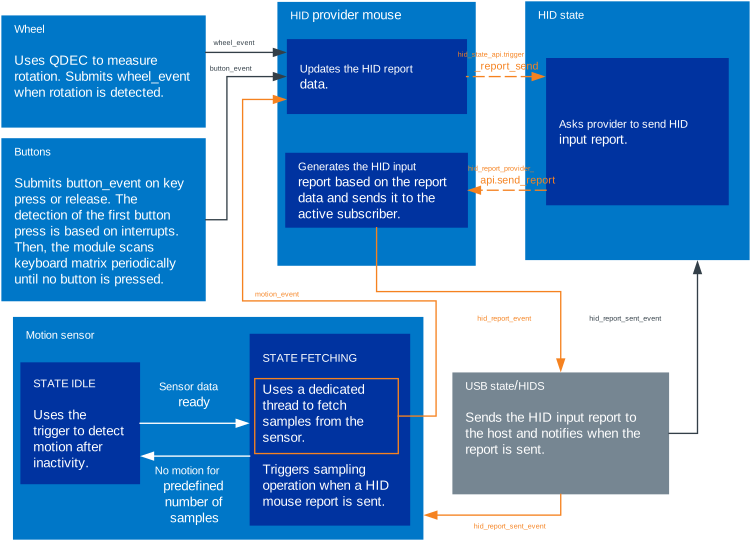
nRF Desktop mouse HID data sensing and transmission
HID output reports
HID output reports are used to transmit data from host to an nRF Desktop device. The nRF Desktop supports the HID keyboard LED report. The report is used by the host to update the state of the keyboard LEDs, for example to indicate that the Caps Lock key is active.
Note
Keyboard configurations on the nRF54L15 and nRF54LS05 DKs can display HID keyboard LED state using hardware LEDs.
On the nRF54L15 DK, only Num Lock is mapped to a hardware LED.
On the nRF54LS05 DK, both Num Lock and Caps Lock are mapped to hardware LEDs.
The following diagrams show the HID output report data exchange between the application modules.
Scenario 1: Peripheral connected directly to the host
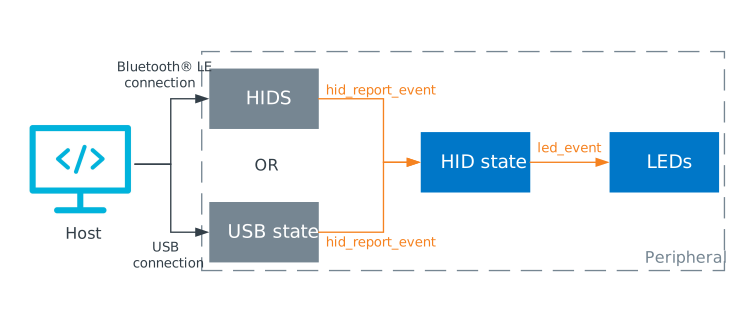
HID output report: Data handling and transmission between host and peripheral
In this scenario, the HID output report is sent from the host to the peripheral either through Bluetooth or the USB connection. Depending on the connection, the HID report is received by the HID Service module or USB state module, respectively. The module then sends the HID output report as
hid_report_eventto the HID state module that keeps track of the HID output report states and updates state of the hardware LEDs by sendingled_eventto LEDs module.Scenario 2: Dongle intermediates between the host and the peripheral
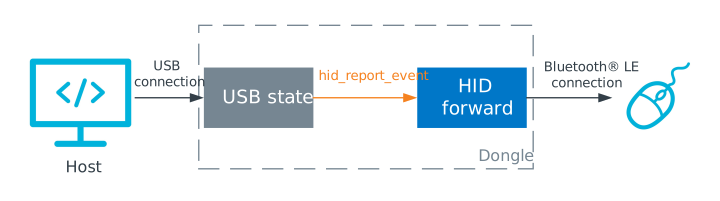
HID output report: Data handling and transmission between host and peripheral through dongle
In this scenario, the HID output report is sent from the host to the dongle using the USB connection and is received by the USB state module. The destination module then sends the HID output report as
hid_report_eventto the HID forward module that sends it to the peripheral using Bluetooth.
HID feature reports
HID feature reports are used to transmit data between the host and an nRF Desktop device (in both directions). The nRF Desktop uses only one HID feature report: the user config report. The report is used by the Configuration channel.
Note
The nRF Desktop also uses a dedicated HID output report to forward the Configuration channel data through the nRF Desktop dongle.
This report is handled using the configuration channel’s infrastructure and you can enable it using the CONFIG_DESKTOP_CONFIG_CHANNEL_OUT_REPORT Kconfig option.
See the Kconfig option’s help for details about the report.
HID protocols
The following HID protocols are supported by nRF Desktop for HID input and output reports:
Report protocol - Most widely used in HID devices. When establishing a connection, the host reads a HID descriptor from the HID device. The HID descriptor describes the format of HID reports and is used by the host to interpret the data exchanged between the HID device and the host.
Boot protocol - Only available for mice and keyboards data. No HID descriptor is used for this HID protocol. Instead, fixed data packet formats must be used to send data between the HID device and the host.
Requirements
The nRF Desktop application supports several development kits related to the following hardware reference designs. Depending on the development kit you use, you need to select the respective configuration file and build type.
Hardware platforms |
PCA |
Board name |
Board target |
|---|---|---|---|
PCA10156 |
|
||
PCA10156 |
|
||
PCA10156 |
|
||
PCA10184 |
|
||
PCA10184 |
|
||
nRF54LS05 DK |
PCA10214 |
nrf54ls05dk |
|
nRF54LS05 DK |
PCA10214 |
nrf54ls05dk |
|
PCA10226 |
|
Depending on the configuration, a DK may act either as a mouse, keyboard, or dongle. For information about supported configurations for each board, see the nRF Desktop board configuration files section.
The application is designed to allow easy porting to new hardware. See nRF Desktop: Integrating your own hardware for details.
nRF Desktop build types
The nRF Desktop application uses multiple files to configure each specific build type. Those files can be easily identified by their File Suffixes. Before you start testing the application, you can select one of the build types supported by the application. Not every board supports all of the mentioned build types.
See Custom configurations and Providing CMake options for more information.
The application supports the following build types:
All build types except the HID SCI ones support Low Latency Packet Mode (LLPM).
Build type |
File suffix |
Example of supported board target |
Description |
|---|---|---|---|
Debug (default) |
none |
All from Requirements |
Debug version of the application; the same as the |
Release |
|
All from Requirements |
Release version of the application with no debugging features. |
Debug Fast Pair |
|
|
Debug version of the application with Fast Pair support. |
Release Fast Pair |
|
|
Release version of the application with Fast Pair support. |
Dongle |
|
|
Debug version of the application that acts as a Bluetooth LE LLPM dongle bridging radio connected HID peripherals. |
Release dongle |
|
|
Release version of the application that acts as a Bluetooth LE LLPM dongle bridging radio connected HID peripherals. |
Keyboard |
|
|
Debug version of the application that lets you generate the application with the keyboard role. |
Release keyboard |
|
|
Release version of the application that lets you generate the application with the keyboard role. |
HID SCI mouse |
|
|
Debug version of the application that acts as a mouse with HID Shorter Connection Intervals (SCI) support. |
Release HID SCI mouse |
|
|
Release version of the application that acts as a mouse with HID Shorter Connection Intervals (SCI) support. |
HID SCI keyboard |
|
|
Debug version of the application that acts as a keyboard with HID Shorter Connection Intervals (SCI) support. |
Release HID SCI keyboard |
|
|
Release version of the application that acts as a keyboard with HID Shorter Connection Intervals (SCI) support. |
Dongle quadruple LLPM connection |
|
|
Debug version of the application with the support for up to four simultaneous Bluetooth LE connections, in Low Latency Packet Mode. |
Release dongle quadruple LLPM connection |
|
|
Release version of the application with support for up to four simultaneous Bluetooth LE connections in Low Latency Packet Mode. |
HID SCI dongle |
|
|
Debug version of the application that acts as a Bluetooth LE HID SCI dongle bridging radio connected HID peripherals. |
Release HID SCI dongle |
|
|
Release version of the application that acts as a Bluetooth LE HID SCI dongle. |
LLVM |
|
|
Debug version of the application with the support for the |
RAM load |
|
|
Debug version of the application that uses the MCUboot bootloader in the RAM load mode and executes the application code from RAM. |
Release RAM load |
|
|
Release version of the application that uses the MCUboot bootloader in the RAM load mode and executes the application code from RAM. |
Note
Bootloader-enabled configurations with support for serial recovery DFU or background DFU are set as default if they fit in the non-volatile memory. See nRF Desktop board configuration files for details about which boards have bootloader included in their default configuration.
See nRF Desktop: Integrating your own hardware for detailed information about the application configuration and how to create build type files for your hardware.
User interface
The nRF Desktop configuration files have a set of preprogrammed options bound to different parts of the hardware. These options are related to the functionalities discussed in this section.
HID user input generation
On the nRF54 Series DK reference configurations, the onboard buttons are used to generate HID user input when the device acts as a mouse or keyboard peripheral. Some buttons also support Bluetooth LE peer control operations.
In the default mouse configurations, all four onboard buttons are used to simulate mouse movement.
The buttons are assigned as follows:
- Button 0
Generates upward mouse movement. Button 0 is also assigned to Bluetooth LE peer control operations.
- Button 1
Generates rightward mouse movement.
- Button 2
Generates leftward mouse movement.
- Button 3
Generates downward mouse movement.
Pressing and holding a button generates continuous movement in the corresponding direction. See the Motion module documentation page for details.
In the default keyboard configurations, the onboard buttons simulate a limited set of keyboard keys.
The buttons are assigned as follows:
- Button 0
Acts as an A keyboard key. Button 0 is also assigned to Bluetooth LE peer control operations.
- Button 1
Acts as a B keyboard key.
- Button 2
Acts as the left Shift keyboard key.
- Button 3
Starts or stops the button simulator module. When started, the module automatically generates a predefined sequence of key presses that types
nordic(including the trailing space character) on the connected HID host until the module is stopped.
Turning devices on and off
The nRF Desktop devices are equipped with on-board hardware switches to turn the device on and off.
Connectability
The nRF Desktop devices provide user input to the host in the same way as other mice and keyboards, using connection through USB or Bluetooth LE.
The nRF Desktop devices support additional operations, like firmware upgrade or configuration change. The support is implemented through the Configuration channel. The host can use dedicated Python scripts to exchange the data with an nRF Desktop peripheral. For detailed information, see HID configurator for nRF Desktop.
The behavior of a device can change due to power saving measures. For more information, see the Power management section.
Connection through USB
The nRF Desktop devices use the USB HID class. No additional software or drivers are required.
The nRF54LM20 DK Mouse and Dongle configurations support the HID data transmission through USB.
Mouse USB
The gaming mouse can send HID data when connected through USB. When the device is connected both wirelessly and through USB at the same time, it provides input only through the USB connection. If the device is disconnected from USB, it automatically switches to sending the data wirelessly using Bluetooth LE.
Dongle USB
The nRF Desktop dongle works as a bridge between the devices connected through standard Bluetooth LE, Low Latency Packet Mode (LLPM), or Bluetooth with Shorter Connection Intervals (SCI) support, and the host connected through USB. It receives data wirelessly from the connected peripherals and forwards the data to the host.
The nRF Desktop dongle is powered directly through USB.
Connection through Bluetooth LE
When turned on, the nRF Desktop peripherals are advertising until they go to the suspended state or connect through Bluetooth. The peripheral supports one wireless connection at a time, but it can be bonded with multiple peers.
Note
To simplify pairing the nRF Desktop peripherals with Windows 10 hosts, the peripherals include Swift Pair payload in the Bluetooth LE advertising data. By default, the Swift Pair payload is included for all of the Bluetooth local identities, apart from the dedicated local identity used for connection with an nRF Desktop dongle.
Some of the nRF Desktop configurations also include Fast Pair payload in the Bluetooth LE advertising data to simplify pairing the nRF Desktop peripherals with Android hosts. These configurations apply further modifications that are needed to improve the user experience. See the Fast Pair section for details.
The nRF Desktop Bluetooth Central device scans for all bonded peripherals that are not connected.
Right after entering the scanning state, the scanning operation is uninterruptible for a predefined time (CONFIG_DESKTOP_BLE_FORCED_SCAN_DURATION_S) to speed up connection establishment with Bluetooth Peripherals.
After the timeout, the scanning is interrupted when any device connected to the dongle through Bluetooth becomes active.
A connected peripheral is considered active when it provides HID input reports.
Continuing the scanning in such scenario would cause report rate drop.
The scanning starts automatically when one of the bonded peers disconnects. It also takes place periodically when a known peer is not connected.
The peripheral connection can be based on standard Bluetooth LE connection parameters, on Bluetooth LE with Low Latency Packet Mode (LLPM), or on HID Shorter Connection Intervals (SCI).
LLPM is a proprietary Bluetooth extension from Nordic Semiconductor. It can be used only if it is supported by both connected devices (desktop mice do not support it). LLPM enables sending data with high report rate (up to 1000 reports per second), which is not supported by the standard Bluetooth LE.
HID SCI is a standardized mechanism defined in the HID Over GATT Profile Specification.
It can be used only if it is supported by both connected devices.
For example, use the hid_sci and hid_sci_dongle build types to evaluate HID SCI on an nRF Desktop peripheral and dongle.
HID SCI enables shorter Bluetooth LE connection intervals than the standard 7.5 ms minimum, which allows higher HID report rates and lower latency while remaining compliant with the Bluetooth specification.
The nRF Desktop application uses the SoftDevice Link Layer and supports connection intervals as short as 750 µs.
HID SCI cannot be used together with LLPM on the same device.
Bluetooth LE peer control
A connected Bluetooth LE peer device can be controlled using predefined buttons or button combinations. There are several peer operations available.
The application distinguishes between the following button press types:
Short - Button pressed for less than 0.5 seconds.
Standard - Button pressed for more than 0.5 seconds, but less than 5 seconds.
Long - Button pressed for more than 5 seconds.
Double - Button pressed twice in quick succession.
The peer operation states provide visual feedback through LEDs (if the device has LEDs).
Each of the states is represented by separate LED color and effect.
The LED colors and effects are described in the led_state_def.h file located in the board-specific directory in the application configuration directory.
The assignments of hardware interface elements depend on the device type.
The following predefined button is assigned to peer control operations for an nRF54 Series DK:
- Button 0
If the DK acts as a dongle:
Long-press the Button 0 to initialize peer erase. When LED1 starts blinking rapidly, double-press to confirm the operation. After the confirmation, all the Bluetooth bonds are removed for the dongle.
Short-press to start scanning for both bonded and non-bonded Bluetooth Peripherals. After the forced scan timeout, the scan is interrupted if another peripheral connected to the dongle is active.
Note
A breathing LED indicates that the device has entered either scanning or advertising mode. This happens when the device is looking for a peer to connect to.
You can cancel the ongoing peer operation with a standard button press.
If the DK acts as a peripheral:
Press the Button 0 before the DK is powered up with the on/off switch. Long-press to initialize and confirm the peer erase. After the confirmation, Bluetooth advertising using a new local identity is started. When a new Bluetooth Central device successfully connects and bonds, the old bond is removed and the new bond is used instead. If the new peer does not connect in the predefined period of time, the advertising ends and the application switches back to the old peer.
Note
A breathing LED indicates that the device has entered either scanning or advertising mode. This happens when the device is looking for a peer to connect to.
You can cancel the ongoing peer operation with a standard button press.
LED indication
When available, the onboard LEDs provide user feedback about the device, Bluetooth peer, and HID keyboard LED state.
The nRF54 Series DK uses onboard LEDs for user feedback as follows:
- LED0 — system state
Kept lit while the device is active. After a system error, the LED will blink rapidly for some time before the device is reset.
- LED1 — Bluetooth peer state
Shows the Bluetooth connection and peer management state. A breathing or blinking LED effect, depending on the DK, indicates ongoing peer search (either Bluetooth scanning or advertising). The LED is kept lit while the device maintains a Bluetooth connection. The LED blinks rapidly while the device is waiting for user confirmation of a Bluetooth LE peer operation. See Bluetooth LE peer control for details about peer operations that change the LED effect.
When the device acts as a keyboard, the onboard LEDs indicate the HID keyboard LED states as follows:
- LED2 — Num Lock
Kept lit when Num Lock is enabled on the connected host.
- LED3 — Caps Lock
Kept lit when Caps Lock is enabled on the connected host. Configured only by the nRF54LS05 DK.
Debugging
You can program and debug development kits using a J-Link debugger connected to the DK.
Power management
Reducing power consumption is important for every battery-powered device.
The nRF Desktop peripherals are either suspended or powered off when they are not in use for a defined amount of time:
In the suspended state, the device maintains the active connection.
In the powered off state, the CPU is switched to the off mode.
In both cases, most of the functionalities are disabled. For example, LEDs are turned off and advertising is stopped.
Moving the mouse or pressing any button wakes up the device and turns on the disabled functionalities.
You can define the amount of time after which the peripherals are suspended or powered off using the CONFIG_CAF_POWER_MANAGER_TIMEOUT Kconfig option.
By default, this period is set to 120 seconds.
Important
When the gaming mouse is powered from USB, the power down timeout functionality is disabled.
If a nRF Desktop device supports remote wakeup, the USB connected device goes to suspended state when USB is suspended. The device can then trigger remote wakeup of the connected host on user input.
Configuration
See Configuring and building for information about how to permanently or temporarily change the configuration.
This section also describes the configuration sources that are used for the default configuration.
Configuration sources
The nRF Desktop application uses the following files as configuration sources:
Devicetree Specification (DTS) files - These reflect the hardware configuration. See Devicetree Guide for more information about the DTS data structure.
_deffiles - These contain configuration arrays for the application modules and are specific to the nRF Desktop application.Kconfig files - These reflect the software configuration. See Kconfig - Tips and Best Practices for information about how to configure them.
For information about differences between DTS and Kconfig, see Devicetree versus Kconfig.
The nRF Desktop introduces application-specific Kconfig options that can be used to simplify an application configuration. For more information, see the nRF Desktop: Application-specific Kconfig options page.
The nRF Desktop application can be used with various hardware boards. For more information about board support in the application, see nRF Desktop: Board configuration.
You can also configure the following feature in the nRF Desktop application:
Building and running
The nRF Desktop application is built the same way to any other nRF Connect SDK application or sample.
This application can be found under applications/nrf_desktop in the HID Add-on folder structure.
To build the application, follow the instructions in Building an application for your preferred building environment. See also Programming an application for programming steps and Testing and optimization for general information about testing and debugging in the nRF Connect SDK.
Memory footprint usage
You can display a detailed memory footprint report for either the main application image or for other sysbuild images that are built together with the main application image (for example, mcuboot or the b0 bootloader).
Memory footprint information is displayed separately per every sysbuild image.
To get the memory footprint for a given image, run the following commands from the application directory (applications/nrf_desktop):
west build -d <build_dir>/<image_name> -t rom_report
west build -d <build_dir>/<image_name> -t ram_report
For more information, see the Zephyr’s Optimization Tools documentation.
Selecting a build type
Before you start testing the application, you can select one of the nRF Desktop build types, depending on your development kit. See Custom configurations and Providing CMake options for information about how to select a build type.
Note
An nRF Desktop device with Fast Pair support by default uses the debug Fast Pair Model ID and Anti Spoofing private key obtained by Nordic Semiconductor for development purposes. The following debug Fast Pair Model IDs were registered to be used with the nRF Desktop application:
NCS keyboard - The Fast Pair Provider meant to be used with keyboards:
Device Name: NCS keyboard
Model ID:
0x52FF02Anti-Spoofing Private Key (Base64, uncompressed):
8E8ulwhSIp/skZeg27xmWv2SxRxTOagypHrf2OdrhGY=Device Type: Input Device
Notification Type: Fast Pair
Data-Only connection: true
No Personalized Name: false
NCS gaming mouse - Fast Pair Provider meant to be used with gaming mice:
Device Name: NCS gaming mouse
Model ID:
0x8E717DAnti-Spoofing Private Key (Base64, uncompressed):
dZxFzP7X9CcfLPC0apyRkmgsh3n2EbWo9NFNXfVuxAM=Device Type: Mouse
Notification Type: Fast Pair
Data-Only connection: true
No Personalized Name: false
See Provisioning the device documentation for the following information:
Registering a Fast Pair Provider
Provisioning a Fast Pair Provider in nRF Connect SDK
Important
This is the debug Fast Pair provisioning data obtained by Nordic for the development purposes. Do not use it in production.
To test with the debug mode Model ID, you must configure the Android device to include the debug results while displaying the nearby Fast Pair Providers. For details, see Verifying Fast Pair in the GFPS documentation.
nRF54L MCUboot provisioning
nRF54L-based nRF Desktop devices enable hardware cryptography for the MCUboot bootloader. To implement the secure boot feature, the bootloader requires a set of private and public keys. The private key is used to sign the application image. The public key is generated from the private key and is used by MCUboot to validate the application image. The public key is securely stored in the Key Management Unit (KMU) hardware peripheral of the nRF54L device.
In this application, the application image is automatically signed with a private key by the nRF Connect SDK build system.
The private keys are stored in the application configuration directory of the board.
Path to the private key is defined by the SB_CONFIG_BOOT_SIGNATURE_KEY_FILE sysbuild Kconfig option.
To store the public key in the KMU, it must first be provisioned.
This provisioning step can be performed automatically by the west runner, provided that a keyfile.json file is present in the build directory.
In this application, the keyfile.json file is automatically generated using the SB_CONFIG_MCUBOOT_GENERATE_DEFAULT_KEY_FILE Kconfig option.
This option uses the private key specified by the SB_CONFIG_BOOT_SIGNATURE_KEY_FILE sysbuild Kconfig option to generate the required file during the build process.
To trigger KMU provisioning during flashing, use the west flash command with either the --erase or --recover flag.
This ensures that both the firmware and the MCUboot public key are correctly programmed onto the target device using the KMU-based key storage.
Use the following command to perform the operation:
west flash --recover
Alternatively, you can perform the provisioning operation manually with the west ncs-provision upload command and then flash the device with the west flash command.
You only need to provision one public key to an nRF Desktop device. For details, see Provisioning the KMU.
Note
You must provision the device again after erasing it.
Testing
You can build and test the application in various configurations.
Note
The following sections use nRF54L15 DK and nRF54LM20 DK as example testing devices. You can also test with other DKs supported by the nRF Desktop application.
The default build type uses prj.conf.
Other build types are supported for a given device when the corresponding prj_<build_type>.conf exists in the configuration/<board_name>/ directory.
For example, the configuration/nrf54l15dk_nrf54l15_cpuapp/prj_keyboard.conf file introduces support for keyboard build type for the nrf54l15dk/nrf54l15/cpuapp board target.
See the nRF Desktop build types section for detailed description of the supported build types.
Basic Bluetooth LE connection testing
See the following subsections for detailed testing steps for connection through a HID dongle and direct connection to a HID host. You can use debug configurations for initial testing. The debug configurations allow you to observe logs and validate the device’s behavior through assertions.
Debug features, such as logging or assertions, decrease the application’s performance. Make sure to rely on release configurations for performance and power consumption testing. See the Measuring HID report rate section for details.
Note
The application configurations used by the described test scenarios enable Low Latency Packet Mode (LLPM).
You can follow the same runtime testing steps with hid_sci build types to evaluate a Bluetooth LE HID Shorter Connection Intervals (SCI) connection.
For the direct connection testing, the HID host must also support HID SCI.
See the Connection through Bluetooth LE section for details.
Connection through a HID dongle
This section describes testing connection through a HID dongle.
Build the mouse using the default build type for the
nrf54l15dk/nrf54l15/cpuappboard target, the keyboard using thekeyboardbuild type for the same board target, and the dongle using thedonglebuild type for thenrf54lm20dk/nrf54lm20b/cpuappboard target. See nRF Desktop build types for details.Program the required firmware to each device. Power off each device right after programming so that you can power on the devices in the order described in the following steps.
Note
Use
west flash --recoverto clear settings (including Bluetooth LE bond data) from the non-volatile memory and provision the MCUboot public key. See nRF54L MCUboot provisioning.Power on the mouse and keyboard DKs using the power switch. LED1 on the keyboard and LED1 on the mouse start breathing. This indicates ongoing Bluetooth advertising.
Connect the board acting as dongle to the USB port. Make sure to connect both the USB port used by debugger (
DEBUGGER USB) and by the nRF54LM20 SoC running nRF Desktop application (nRF54LM20 USB). The first one is used to access UART logs. The second one allows the HID dongle to forward user input to the host computer.Power on the dongle using the power switch. LED1 on the dongle starts breathing. This indicates that the dongle is scanning for peripherals.
Wait for the establishment of the Bluetooth connection, which happens automatically. After both peripherals are connected to the dongle over Bluetooth LE, LED1 on the dongle and both peripherals stops breathing and remains lit. You can now use the devices simultaneously.
Note
You can manually start the scanning for new peripheral devices by short-pressing Button 0 on the dongle. This might be needed if the dongle does not connect with all the peripherals before scanning is interrupted by a timeout.
Press the buttons on the mouse DK to simulate motion and press any button on the keyboard DK. The input is reflected on the host computer.
Direct connection to a HID host
This section describes testing direct connection to a HID host.
Build the mouse using the default build type for the
nrf54l15dk/nrf54l15/cpuappboard target or the keyboard using thekeyboardbuild type for the same board target. See nRF Desktop build types for details.Program the required firmware to the device.
Note
Use
west flash --recoverto clear settings (including Bluetooth LE bond data) from the non-volatile memory and provision the MCUboot public key. See nRF54L MCUboot provisioning.Observe that LED1 on the device starts breathing. This indicates ongoing Bluetooth advertising.
Connect to the device with an Android phone, a laptop, or any other Bluetooth Central acting as a HID host. Exact steps depend on the used HID host. Generally, you can connect a new Bluetooth LE HID device in the Bluetooth settings menu.
After the Bluetooth connection is established, the LED stops breathing and remains lit. Press the buttons on the DK to simulate user input. The input is reflected on the HID host.
Note
An nRF Desktop HID peripheral device with USB support (for example, nRF54LM20 DK) can also provide user input through the USB. You can program a mouse configuration onto the nRF54LM20 DK and then connect the DK to the HID host computer through the SoC’s USB port to test this functionality. In case the DK is simultaneously connected to two HID hosts through USB and Bluetooth LE, only the HID host connected over USB will receive user input.
Removing Bluetooth bonds
An nRF Desktop HID device (either peripheral or dongle) pairs and bonds with the connected peer device over Bluetooth LE. This enables automatic reconnections and encryption of data sent wirelessly over Bluetooth LE.
After reaching its configured bond limit, an nRF Desktop device cannot establish bonded connections with additional peer devices:
By default, an nRF Desktop peripheral (mouse or keyboard) connects and bonds with only one HID host (or HID dongle) for each used local identity.
By default, an nRF Desktop dongle connects and bonds with at least one nRF Desktop HID mouse and at least one nRF Desktop HID keyboard. Most of the configurations allow for one mouse and one keyboard. You can use the
dongle_4llpmconnandrelease_dongle_4llpmconnbuild types to test simultaneous connections with more than two HID peripherals. These configurations are supported, for example, by thenrf54lm20dk/nrf54lm20b/cpuappboard target.
The Bluetooth LE bonding information is stored in the non-volatile memory so it persists after reboots. To allow connecting and bonding with other peer devices, you need to erase Bluetooth LE bonds. See the User interface section for details.
Note
The HID host also stores the Bluetooth LE bonding information in the non-volatile memory. The bonding information persists until it is manually removed by the user.
Measuring HID report rate
You can measure a HID report rate of your application to assess the performance of your HID device. This measurement allows you to check how often the host computer can get user’s input from the HID device.
Prerequisites
The HID report rate can be measured by using either browser-based or platform-specific tools. You can use any preferred HID report rate tool.
Note
The host computer controls polling a HID peripheral for HID reports. The HID peripheral cannot trigger sending a HID report even if the report is prepared in time. Polling inaccuracies and missing polls on the host side can negatively affect the measured report rate. Make sure to close all unnecessary PC applications to mitigate negative impact of these applications on polling HID devices. If you are using a browser-based tool, leave open only the tab with HID report rate measurement tool to ensure that no other tab influences the measurement.
Building information
Use the configuration with the release file suffix for the HID report rate measurement.
Debug features, such as logging or assertions, decrease the application performance.
Decreased performance can lead to lower HID mouse report rate or increased user input latency.
Note
You can run the application code from RAM instead of NVM to improve performance as code execution from the RAM is generally faster than from the NVM. You can configure MCUboot to use the RAM load mode to run the whole application image from RAM. For details, see the RAM load mode section.
Use the nRF Desktop configuration that acts as a HID mouse reference design for the report rate measurement, as the motion data polling is synchronized with sending HID reports.
Make sure your chosen motion data source will generate movement in each poll interval. Without a need for user’s input, you can generate HID reports that contain mouse movement data. Use the Motion simulated module for this.
To build an application for evaluating HID report rate, run the following command:
west build -p -b board_target -- -DFILE_SUFFIX=release -DCONFIG_DESKTOP_MOTION_SIMULATED_ENABLE=y
Report rate measuring tips
See the following list of possible scenarios and best practices:
If two or more peripherals are connected through the dongle, and all of the devices support LLPM, the Bluetooth LE LLPM connection events split evenly among all of the peripherals connected through that dongle. It results in decreased HID report rate. For example, you should observe a 500 Hz HID report rate when both mouse and keyboard are connected through the dongle and a 1000 Hz rate when only the mouse is connected.
If two or more HID SCI peripherals are connected through the dongle, the minimum connection interval for each link is scaled by the number of connected HID SCI peripherals. This keeps Bluetooth LE connection events evenly scheduled and predictable, but it also reduces the achievable HID report rate for each device. For example, you should observe a 1333 Hz HID report rate when a single peripheral is connected through the dongle and a 666 Hz rate when two peripherals are connected. For details, see the HID SCI section.
If a HID peripheral is connected through a dongle, the dongle’s performance must be taken into account when measuring the report rate. Delays related to data forwarding on the dongle also result in reduced report rate.
If the device is connected through Bluetooth LE directly to the HID host, the host sets the Bluetooth LE connection interval. A Bluetooth LE peripheral can suggest the preferred connection parameters. You can set the suggested connection interval using the
CONFIG_BT_PERIPHERAL_PREF_MIN_INTandCONFIG_BT_PERIPHERAL_PREF_MAX_INTKconfig options. Set parameters are not enforced, meaning that the HID host may still eventually use a value greater than the maximum connection interval requested by a peripheral.Radio frequency (RF) noise can negatively affect the HID report rate for wireless connections. If a HID report fails to be delivered in a given Bluetooth LE LLPM connection event, it is retransmitted in the subsequent connection event, which effectively reduces the report rate. By avoiding congested RF channels, the Bluetooth LE Quality of Service module helps to achieve better connection quality and a higher report rate (currently not available on the supported boards).
For the USB device connected directly, the applicable options will vary depending on the used USB stack:
If you use the USB legacy stack (
CONFIG_DESKTOP_USB_STACK_LEGACY), you can configure your preferred USB HID poll interval using theCONFIG_USB_HID_POLL_INTERVAL_MSKconfig option. By default, theCONFIG_USB_HID_POLL_INTERVAL_MSKconfig option is set to1to request the lowest possible poll interval.If you use the USB next stack (
CONFIG_DESKTOP_USB_STACK_NEXT), you can configure your preferred USB HID polling rate using thein-polling-period-usproperty of a DTS node compatible withzephyr,hid-device. The lowest polling rate that is supported by the USB High-Speed is 125 µs, which corresponds to 8 kHz report rate. The lowest polling rate supported by devices that do not support USB High-Speed is 1000 µs, which corresponds to 1 kHz report rate.
Polling parameters are not enforced, meaning that the HID host may still eventually use a value greater than the USB polling parameter requested by a peripheral.
USB High-Speed
You can use the nRF54LM20 DK to evaluate USBHS.
Use the release_ram_load configuration and slightly modify the simulated motion module’s configuration to ensure that non-zero motion values are reported in every HID report.
See an example of the build command:
west build -p -b nrf54lm20dk/nrf54lm20a/cpuapp -- -DFILE_SUFFIX=release_ram_load -DCONFIG_DESKTOP_MOTION_SIMULATED_ENABLE=y -DCONFIG_DESKTOP_MOTION_SIMULATED_EDGE_TIME=8192 -DCONFIG_DESKTOP_MOTION_SIMULATED_SCALE_FACTOR=5
For information about generating motion data, see the Motion report rate documentation section.
Testing steps
After building the application, test the nRF Desktop by performing the following steps:
Program the device with the built firmware.
Note
On first programming of the nRF54L15 and nRF54LM20 DKs, use
west flash --recoverto provision the MCUboot public key. See nRF54L MCUboot provisioning.Connect the device to the computer using a preferred transport (Bluetooth LE, USB, dongle).
Turn on the device. If you use the motion simulated module to generate the mouse movement, the device should automatically start to draw an octagon shape on the screen. Otherwise, you need to constantly keep generating motion manually, for example, by pressing the buttons on the mouse DK.
Turn off the device to finalize test preparations.
Launch selected HID report rate measurement tool.
Turn back on the device.
Run the measurement following the documentation for the selected HID report rate measurement tool.
Verify the average HID report rate reported by tool.
Windows Hardware Lab Kit tests
The nRF Desktop devices have passed the tests from official playlist required for compatibility with Windows 10 by Windows Hardware Compatibility Program (HLK Version 1903 CompatPlaylist x86 x64 ARM64.xml).
The tests were conducted using Windows Hardware Lab Kit.
Dependencies
This application uses the following nRF Connect SDK libraries and drivers: