
Sidewalk end device
This sample demonstrates how to implement an end device for the Sidewalk End Device application. It supports Bluetooth® LE, LoRa, and FSK link modes. It also uses external Quad Serial Peripheral Interface (QSPI) Flash for firmware updates.
Requirements
This sample supports the following development kits:
Hardware platforms |
PCA |
Board name |
Build target |
|---|---|---|---|
PCA10056 |
|
||
PCA10156 |
nrf54l15dk/nrf54l15/cpuappnrf54l15dk/nrf54l15/cpuapp/ns |
||
PCA10156 |
|
||
PCA10188 |
|
||
PCA10184 |
nrf54lm20dk/nrf54lm20a/cpuappnrf54lm20dk/nrf54lm20b/cpuapp |
To run the sample in the Bluetooth LE link mode, you only need the development kit. However, if you want to run the sample with LoRa or FSK configuration, you also need the LoRa radio module. The supported modules are as follows:
Radio chip |
Board name |
Interface |
|---|---|---|
SX126xMB2xAS |
SPI @ 8MHz |
|
LR1110MB1LCKS |
SPI @ 8MHz |
|
SPI @ 8MHz |
Note
To use sub-GHz radio, the Semtech shield must be connected to the development kit header, and the antenna must be connected to the radio module. For the exact pin assignment, refer to the Pinout section.
Wi-Fi location hardware
To use Wi-Fi-based location scanning without the LR1110 radio, you can attach the nRF7002 EB II shield, which hosts an nRF70 Series Wi-Fi companion IC. The shield is supported on the nRF54L15 DK and the nRF54LM20 DK.
The companion IC runs in the scan-only mode of the nRF70 driver (CONFIG_NRF70_SCAN_ONLY, enabled by default for this feature).
This means that the IC provides Wi-Fi scanning for location purposes only, without Wi-Fi connectivity.
Enabling the Wi-Fi driver also increases the RAM and flash requirements of the application.
For more information about how Wi-Fi location works, see Location services.
Supported shield variants
The following shield variants are supported:
nrf7002eb2– Uses the nRF7002 IC.nrf7002eb2_nrf7001– Uses the nRF7001 IC.nrf7002eb2_nrf7000– Uses the nRF7000 IC.nrf7002eb2_coex– Adds the short-range radio coexistence pins. This variant extends one of the preceding variants instead of replacing them, so you must always build with two shields: a base variant andnrf7002eb2_coex.
Building with the shield
Note
The nRF70 Series driver requires Wi-Fi firmware binary blobs that are not distributed with the repository, and are not fetched by the west update command.
Run the west blobs fetch nrf_wifi command before the first build, and repeat it after every update of the nRF Connect SDK.
Add the selected shield variant with the --shield option when building the sample, for example:
$ west build -b nrf54l15dk/nrf54l15/cpuapp --shield nrf7002eb2
To add the coexistence pins, pass both shields as a semicolon-separated list:
$ west build -b nrf54l15dk/nrf54l15/cpuapp --shield "nrf7002eb2;nrf7002eb2_coex"
Limitations
The shield has the following limitations:
On both development kits, the shield conflicts with the second virtual serial port (VCOM1) on the UART20 pins, so the shield overlay disables UART20 and moves the console, shell, MCUmgr, and Bluetooth monitor to UART30. Use the first virtual serial port (VCOM0) when you run the sample, and disable VCOM1 in the Board Configurator application.
On the nRF54L15 DK, LED 1 shares a pin with the shield SPI chip select, and is unavailable while the shield is connected. The
state-notifier-time-syncalias is removed in such a build, so LED 1 no longer indicates the time synchronization state.On the nRF54LM20 DK, Button 3 shares a pin with the shield, and is unavailable while the shield is connected.
Overview
The purpose of the Sidewalk end device sample is to use it as a starting point when implementing a Sidewalk device. The sample demonstrates a simple Sidewalk application that allows you to send and receive messages, as well as update firmware. It also has a few variants you can choose from depending on your application needs.
Source file setup
The application consists of two source files:
main.c– The main source file. Starts Sidewalk application.sidewalk.c(sidewalk.h) – Sidewalk thread file. It is a common source file for all sample configurations. It implements a separate thread that calls the Sidewalk API. The file also includes support for the device firmware update (DFU). The following diagram shows the behavior of the state machine: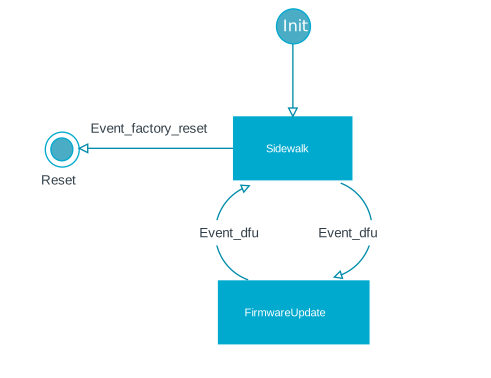
Sidewalk thread state machine.
Additionally, it has a variant-specific file:
app.c(app.h) – A file that implements the application’s logic. It communicates to the Sidewalk thread using events defined in thesidewalk.hfile, and receives Sidewalk callbacks defined in thesid_api.hfile. An application may consist of multipleapp_*files that are used to define user interface and realize application’s logic.
Configuration overview
When running the sample, you can use different configuration files depending on the supported features.
Configuration files
Configuration files are provided for different build types and are located in the application’s root directory. Build types are covered by dedicated files with the respective build type added to the file name. The same naming convention is followed if a board has other configuration files that are, for example, associated with a partition layout or child image configuration.
Before you start testing the application, you can select one of the build types supported by the sample. The sample supports the following build types:
Build type |
File name |
Supported board |
Description |
|---|---|---|---|
Debug (default) |
|
All from Requirements |
Debug version of the application. It can be used to enable additional features for verifying the application behavior, such as logs or command-line shell. |
Release |
|
All from Requirements |
Release version of the application. It can be used to enable only the necessary application functionalities to optimize its performance. |
You can build the release firmware for build_target by running the following command in the project directory:
$ west build -b build_target -- -DFILE_SUFFIX=release
For example:
$ west build -b nrf54l15dk/nrf54l15/cpuapp -- -DFILE_SUFFIX=release
Note
Selecting a build type is optional.
However, if the build type is not selected, the debug build type is used by default.
Secure Key Storage support
The Sidewalk Platform Abstraction Layer for nRF Connect SDK supports a trusted storage mechanism to securely store non-volatile Sidewalk keys. Read Secure storage for more details.
Device Firmware Upgrade support
The sample supports over-the-air (OTA) device firmware upgrade (DFU) using one of the two following protocols:
Simple Management Protocol (SMP) over Bluetooth® LE. In this case, the DFU is performed using a smartphone application or a PC command line tool. This protocol is not a part of the Sidewalk specification.
Downlink file transfer over Bluetooth LE (experimental). This method uses the Sidewalk Bulk Data Transfer (SBDT) mode and integration of AWS IoT FUOTA service to send files to fleet of IoT devices from the AWS IoT FUOTA task. For more details, see the Sidewalk Bulk Data Transfer section in the Amazon Sidewalk specification.
Note
To test this functionality, you must have access to S3 bucket. To gain it, contact your account manager or sidewalk-beta-support@amazon.com. In the message provide your AWS account ID to be added to the allowlist.
In both cases, the MCUboot secure bootloader is used to apply the new firmware image.
The DFU over SMP is enabled by default.
The following configuration arguments are available during the build process for configuring DFU:
To enable support for the downlink file transfer over Bluetooth LE, use the
-DCONFIG_SIDEWALK_FILE_TRANSFER=ybuild flag.
Selecting a sample variant
You can choose a sample variant depending on your needs. Testing application scenarios differ depending on the selected Sidewalk configuration:
overlay-hello– The default configuration. Use it to run the Hello Sidewalk variant.overlay-demo– Use this configuration to run the Sensor monitoring variant.overlay-dut– Use this configuration to run the Device under test (DUT) variant. The overlay enables CLI and disables sample automation.
You can build an end device application with the selected overlay by running the following command in the project directory:
$ west build -b build_target -- -DOVERLAY_CONFIG="overlay-name.conf"
For example, to build the Sidewalk DUT configuration overlay, run the following command:
$ west build -b nrf54l15dk/nrf54l15/cpuapp -- -DOVERLAY_CONFIG="overlay-dut.conf"
See the details on running and testing individual variants, as well as enabling available Kconfig options: