
Edge Impulse: Data forwarder
Note
This sample is deprecated and will be removed in the future nRF Connect SDK release. The Edge Impulse SDK is now available in Edge AI Add-on for nRF Connect SDK.
The Edge Impulse data forwarder sample demonstrates the usage of Edge Impulse’s data forwarder to provide sensor data to Edge Impulse studio when integrating Edge Impulse with the nRF Connect SDK. The sample forwards simulated accelerometer data generated by the Simulated sensor driver.
Requirements
The sample supports the following development kits:
Hardware platforms |
PCA |
Board name |
|
|---|---|---|---|
PCA20065 |
|
||
PCA10090 |
|
||
PCA10156 |
|
||
PCA10156 |
|
||
PCA10156 |
|
||
PCA10175 |
|
||
PCA10095 |
|
||
PCA10040 |
|
||
PCA10056 |
|
For more security, it is recommended to use the */ns variant of the board target.
When built for this variant, the sample is configured to compile and run as a non-secure application using security by separation.
Therefore, it automatically includes Trusted Firmware-M that prepares the required peripherals and secure services to be available for the application.
Overview
The sample periodically performs the following operations:
Reads data from sensor. The sample reads simulated acceleration measurements for X, Y, and Z axes.
Forwards the data through UART using the protocol specified by Edge Impulse’s data forwarder.
Note
The sample uses UART only to forward the sensor data. For this reason, sample logs are provided through RTT, unlike in other samples.
See Edge Impulse website for more information about the Edge Impulse platform.
Configuration
See Configuring and building for information about how to permanently or temporarily change the configuration.
Setup
Before running the sample, you must complete the following steps:
Prepare your own project using Edge Impulse studio external web tool. See Edge Impulse integration for more information about starting using the tool.
Follow the Edge Impulse CLI installation guide to install Edge Impulse command line tools. These tools are needed because the
edge-impulse-data-forwarderis used to forward the data received from the device through UART to Edge Impulse studio.
Building and running
This sample can be found under samples/edge_impulse/data_forwarder in the nRF Connect SDK folder structure.
For more security, it is recommended to use the */ns variant of the board target (see the Requirements section above.)
When built for this variant, the sample is configured to compile and run as a non-secure application using security by separation.
Therefore, it automatically includes Trusted Firmware-M that prepares the required peripherals and secure services to be available for the application.
To build the sample, follow the instructions in Building an application for your preferred building environment. See also Programming an application for programming steps and Testing and optimization for general information about testing and debugging in the nRF Connect SDK.
Note
When building repository applications in the SDK repositories, building with sysbuild is enabled by default.
If you work with out-of-tree freestanding applications, you need to manually pass the --sysbuild parameter to every build command or configure west to always use it.
Testing
After programming the sample to your development kit, test it by performing the following steps:
Run the
edge-impulse-data-forwarderEdge Impulse command line tool. The tool connects the device to your Edge Impulse project. See Edge Impulse’s data forwarder documentation for a guide.Trigger sampling data from the device using Edge Impulse studio:
Go to the Data acquisition tab.
In the Record new data panel, set the desired values and click Start sampling.
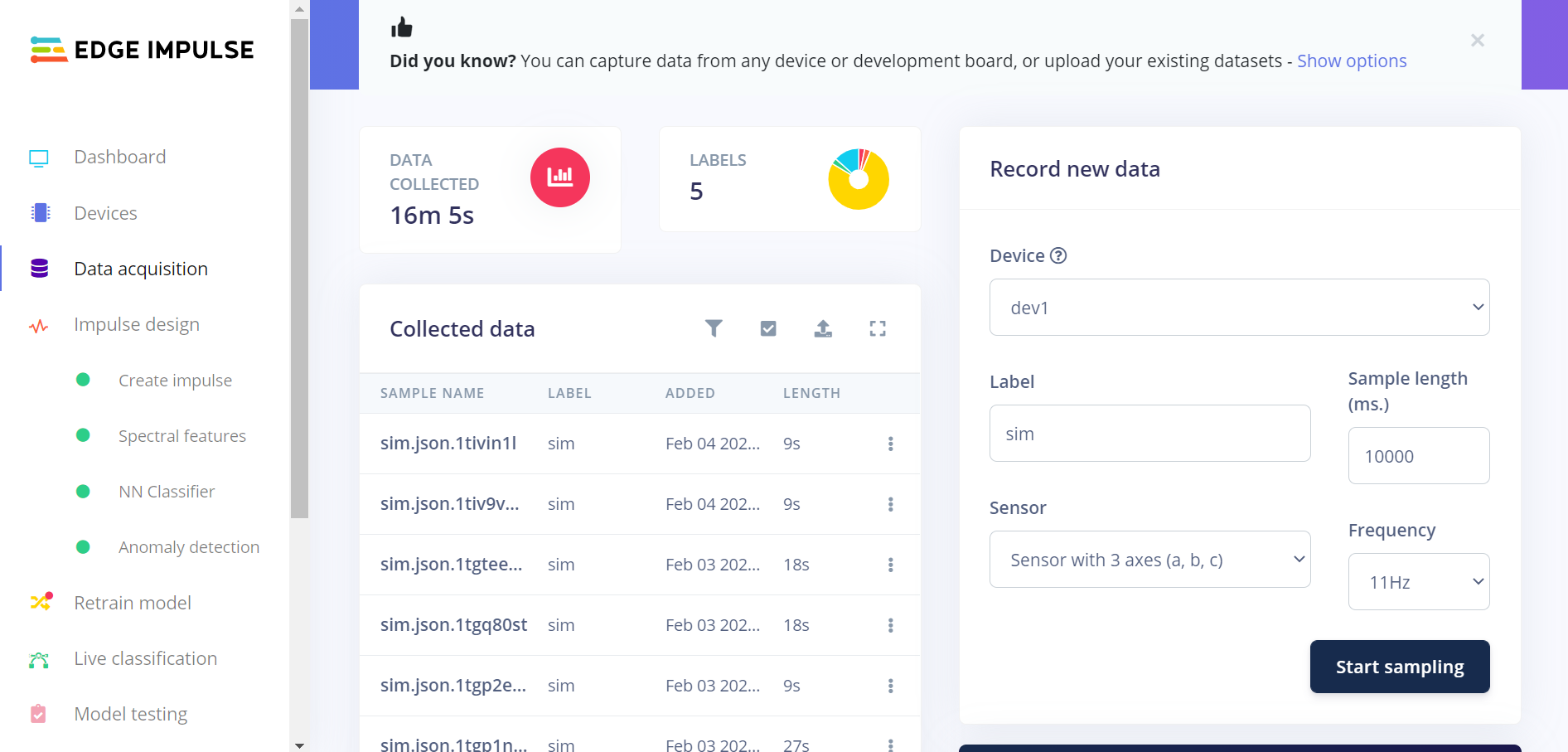
Sampling under Data acquisition in Edge Impulse studio
Observe the received sample data on the raw data graph under the panel. For the default sample configuration, you should observe sine waves.
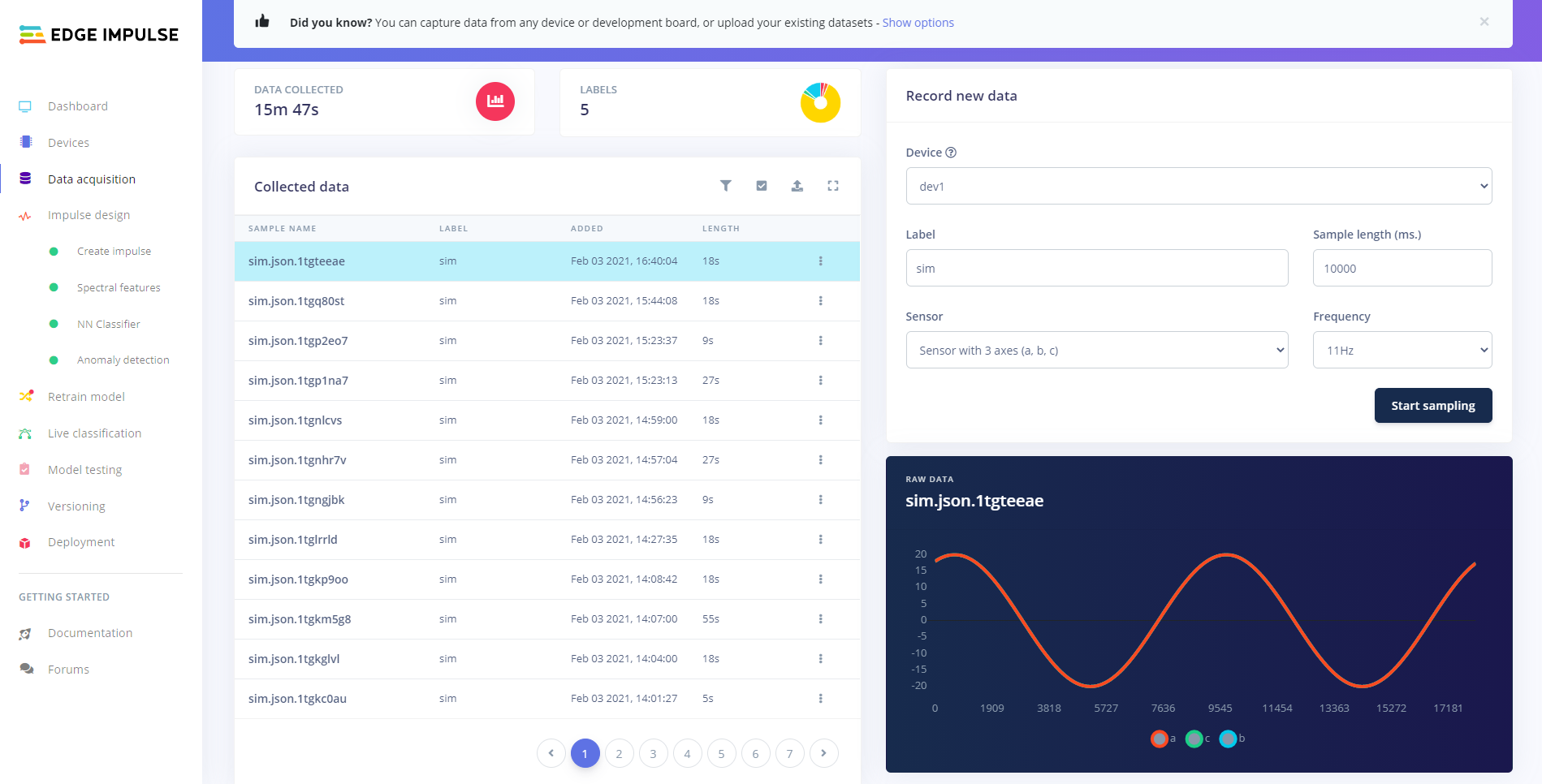
Sampling example
Dependencies
This sample uses the following nRF Connect SDK drivers:
In addition, it uses the following Zephyr drivers:
The sample also uses the following secure firmware component: