

Hello Edge Impulse
The Hello Edge Impulse sample demonstrates how to use the Edge Impulse SDK and custom machine learning model when integrating Edge Impulse with the nRF Connect SDK.
Requirements
The sample supports the following development kits:
Hardware platforms |
PCA |
Board name |
Board target |
|---|---|---|---|
PCA10184 |
|
||
PCA10156 |
|
Overview
This sample runs a pre-trained Edge Impulse machine learning model using two input data series that represent a sine wave and a triangle wave with added noise. Sample’s main purpose is to:
Provide input data to the Edge Impulse model.
Start predictions using the machine learning model.
Display the prediction results and time measurements.
Note
When building the nrf54lm20dk/nrf54lm20b/cpuapp target, the sample uses an Axon NPU-accelerated model for inference by default.
On other supported boards, the model runs on the CPU.
Configuration options
See Configuring and building for information about how to permanently or temporarily change the configuration.
The sample can be configured using the following Kconfig options:
- CONFIG_EDGE_IMPULSE_MODEL_PATH
(string) Edge Impulse model deployment path
Specifies local file path of an archive containing Edge Impulse model deployment. It can be either C++ Library, Zephyr library or Axon Library deployment.
- CONFIG_HELLO_EI_DEBUG_MODE
(bool) Run Edge Impulse classifier in debug mode
Enables additional log information from the Edge Impulse classifier.
- CONFIG_HELLO_EI_DATA_BUF_SIZE
(int) Size of input data buffer
The buffer is used to store input data for the Edge Impulse library. Size of the buffer is expressed as number of floats.
Build types
The nrf54lm20dk/nrf54lm20b/cpuapp board target supports the following build types.
See Custom build types and Providing CMake options for more information.
Build type |
File suffix |
Description |
|---|---|---|
Axon NPU inference (default) |
– |
Runs inference on the Axon NPU using a model compiled for hardware acceleration. |
CPU inference |
|
Runs inference on the CPU instead of the Axon NPU. |
Other supported boards always execute on the CPU.
Using your custom machine learning model
If you wish to run this sample using a pre-trained model, go to the Building and running section. Otherwise, if you wish to use a custom machine learning model, you must complete the following setup:
Train and deploy your own machine learning model. Choose Edge Impulse Studio web interface method (a Zephyr library format).
Select the Edge Impulse model by setting the
CONFIG_EDGE_IMPULSE_MODEL_PATHto an absolute or relative path to a file in the local filesystem. The file must be a ZIP archive generated by Edge Impulse Studio, and it must contain the source files that define the Edge Impulse ML model. The relative path is tracked from the application source directory (APPLICATION_SOURCE_DIR). Any CMake variables included in the path are expanded.Define input data for the machine learning model in the
samples/edge_impulse/hello_ei/src/include/input_data.hfile.Check the example input data in your Edge Impulse Studio project:
Go to the Live classification tab.
In the Classify existing test sample panel, select one of the test samples.
Click Load sample to display the raw data preview.
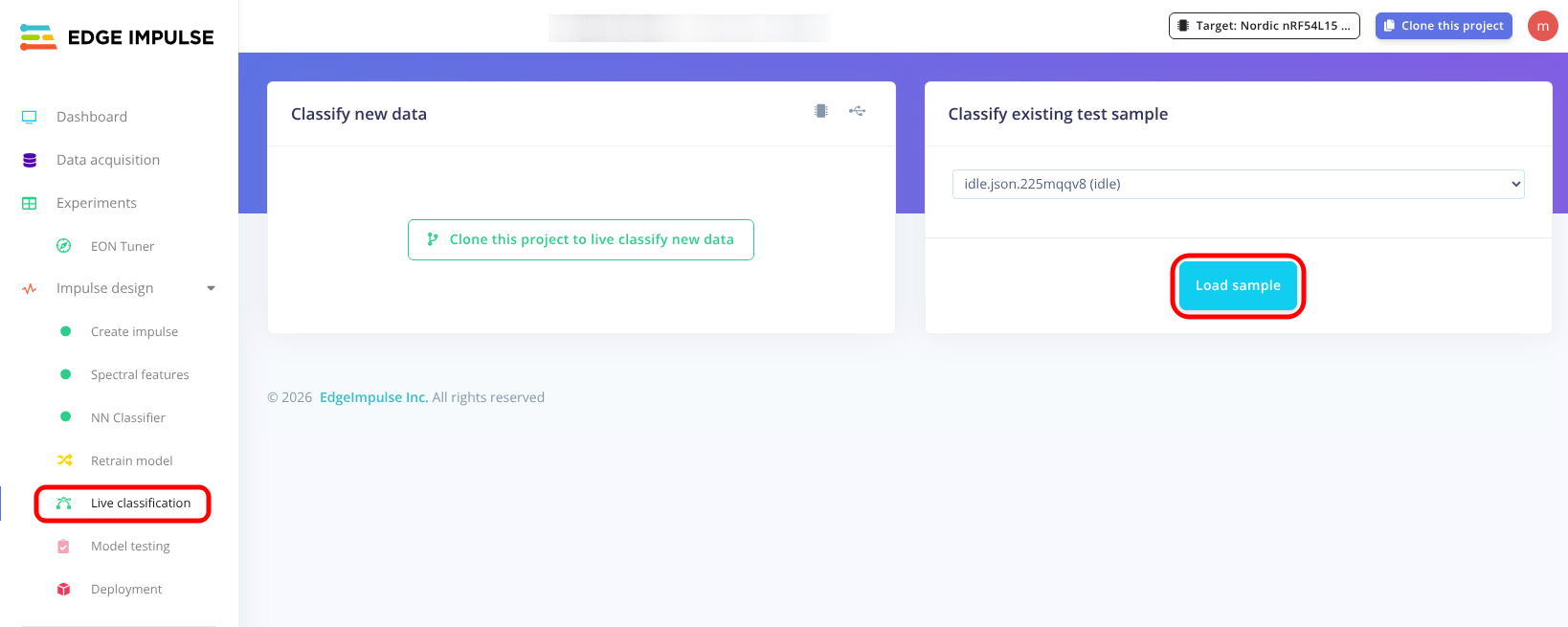
Loading test sample input data in Edge Impulse Studio
The classification results will be displayed along with a preview of raw data.
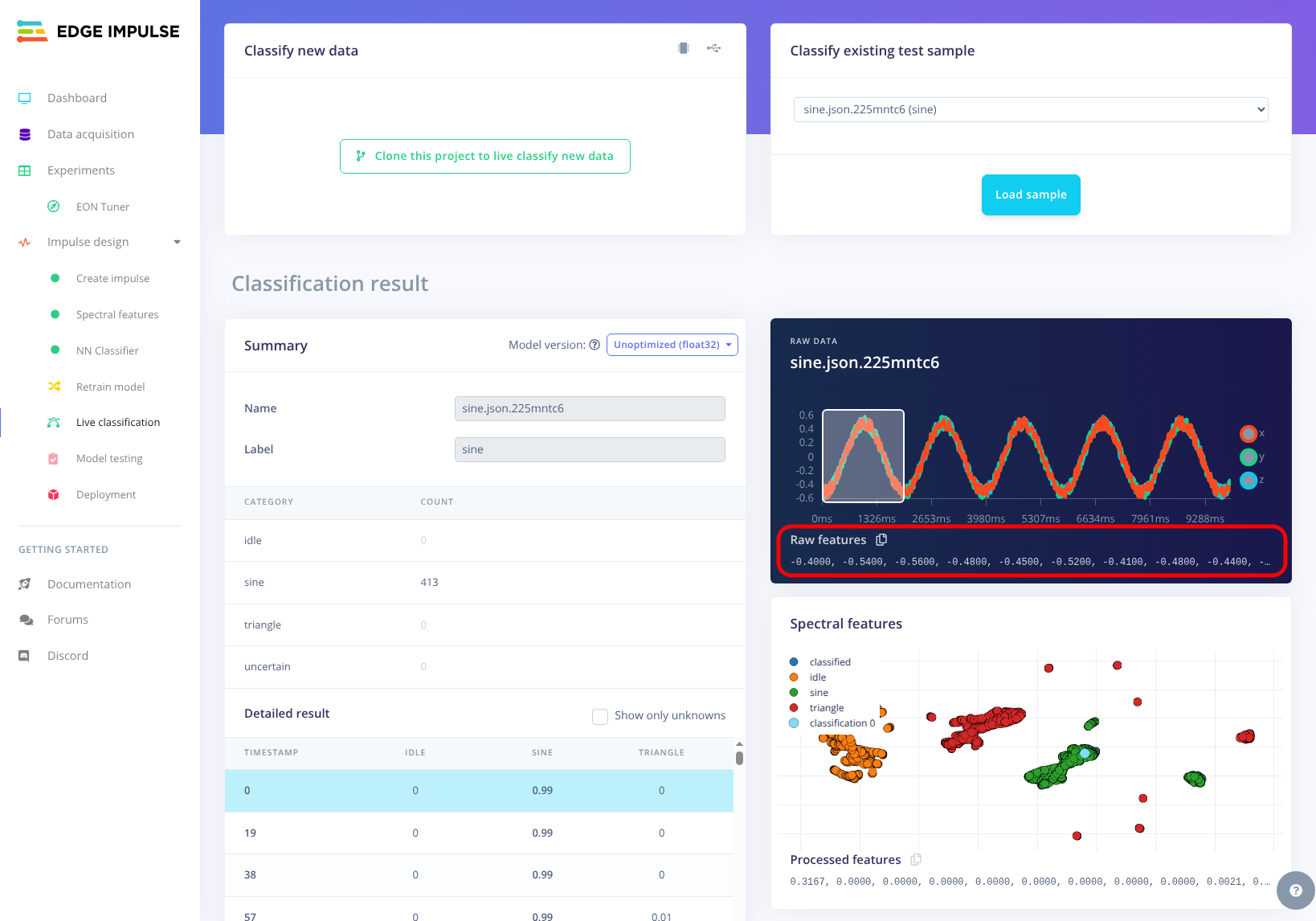
Raw data preview in Edge Impulse Studio
Copy information from the Raw features list into an array defined in the
input_data.hfile.
Note
If you provide more input data than a single input window can hold, the prediction will be triggered multiple times. The input window will be shifted by one input frame between subsequent predictions. The prediction will be retriggered until there is no more input data available.
Building and running
This sample can be found under samples/edge_impulse/hello_ei in the Edge AI Add-on folder structure.
To build the sample, follow the instructions in Building an application for your preferred building environment. See also Programming an application for programming steps and Testing and optimization for general information about testing and debugging in the nRF Connect SDK.
Testing
After programming the sample to your development kit, complete the following steps to test it:
Connect the kit to the computer using a USB cable. The kit is assigned a serial port. Serial ports are referred to as COM ports on Windows, /dev/ttyACM devices on Linux, and /dev/tty devices on macOS. To list Nordic Semiconductor devices connected to your computer together with their serial ports, open a terminal and run the
nrfutil device listcommand. Alternatively, check your operating system’s device manager or its equivalent.Connect to the kit with a terminal emulator (for example, the Serial Terminal app). See Testing and optimization for the required settings and steps.
Reset the kit.
Observe the following UART output:
*** Booting nRF Connect SDK v3.2.0-5dcc6bd39b0f ***
*** Using Zephyr OS v4.2.99-a57ad913cf4e ***
I: === Model info ===
I: Input frame size: 3
I: Input window size: 312
I: Input frequency: 52
I: Label count: 3
I: Has anomaly: yes
I: #########################
I: Running inference on sine wave input data
I: #########################
I: === Inference result ===
I: idle => 0.00000
I: sine => 0.99603
I: triangle => 0.00397
I: anomaly: -0.12298
I: === Inference time profiling ===
I: Full inference completed in 6564 us
I: Classification completed in 766 us
I: DSP operations completed in 5562 us
I: Anomaly detection completed in 63 us
I: #########################
I: === Inference result ===
I: idle => 0.00000
I: sine => 0.99648
I: triangle => 0.00352
I: anomaly: -0.12898
I: === Inference time profiling ===
I: Full inference completed in 6560 us
I: Classification completed in 762 us
I: DSP operations completed in 5562 us
I: Anomaly detection completed in 61 us
...
The observed classification results depend on machine learning model and input data.
Dependencies
This sample uses the following Zephyr libraries:
This sample uses the following external components:
Edge Impulse SDK