
Edge Impulse integration
Edge Impulse is a development platform that can be used to enable embedded machine learning on nRF Connect SDK devices. You can use this platform to collect data from sensors, train a machine learning model, and then deploy it to your Nordic Semiconductor device.
Note
If you are new to the Edge AI Add-on and Edge Impulse and need a simpler, automated workflow with minimal configuration, consider following the Edge Impulse guide. The steps on this page describe the tested integration flow used by the Hello Edge Impulse sample.
Integration prerequisites
Before you start working with Edge Impulse, ensure you have:
Completed setting up Edge Impulse steps to prepare your Edge Impulse account, tooling, and the Edge AI Add-on environment.
An Edge AI Add-on-based application. Use the Hello Edge Impulse sample as a starting point, as it already includes the build-system integration described on this page.
Solution architecture
The Edge Impulse integration consists of three main components:
Edge Impulse SDK - A C++ library that provides the inference engine and digital signal processing (DSP) functions required to run machine learning models on embedded devices. The SDK is integrated into the build system as a Zephyr module through the west manifest file of the Edge AI Add-on, and is pulled in automatically when the
CONFIG_EDGE_IMPULSE_SDKKconfig option is enabled. Depending on the generated package, a deployment archive can also include an SDK copy, which is not required by this integration flow.Deployed machine learning model - A package generated by Edge Impulse Studio that contains your trained model’s parameters and generated source files. It is provided as a
ziparchive. The archive structure depends on the deployment format (Zephyr library or Nordic Axon NPU Library).Application code - Your nRF Connect SDK application that collects sensor data, feeds it to the inference engine through the Edge Impulse SDK API, and processes the classification results.
The typical workflow involves collecting sensor samples, running inference using a sliding window approach, and interpreting the classification results to make decisions or trigger actions (see Hello Edge Impulse sample).
Integration overview
To integrate the Edge Impulse machine learning model into an Edge AI Add-on application, first prepare and deploy it for your embedded device. This model is prepared using the Edge Impulse studio external web tool. It relies on sensor data that can be provided by different sources, for example, data forwarder.
Note
To collect data, use either a development board supported directly by Edge Impulse, or your mobile phone.
As an alternative, use or modify the Data forwarder sample to forward data from a sensor connected to any board available in the nRF Connect SDK.
Enable the CONFIG_DATA_FWD_PROTO_ASCII_MODE Kconfig option when using the Edge Impulse’s data forwarder CLI.
You can also use Data Forwarder Host tool to visualize and save the streamed sensor data to your local machine.
The deployed machine learning model archive is then referenced from your Edge AI Add-on application, and the build system unpacks and compiles it automatically.
When starting from the Hello Edge Impulse sample, you do not need to unpack the archive or write any CMake code manually, deployed machine learning model is referenced through the CONFIG_EDGE_IMPULSE_MODEL_PATH Kconfig option.
Integration steps
To generate the model archive, add it to the build system, and verify the result, complete the following steps:
Preparing the machine learning model
In this step, you will prepare the machine learning model and obtain a zip archive that is required as input for the next step.
Prepare your machine learning model. Use Edge Impulse studio and follow one of the tutorials described in the Edge Impulse getting started guide. For example, to test the solution, complete the Continuous motion recognition tutorial. You will:
Collect data from sensors and upload them to the Edge Impulse Studio.
Design your machine learning model (an impulse).
Deploy your machine learning model. You can obtain the deployment archive in one of the following ways:
Use the Edge Impulse Studio web interface and deploy in one of the formats supported by this integration:
Zephyr library for CPU inference.
Nordic Axon NPU Library for Axon NPU inference.
To generate the archive:
Go to the Deployment tab.
Select one of the supported deployment formats.
Click Build.
The application generates a
<model_name>.ziparchive with model files that you will use in the build step.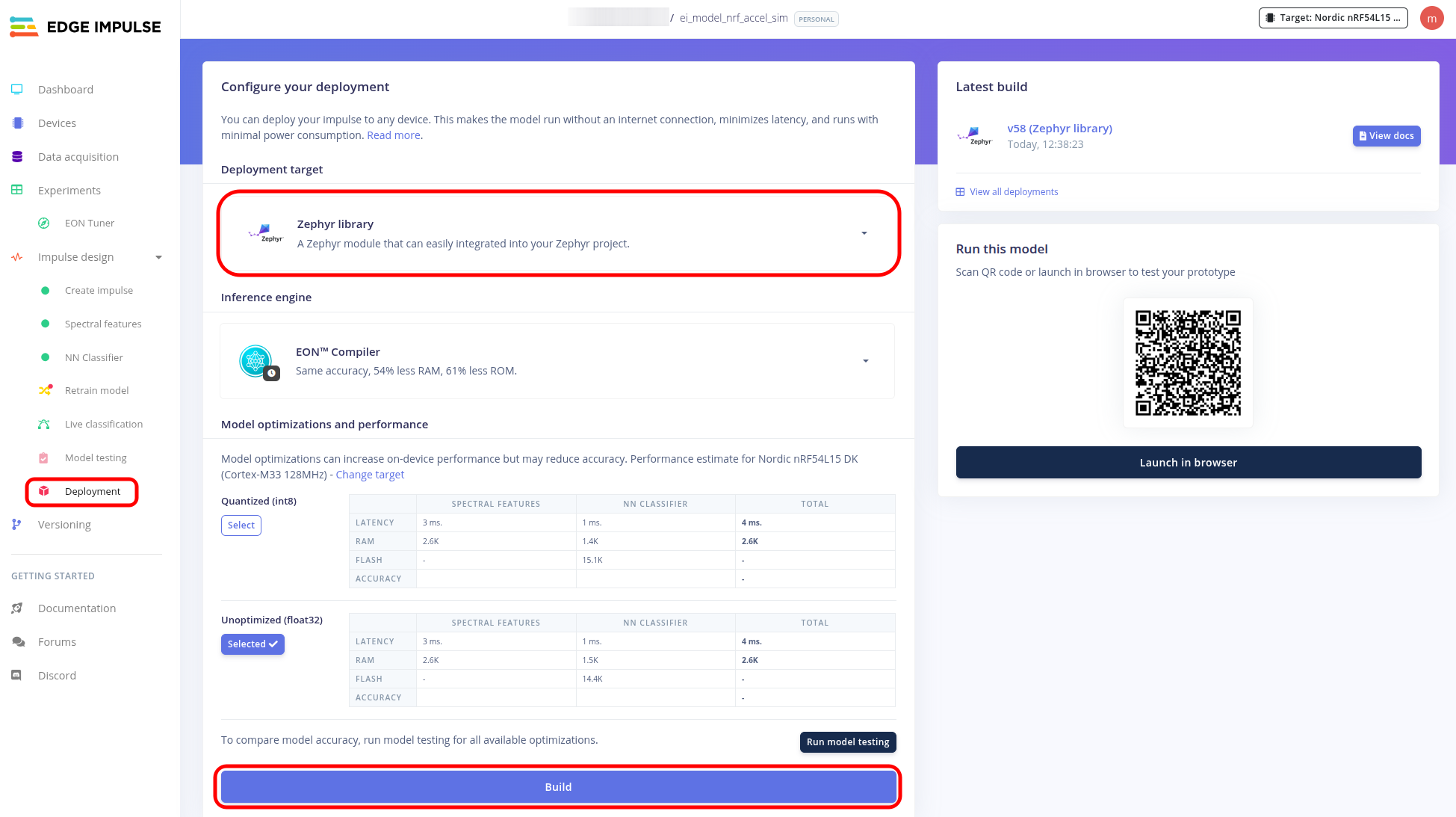
CPU model deployment in Edge Impulse Studio dashboard
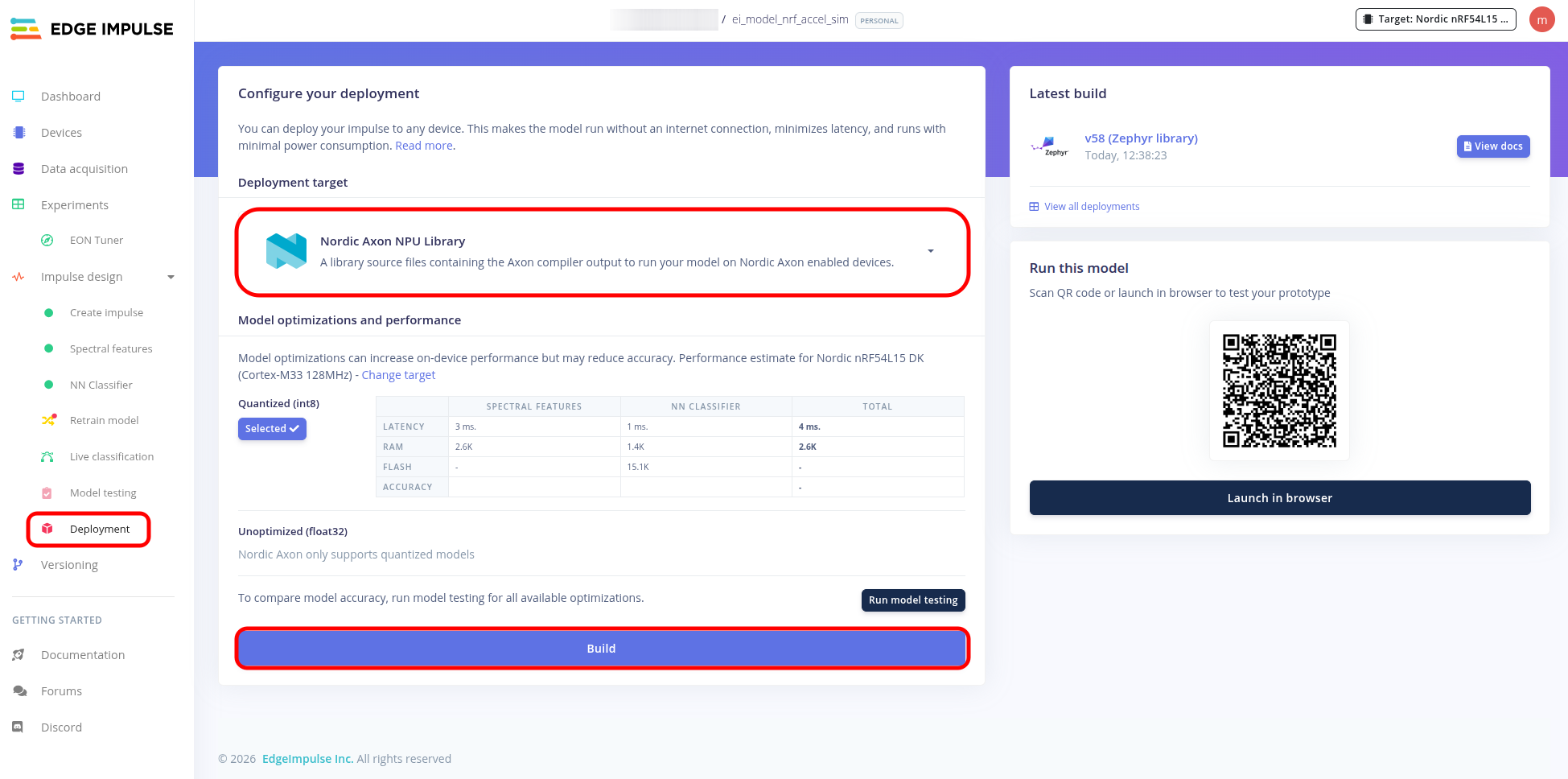
Axon NPU model deployment in Edge Impulse Studio dashboard
Note
This method currently does not allow deploying Axon NPU models. For Axon NPU deployment, use the Edge Impulse Studio web interface.
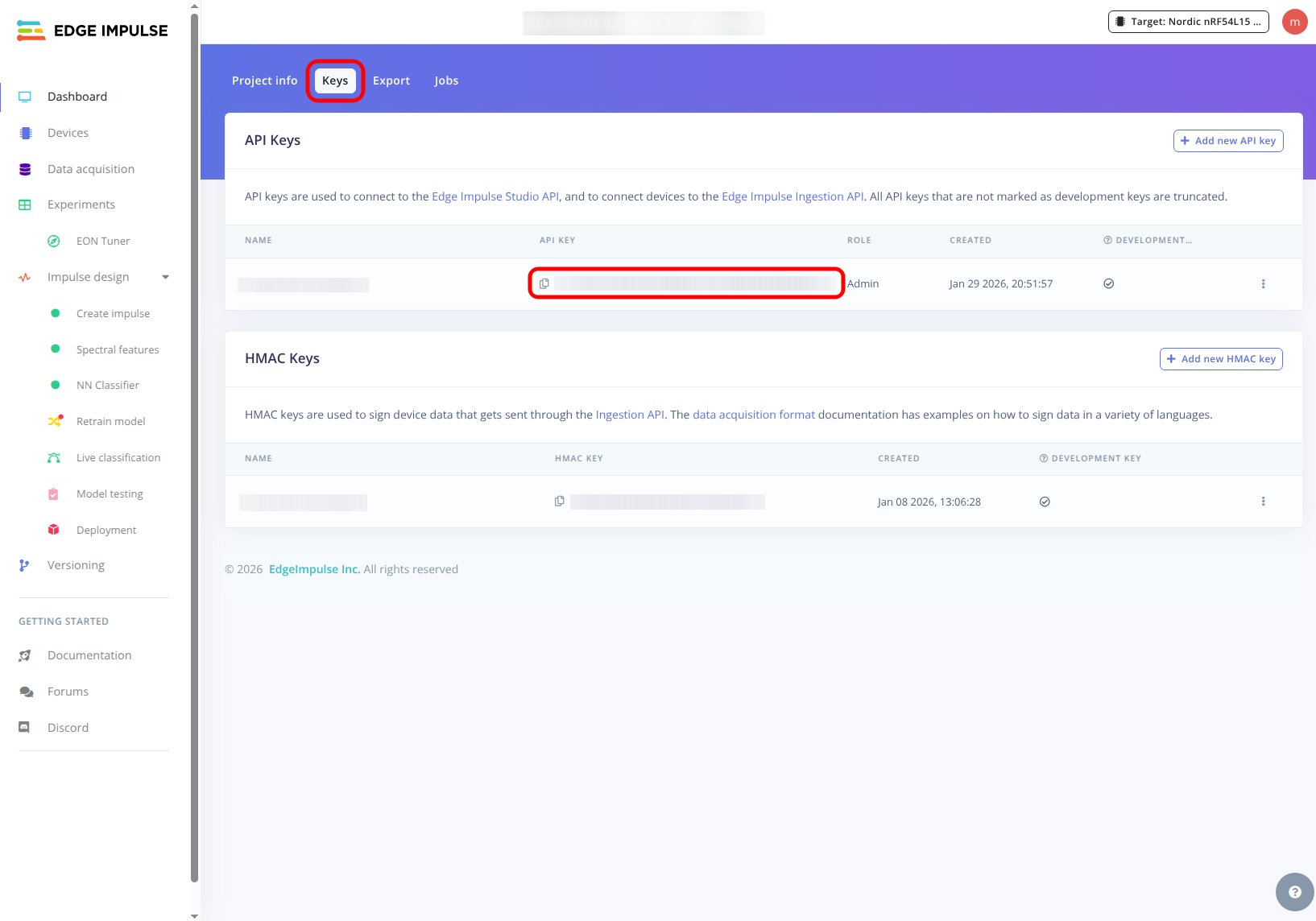
Edge Impulse provides west command extensions that let you build and deploy the machine learning model from Edge Impulse Studio using the command line instead of the web interface. The commands are already configured in the Edge AI Add-on west manifest and are ready to use.
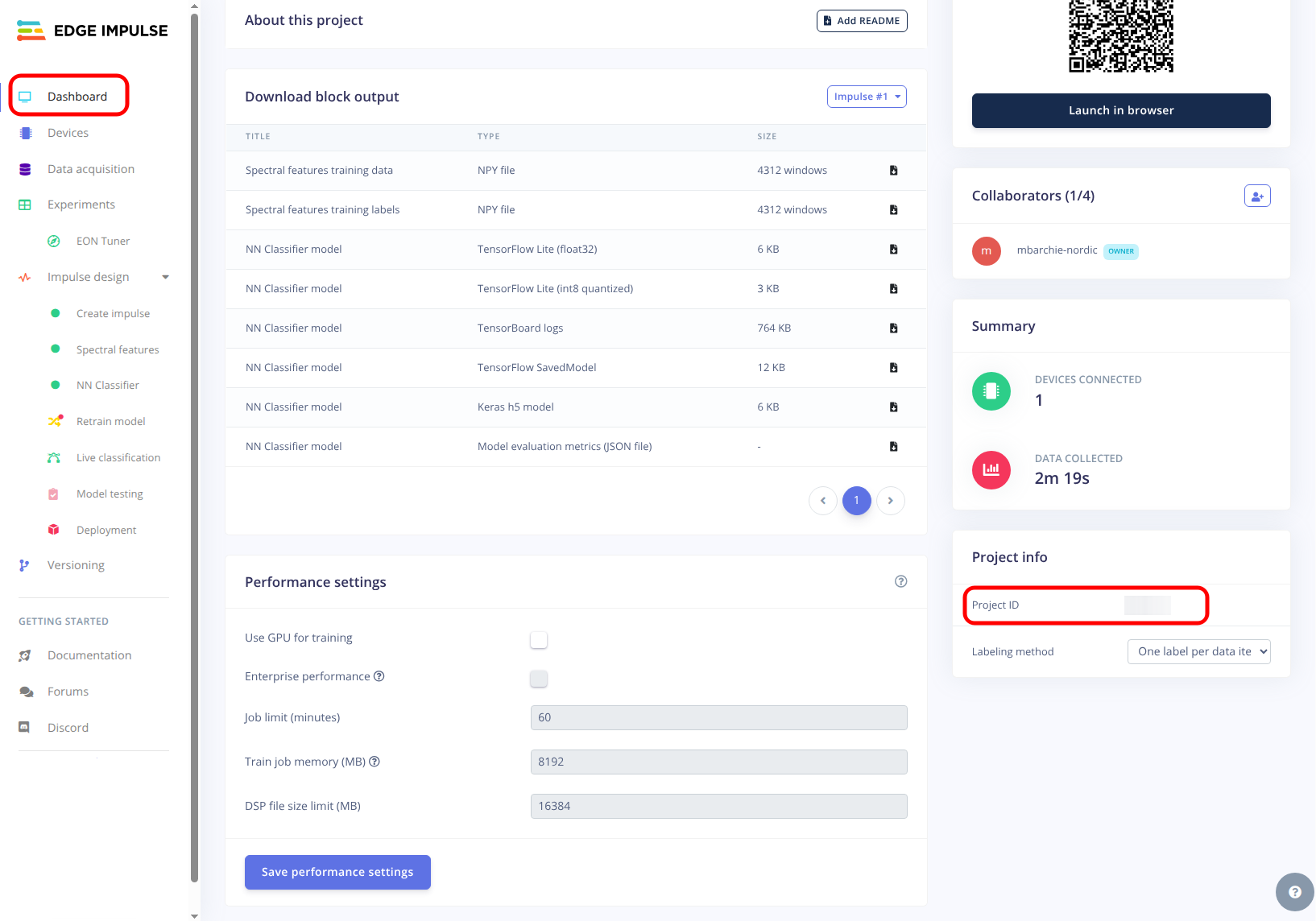
Find the two parameters that are required by the commands:
Build the machine learning model by running the following command:
west ei-build -p <PROJECT_ID> -k <API_KEY>Deploy the machine learning model by running the following command:
west ei-deploy -p <PROJECT_ID> -k <API_KEY>As a result, the
<model_name>.zipfile is downloaded to your working directory. You will use this archive in the build step.
For more details on how to use these commands, see the Automated Deployment with West Commands documentation.
Note
Not every model can be compiled for the Axon NPU. The Axon NPU has hardware limits (such as maximum filter counts and buffer sizes) that some model architectures may exceed. If the build fails with an error such as
NRF_AXON_COMPILER_RESULT_INVALID_FILTER_COUNTor a similar compile-layer error, the model is not compatible with the current Axon NPU compiler and you might need to:Adjust the model architecture (for example, reduce filter counts or layer dimensions) and rebuild it in Edge Impulse Studio.
Fall back to CPU deployment.
Building the application
To build the application with the integrated Edge Impulse model, you need a <model_name>.zip archive with the deployed model, obtained in the Preparing the machine learning model step.
The instructions in this section cover the tested integration path based on the Hello Edge Impulse sample. The same build-system integration is used for both CPU and Axon NPU deployment formats.
The Hello Edge Impulse sample integrates an Edge Impulse model archive through the CONFIG_EDGE_IMPULSE_MODEL_PATH Kconfig option and CMake’s FetchContent.
At configuration time, CMake reads CONFIG_EDGE_IMPULSE_MODEL_PATH, unpacks the obtained <model_name>.zip archive into the build tree, and adds it to the build.
The integration step is the same for both formats (CPU archive and Axon NPU archive): set the CONFIG_EDGE_IMPULSE_MODEL_PATH Kconfig option to point to your archive and build.
The CPU deployment archive includes:
CMake and west manifest files (
CMakeLists.txt,west.yml, andzephyr/module.yml) used to integrate the Edge Impulse SDK as a Zephyr module.A
model-parameters/directory with generated headers describing the model.A
tflite-model/directory with the generated TFLite model source files. The exact file names insidetflite-model/depend on your model and deployment settings.
Place the model archive into your application directory. You can keep the auto-generated archive name, or rename it to a simpler name such as
<model_name>.zip. Do not unpack the archive, asFetchContentextracts it automatically at configuration time.Set the
CONFIG_EDGE_IMPULSE_MODEL_PATHKconfig option to the path of the archive. If the path is not absolute, it is resolved relative to the application source directory. For example, your application’sprj.confwill contain the following line:CONFIG_EDGE_IMPULSE_MODEL_PATH="<model_name>.zip"
Keep in mind that some tools might interpret the
#character in the auto-generated name as a comment. If you encounter this, rename the archive to<model_name>.zip.Enable the following Kconfig options in your application’s
prj.conf:CONFIG_CPP=y CONFIG_STD_CPP11=y CONFIG_REQUIRES_FULL_LIBCPP=y CONFIG_EDGE_IMPULSE_SDK=y
The
CONFIG_FPUKconfig option is implied by default if floating point unit (FPU) is supported by the hardware. Using FPU speeds up calculations.Disable the
CONFIG_FP16Kconfig option in your application’sprj.conf. The Edge Impulse library is not compatible with half-precision floating point support introduced in Zephyr.Build the application:
west build -b <board_target>CMake unpacks the archive into the build directory and compiles the model sources together with the application.
The Axon NPU archive includes:
Its own copy of the Edge Impulse SDK (
edge-impulse-sdk/).An Axon-specific
nordic-axon-model/directory with generated headers.A
conf_overlay.conffile used to configure applicable Kconfig options.A raw
trained.tflitemodel file.
For Axon NPU integration, the Hello Edge Impulse sample’s CMakeLists.txt file automatically detects when the CONFIG_NRF_AXON Kconfig option is enabled.
Once detected, it wires up the Axon-specific include paths and the model-name compile definition, so you do not need to manually modify CMake.
Place the model archive into your application directory. You can keep the auto-generated archive name or rename it to
<model_name>.zip. Do not unpack the archive, asFetchContentextracts it automatically at configuration time.Set the
CONFIG_EDGE_IMPULSE_MODEL_PATHKconfig option to the path of the archive, relative to the application source directory or absolute. For example, in yourprj.conffile it should look as follows:CONFIG_EDGE_IMPULSE_MODEL_PATH="<model_name>.zip"
Enable Axon in your device tree by adding the following lines to a board overlay file:
&axon {
   status = "okay";
};
Enable the following Kconfig options in your application’s
prj.conf:CONFIG_CPP=y CONFIG_STD_CPP11=y CONFIG_REQUIRES_FULL_LIBCPP=y CONFIG_EDGE_IMPULSE_SDK=y CONFIG_NRF_AXON=y
Disable the
CONFIG_FP16Kconfig option in your application’sprj.conf.Set the
CONFIG_NRF_AXON_MODEL_NAMEKconfig option to the name of your model. You can find the model name in one of the following locations inside the archive:The
conf_overlay.conffile at the root of the archive:CONFIG_NRF_AXON_MODEL_NAME="ei_model_nrf_accel_sim_54"The names of the Axon model header files in
nordic-axon-model/:nrf_axon_model_ei_model_nrf_accel_sim_54_.h nrf_axon_model_ei_model_nrf_accel_sim_54_layers_.h nrf_axon_model_ei_model_nrf_accel_sim_54_test_vectors_.h
This means that the model name is
ei_model_nrf_accel_sim_54.
Add this to your application’s
prj.conffile.Note
The
conf_overlay.conffile in the archive contains predefined Kconfig values for your model, includingCONFIG_NRF_AXON_MODEL_NAME. If you prefer, you can include this file as a Kconfig fragment in your build system instead of manually copying the values toprj.conf.Set the
CONFIG_NRF_AXON_INTERLAYER_BUFFER_SIZEandCONFIG_NRF_AXON_PSUM_BUFFER_SIZEKconfig options to fit your model’s requirements.Note
If the buffers are too small, the inference fails with an error indicating insufficient buffer size and the required size, for example:
init model ei_model_nrf_accel_sim_54 failed! interlayer buffer too small! Allocated 0, need 36
ERR: nrf_axon_nn_model_validate failed!
E: Classification failed with error code: -36
You can find the required buffer sizes in the following places:
In the console output from testing the model in Edge Impulse Studio, when deploying the model:
-------------------------------------------------------------------------------
Model EI_MODEL_NRF_ACCEL_SIM_54 results (variant : ei_model_nrf_accel_sim_54)
-------------------------------------------------------------------------------

      Memory Usage (in bytes)

               model_const_buffer_size:        1024
               interlayer_buffer_size: 36
               psum_buffer_size:       0
               cmd_buffer_size:        736
In the
nrf_axon_model_<model_name>_.hfile, for example:#define NRF_AXON_MODEL_EI_MODEL_NRF_ACCEL_SIM_54_MAX_IL_BUFFER_USED 36 #define NRF_AXON_MODEL_EI_MODEL_NRF_ACCEL_SIM_54_MAX_PSUM_BUFFER_USED 0
Build the application:
west build -b <board_target>
Verifying the integration
After building the application, flash it to your device and observe the output to confirm that inference runs.
Flash the application:
west flashObserve the device output.
If you encounter problems, consider the following:
Ensure that the deployment archive was generated with a supported deployment format:
Zephyr library for CPU.
Nordic Axon NPU Library for Axon NPU.
Edge Impulse also provides other deployment formats (for example, WebAssembly and Arduino) that produce different archive content and are not supported by this integration. If the downloaded archive has an unexpected structure after unpacking, regenerate it using one of the supported formats listed above.
Ensure that the
CONFIG_EDGE_IMPULSE_MODEL_PATHKconfig option points to an existing<model_name>.zipfile. If the path is not absolute, it is resolved relative to the application source directory. A missing or misnamed file typically produces a CMake error fromFetchContentindicating that the resource is not available.Ensure that all required Kconfig options are enabled in the
prj.conffile.For Axon NPU models, check the model name and buffer size Kconfig values.
Applications and samples
The following samples demonstrate the Edge Impulse integration in the Edge AI Add-on:
Hello Edge Impulse sample - Demonstrates the deployment of models in Edge Impulse and usage of the inference engine provided by Edge Impulse SDK.
Data forwarder sample - Demonstrates how you can send sensor data to Edge Impulse Studio using Edge Impulse’s data forwarder.