Creating a copy of a sample
This procedure is the recommended approach when working with the samples and allows you to add changes without modifying the SDK itself.
Follow these steps to create a new application based on a sample:
Open the nRF Connect for VS Code extension by clicking its icon.
From the Welcome View, click Create a new application.
A quick pick menu appears.
Select Copy a sample - this will create a freestanding application from a sample in nRF Connect SDK Bare Metal option.
If you have more than one SDK version installed, a quick pick menu appears showing a list of SDK versions to copy the sample from.
If asked to select the SDK version, select the one that you want to copy the sample from.
A quick pick menu appears showing a list of available samples to choose from. This list is autogenerated based on the chosen SDK with the nrf-bm samples placed on the top of the list. All samples below the nrf-bm specific list are not compatible and should be ignored.
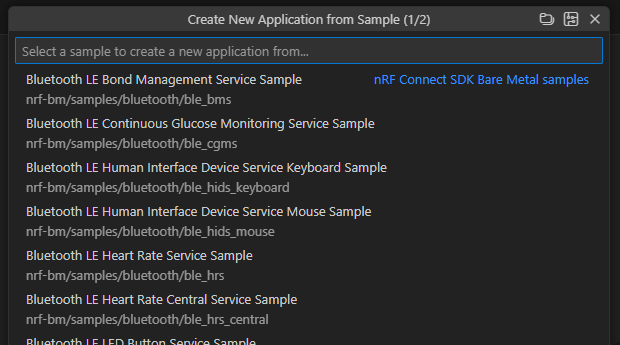
Create New Application from Sample - Quick Pick Menu
Click on the name of the sample you want to work with.
A prompt appears asking to enter the location for the application. You can also use the folder button at the top of the quick pick to open a folder picker.
The application creation process starts after you enter the name. When the application is created, a prompt appears. Click Open or Open in New Window to open the new application.