

Connecting the nRF91 Series DK to nRF Cloud
To transmit data from your nRF91 Series DK to nRF Cloud, you need an nRF Cloud account. nRF Cloud is Nordic Semiconductor’s platform for connecting your IoT devices to the cloud, viewing and analyzing device message data, prototyping ideas that use Nordic Semiconductor’s chips, and more.
Once you have an account, activate your SIM card and add the device to your nRF Cloud account.
Note
The instructions assume you are activating the iBasis SIM card that came with your device.
If you are using a SIM card from another provider, make sure you activate it through your network operator before adding the device to nRF Cloud.
Creating an nRF Cloud account
To create an nRF Cloud account, complete the following steps:
Open the nRF Cloud landing page and click Register.
Enter your email address and choose a password, then click Create Account. nRF Cloud will send you a verification email.
Copy the 6-digit verification code and paste it into the registration dialog box. If you do not see the verification email, check your junk mail for an email from
no-reply@verificationemail.com.If you closed the registration dialog box, you can repeat Step 1 and then click Already have a code?. Then enter your email and the verification code.
You can now log in to nRF Cloud with your email and password. After logging in, you are taken to the dashboard view that displays your device count and service usage.
Activating the SIM card
To activate the iBasis SIM card that comes shipped with the device, complete the following steps in the nRF Cloud portal. Make sure you are logged in to the portal.
Click SIM Cards under Device Management in the navigation pane on the left.
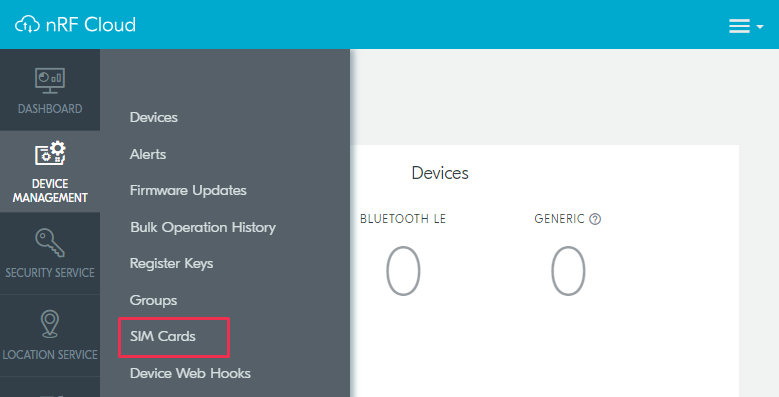
nRF Cloud - SIM Cards
Click Add SIM.
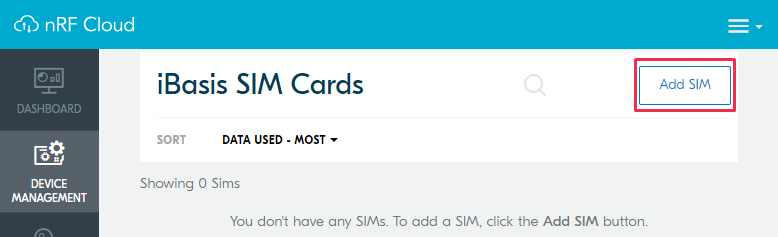
nRF Cloud - Add SIM
The Add SIM page opens in the Verify SIM Card view.
Complete the following steps on the Add SIM page to activate your iBasis SIM card:
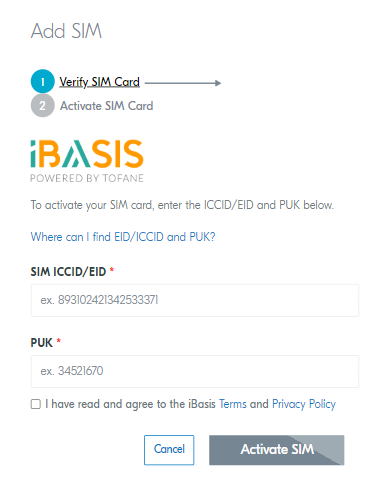
nRF Cloud - Add SIM page
Enter the 18-digit Integrated Circuit Card Identifier (ICCID) or the 19-digit eUICC Identifier (EID) in the SIM ICCID/EID text box.
Note
The SIM cards can have either the EID, the ICCID, or neither printed on it.
Enter the Personal Unblocking Key (PUK) in the PUK text box.
The PUK is printed on the SIM card. Reveal the PUK by scratching off the area on the back of the SIM card.
Accept the Terms and the Privacy Policy.
Click the Activate SIM button.
The Add SIM page changes to the Activate SIM Card view.
Fill in the required information.
Click Save to complete the activation.
After the SIM card is activated, you can add your nRF91 Series DK to nRF Cloud.
Adding the nRF91 Series DK to nRF Cloud
To add your nRF91 Series DK device to nRF Cloud, refer to the Adding a device to your account section of the nRF Cloud documentation.