

CAF: Sensor manager module
The sensor manager module of the Common Application Framework (CAF) generates the following types of events in relation with the sensor defined in the module configuration:
sensor_eventwhen the sensor is sampled.sensor_state_eventwhen the sensor state changes.
Configuration
The following Kconfig options are required:
CONFIG_CAF_SENSOR_MANAGER- This option enables the sensor manager module.CONFIG_SENSOR- This option enables Zephyr’s Sensors driver, which is required for interacting with the sensors.
The following Kconfig options are also available for the module:
To use the module, complete the following requirements:
Physically connect the sensor.
Add and enable the sensor in the devicetree file. For example, in the
BOARD.dtsfile. For more information about adding sensor device to devicetree, refer to Use devicetree overlays.Enable the
CONFIG_CAF_SENSOR_MANAGERandCONFIG_SENSORKconfig options.Enable the sensor of your choice in Kconfig. Each sensor has its own set of Kconfig options.
Add the configuration file that contains an array of
sm_sensor_configfor the sensor that you want to use in your application by completing the following steps:Add a file that defines the following information in an array of
sm_sensor_configfor every sensor that you want to be handled by the sensor manager module:sm_sensor_config.dev- Sensor device. The name must match the sensor label in theBOARD.dtsfile.sm_sensor_config.event_descr- Sensor event description. The event description is used to identify the sensor in the application.sm_sensor_config.chans- Channel configuration. This is an array ofcaf_sampled_channelstruct that configures the sensor channel with the following information:caf_sampled_channel.chan- Sensor channel. Depends on the particular sensor.caf_sampled_channel.data_cnt- Number of values incaf_sampled_channel.chan.
sm_sensor_config.chan_cnt- Size of thesm_sensor_config.chansarray.sm_sensor_config.sampling_period_ms- Sensor sampling period, in milliseconds.sm_sensor_config.active_events_limit- Maximum number of unprocessedsensor_event.
For example, the file content could look like this:
#include <caf/sensor_manager.h>
static const struct caf_sampled_channel accel_chan[] = {
        {
                .chan = SENSOR_CHAN_ACCEL_XYZ,
                .data_cnt = 3,
        },
};
static const struct sm_sensor_config sensor_configs[] = {
        {
                .dev_name = "LIS2DH12-ACCEL",
                .event_descr = "accel_xyz",
                .chans = accel_chan,
                .chan_cnt = ARRAY_SIZE(accel_chan),
                .sampling_period_ms = 20,
                .active_events_limit = 3,
        },
};
Specify the location of the file with the
CONFIG_CAF_SENSOR_MANAGER_DEF_PATHKconfig option.
Note
Only the configured module should include the configuration file. Do not include the configuration file in other source files.
Enabling sensor trigger
The sensor manager module supports the sensor trigger functionality. This functionality allows the sensor manager module to stop sampling a specific sensor when specified conditions are met. For more details about the sensor trigger, see Zephyr’s Sensors driver.
Note
Not all sensors support the trigger functionality. For more details, see the sensor-specific Kconfig file.
To use the sensor trigger, complete the following steps:
Enable the sensor trigger option in the sensor-specific Kconfig file. The Kconfig option name is different for each sensor. For example, for the LIS2DH accelerometer, set the
CONFIG_LIS2DH_TRIGGER_GLOBAL_THREADoption toy.Extend the module configuration file by adding
sm_sensor_config.triggerin an array ofsm_sensor_config.sm_sensor_config.triggerconfigures the sensor trigger with the following information:.cfginformation that depends on the particular sensor API:sm_trigger.cfg.type- Trigger type. The type depends on the particular sensor.sm_trigger.cfg.chan- Channel on which the trigger is set. The channel depends on the particular sensor.
.activationinformation that depends on the sensor manager module:sm_trigger.activation.type- Sensor value comparison method. See Sensor trigger activation for more details.sm_trigger.activation.thresh- Sensor trigger activation threshold.sm_trigger.activation.timeout_ms- Time after which the sensor is put to sleep.
For example, the extended configuration file for the LIS2DH accelerometer could look like this:
#include <caf/sensor_manager.h>

static const struct caf_sampled_channel accel_chan[] = {
        {
                .chan = SENSOR_CHAN_ACCEL_XYZ,
                .data_cnt = 3,
        },
};

static struct sm_trigger trig = {
        .cfg = {
                .type = SENSOR_TRIG_DELTA,
                .chan = SENSOR_CHAN_ACCEL_XYZ,
        },
        .activation = {
                .type = ACT_TYPE_ABS,
                .thresh = 0.5,
                .timeout_ms = 4000,
        },
};

static const struct sm_sensor_config sensor_configs[] = {
        {
                .dev_name = "LIS2DH12-ACCEL",
                .event_descr = "accel_xyz",
                .chans = accel_chan,
                .chan_cnt = ARRAY_SIZE(accel_chan),
                .sampling_period_ms = 20,
                .active_events_limit = 3,
                .trigger = &trig,
        },
};
Note
Only the configured module should include the configuration file. Do not include the configuration file in other source files.
Enabling passive power management
The sensor manager module can react to power_down_event and wake_up_event.
This functionality is called passive power management and allows the sensor manager module to manage sensors state.
See Passive power management for more information.
The configuration scenario depends on whether you configured and enabled the sensor trigger:
If you enabled the sensor trigger for your sensor, enable the
CONFIG_CAF_SENSOR_MANAGER_PMKconfig option to use passive power management.If you did not enable the sensor trigger functionality, you need to manually configure passive power management.
Manually configuring passive power management
To manually configure the passive power management functionality, complete the following steps:
Enable
CONFIG_CAF_SENSOR_MANAGER_PMKconfig option.Extend the module configuration file of the sensor of your choice by adding
sm_sensor_config.suspendin an array ofsm_sensor_config. For example, the extended configuration file for the LIS2DH accelerometer could look like this:#include <caf/sensor_manager.h> static const struct sm_sensor_config sensor_configs[] = { { .dev_name = "LIS2DH12-ACCEL", .event_descr = "accel_xyz", .chans = accel_chan, .chan_cnt = ARRAY_SIZE(accel_chan), .sampling_period_ms = 20, .active_events_limit = 3, .suspend = true, }, };
If sm_sensor_config.suspend is true, the sensor is suspended when power_down_event is received.
The default value for sm_sensor_config.suspend is false.
Note
Not all device power states might be supported by the sensor’s device.
Check the sensor’s driver implementation before configuring sm_sensor_config.suspend.
Enabling active power management
The sensor manager module can create power_manager_restrict_event and wake_up_event.
This functionality is called active power management.
See Active power management for more information.
To use the active power management in the sensor manager module, enable the CONFIG_CAF_SENSOR_MANAGER_ACTIVE_PM Kconfig option.
Implementation details
The sensor manager module starts in reaction to module_state_event.
When started, it can perform the following operations:
Periodically sample the configured sensors.
Submit
sensor_eventwhen the sensor channels are sampled.Submit
sensor_state_eventif the sensor state changes.
The sensor manager module samples sensors periodically, according to the configuration specified for each sensor.
Sampling of the sensors is done from a dedicated preemptive thread.
To change the thread priority, set the value of the CONFIG_CAF_SENSOR_MANAGER_THREAD_PRIORITY Kconfig option.
Use the preemptive thread priority to make sure that the thread does not block other operations in the system.
For each sensor, the sensor manager module limits the number of sensor_event events that it submits, but whose processing has not been completed.
This is done to prevent out-of-memory error if the system workqueue is blocked.
The limit value for the maximum number of unprocessed events for each sensor is placed in the sm_sensor_config.active_events_limit structure field in the configuration file.
The active_sensor_events_cnt counter is incremented when sensor_event is sent and decremented when the event is processed by the sensor manager module that is the final subscriber of the event.
A situation can occur that the active_sensor_events_cnt counter is already decremented but the memory allocated by the event would not yet be freed.
Because of this behavior, the maximum number of allocated sensor events for the given sensor is equal to sm_sensor_config.active_events_limit plus one.
The dedicated thread uses its own thread stack.
To change the size of the stack, set the value of the CONFIG_CAF_SENSOR_MANAGER_THREAD_STACK_SIZE Kconfig option.
The thread stack size must be large enough for the sensors used.
Sensor state events
Each sensor can be in one of the following states:
SENSOR_STATE_DISABLED- Initial state.SENSOR_STATE_SLEEP- Sensor sleeps and no sampling is performed. Available if the sensor trigger is configured orCONFIG_CAF_SENSOR_MANAGER_PMis enabled.SENSOR_STATE_ACTIVE- Sensor is actively sampling.SENSOR_STATE_ERROR- Sensor error.
The following figure shows the possible state transitions.
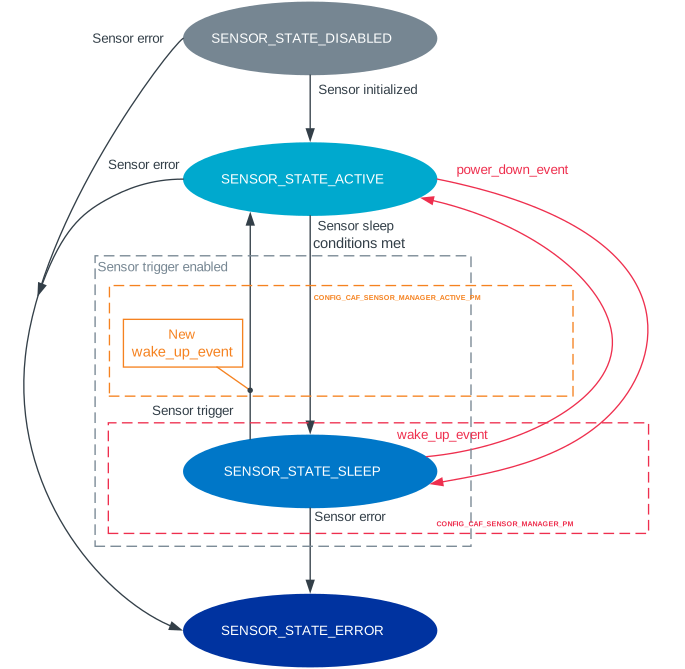
State transitions of the sensors used by the sensor manager module
The sensor manager module submits sensor_state_event whenever the sensor state changes.
Each sensor starts in the SENSOR_STATE_DISABLED state, which is not reported by the module.
Also, each sensor acts independently.
If one of the sensors reports an error, it does not stop the sensor manager module from sampling other sensors.
After the initialization, each sensor changes its state to SENSOR_STATE_ACTIVE and start periodic sampling.
In case of an error, the sensor submits sensor_state_event with the SENSOR_STATE_ERROR state.
If the trigger functionality or CONFIG_CAF_SENSOR_MANAGER_PM is enabled, the sensor can be put into the SENSOR_STATE_SLEEP state.
In this state, the sensor is not actively sampling and is not reporting any sensor_event.
If the sensor trigger fires or the wake_up_event is received, the sensor state changes to SENSOR_STATE_ACTIVE and periodic sampling is restarted.
Sensor trigger activation
The sensor trigger is activated and the sensor is put to sleep if the values measured by the sensor do not deviate from the last sensor value by more than sm_trigger.activation.threshold for the period of time specified in sm_trigger.activation.timeout_ms.
If the value measured by the sensor does not fit within the threshold, the last sensor value is updated and the sensor continues the sampling process.
The sensor trigger activation type is ACT_TYPE_ABS (Absolute deviation).
Passive power management
If the CONFIG_CAF_SENSOR_MANAGER_PM Kconfig option is enabled, the sensors react to power_down_event and wake_up_event.
If a power_down_event is received when the sensor is in the SENSOR_STATE_ACTIVE state, the sensor state changes to SENSOR_STATE_SLEEP and the sensor stops sampling.
Depending on the trigger functionality configuration:
If the sensor has the trigger functionality configured, the trigger is activated and the
sm_sensor_config.suspendis ignored.If no trigger is configured, the sensor is either resumed or suspended depending on the value of
sm_sensor_config.suspend.
Note
Not all device power states might be supported by the sensor’s device.
Check the sensor’s driver implementation before configuring sm_sensor_config.suspend.
If a wake_up_event is received when the sensor is in the SENSOR_STATE_SLEEP state, the sensor switches to SENSOR_STATE_ACTIVE and starts active sampling.
Depending on the trigger functionality configuration:
If the sensor does not support the trigger functionality and
sensor_config.suspendis true, the sensor device is resumed.If the sensor supports the trigger functionality, the trigger is deactivated.
Active power management
If the CONFIG_CAF_SENSOR_MANAGER_ACTIVE_PM Kconfig option is enabled, the sensor can submit power_manager_restrict_event and wake_up_event.
A power_manager_restrict_event restricts the power level to which the application can be put.
It is submitted every time the allowed state changes.
If there is any sensor that is in the SENSOR_STATE_ACTIVE state, the module power state is restricted to the POWER_MANAGER_LEVEL_ALIVE state.
If all the sensors are in the SENSOR_STATE_SLEEP state and if at least one sensor has trigger activated, the power state is restricted to the POWER_MANAGER_LEVEL_SUSPENDED state.
Having all the sensors sleeping and none of them with the trigger functionality enabled means that any power state is allowed.
If the sensor’s trigger functionality is configured, each time the trigger is activated, a wake_up_event is created and sent to other modules.
Sending wake_up_event to other modules results in waking up the whole system.
Changing sensor sample period
To change the sensor sample period, you have to send set_sensor_period_event with new period value in milliseconds.
To identify which sensor sampling period you want to change, set the sensor description in set_sensor_period_event.
The following code shows an example of changing accelerometer sampling to 400 ms:
#include <caf/events/sensor_event.h>

struct set_sensor_period_event *event = new_set_sensor_period_event();
event->sampling_period = 400;
event->descr = "accel_sim_xyz";
APP_EVENT_SUBMIT(event);