

Preloaded and precompiled Thingy:53 firmware
The Nordic Thingy:53 comes preloaded with the following firmware:
Edge Impulse application firmware
MCUboot bootloader
SoftDevice controller on the network core
This page describes how to connect with Edge Impulse Studio or update Nordic Thingy:53 with precompiled firmware provided by Nordic Semiconductor.
Connecting with Edge Impulse Studio
The Nordic Thingy:53 is preprogrammed with Edge Impulse firmware. The Edge Impulse firmware enables data collection from all the sensors on the Nordic Thingy:53. You can use the collected data to train and test machine learning models. Deploy the trained machine learning model to the Nordic Thingy:53 over Bluetooth® LE or USB.
Complete the following steps to get started with Edge Impulse:
Go to the Edge Impulse website.
Create a free Edge Impulse account.
Download the nRF Edge Impulse mobile app.
Follow the instructions in the Nordic Semi Thingy:53 page.
Precompiled Thingy:53 firmware
If you want to program your Nordic Thingy:53 with other precompiled firmware, you can download the latest precompiled firmware from the following sources:
The Nordic Thingy:53 Downloads page (the Precompiled application firmware section). The package contains a
CONTENTS.txtfile listing the locations and names of different firmware images.The nRF Programmer mobile app (available for Android and iOS). The application lists the available precompiled firmware images when you open it.
Updating precompiled firmware
You can update the precompiled firmware using any of the following methods:
You can update the Nordic Thingy:53 application and network core over Bluetooth LE using the nRF Programmer mobile application for Android or iOS.
Complete these steps to update the firmware:
Open the nRF Programmer app.
A list of available samples appears.
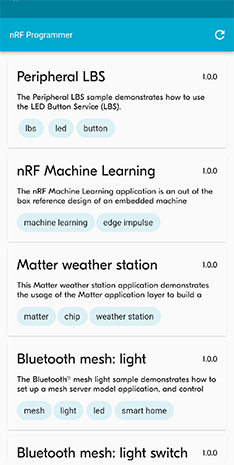
nRF Programmer - list of samples
Select a sample.
Application info appears.
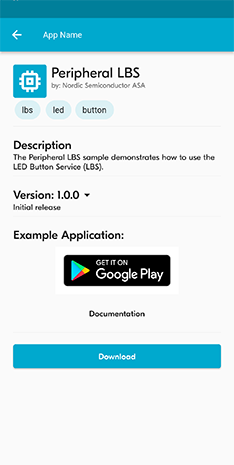
nRF Programmer - Application Info
Select the version of the sample from the drop-down menu.
Tap Download.
When the download is complete, the name of the button changes to Install.
Tap Install.
A list of nearby devices and their signal strengths appears.
Select your Nordic Thingy:53 from the list. It is listed as El Thingy:53.
The transfer of the firmware image starts, and a progress wheel appears.
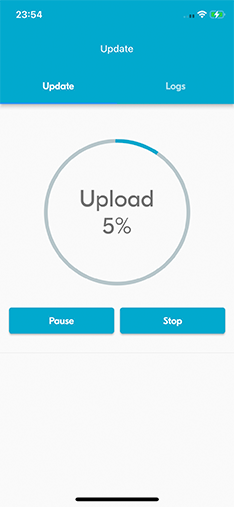
nRF Programmer - progress wheel
If you want to pause the update process, tap Pause. If you want to stop the update process, tap Stop.
The image transfer is complete when the progress wheel reaches 100%. The Nordic Thingy:53 is reset and updated to the new firmware sample.
Tap Done to return to Application info.
See the Programming Nordic Thingy prototyping platforms in the tool documentation for detailed steps.
See the Programming Nordic Thingy prototyping platforms in the tool documentation for detailed steps.
See Programming application firmware using MCUboot serial recovery in the tool documentation for more information.