

Wi-Fi: WFA QuickTrack control application
The QuickTrack sample demonstrates how to use the WFA QuickTrack (WFA QT) library needed for Wi-Fi Alliance® QuickTrack certification.
Requirements
The sample supports the following development kits:
Hardware platforms |
PCA |
Board name |
Shields |
|
|---|---|---|---|---|
PCA10217 |
|
|||
PCA10143 |
|
|||
PCA10184 |
|
|
||
PCA10175 |
|
|
||
PCA10095 |
|
|
Overview
The QuickTrack sample and library offer support for QuickTrack certification testing through two distinct interfaces: a netUSB interface and a Serial Line Internet Protocol (SLIP) interface.
You can choose either of these options for running QuickTrack certification.
See Wi-Fi Alliance Certification for nRF70 Series for more information.
Test setup
The following figure shows a reference test setup.
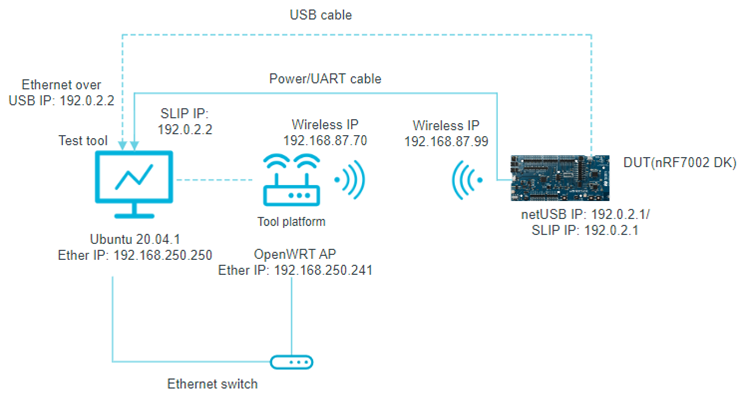
Wi-Fi QuickTrack reference test setup
Build configuration
See Configuring and building for information about how to permanently or temporarily change the configuration.
Configuration options
The following sample-specific Kconfig options are used in this sample (located in samples/wifi/wfa_qt_app/Kconfig) :
- CONFIG_NET_CONFIG_USB_IPV4_ADDR
(string) USB IPv4 address
Static IPv4 address for USB interface
- CONFIG_NET_CONFIG_SLIP_IPV4_ADDR
(string) SLIP IPv4 address
Static IPv4 address for SLIP (Serial Line Internet Protocol) interface.
- CONFIG_NET_CONFIG_SLIP_IPV4_MASK
(string) SLIP IPv4 subnet mask
Static IPv4 subnet mask for SLIP (Serial Line Internet Protocol) interface.
- CONFIG_WFA_QT_SAMPLE_DHCPV4_POOL_START
(string) Start address of DHCPv4 pool
Set the start IP address of DHCPv4 pool.
To specify IP addresses, you can edit the following Kconfig options:
Use the
CONFIG_NET_CONFIG_USB_IPV4_ADDRKconfig option in theoverlay-netusb.conffile to set the IPv4 address for USB communication.Use the
CONFIG_NET_CONFIG_SLIP_IPV4_ADDRKconfig option in theoverlay-slip.conffile to set the IPv4 address for UART communication.
Set the CONFIG_WIFI_NM_WPA_SUPPLICANT_HEAP Kconfig option according to the size of the certificates used.
Building and running
This sample can be found under samples/wifi/wfa_qt_app in the nRF Connect SDK folder structure.
For more security, it is recommended to use the */ns variant of the board target (see the Requirements section above.)
When built for this variant, the sample is configured to compile and run as a non-secure application using security by separation.
Therefore, it automatically includes Trusted Firmware-M that prepares the required peripherals and secure services to be available for the application.
To build the sample, follow the instructions in Building an application for your preferred building environment. See also Programming an application for programming steps and Testing and optimization for general information about testing and debugging in the nRF Connect SDK.
Note
When building repository applications in the SDK repositories, building with sysbuild is enabled by default.
If you work with out-of-tree freestanding applications, you need to manually pass the --sysbuild parameter to every build command or configure west to always use it.
Currently, the following configurations are supported:
nRF7002 DK + QSPI
nRF7002 EK + SPI
To build for the nRF7002 DK, use the nrf7002dk/nrf5340/cpuapp board target.
The following is an example of the CLI command:
west build -b nrf7002dk/nrf5340/cpuapp
To build for the nRF7002 EK with the nRF5340 DK, use the nrf5340dk/nrf5340/cpuapp board target with the SHIELD CMake option set to nrf7002ek.
The following is an example of the CLI command:
west build -b nrf5340dk/nrf5340/cpuapp -- -DSHIELD=nrf7002ek
To build for the nRF7002 DK with the netusb support, use the nrf7002dk/nrf5340/cpuapp board target with the configuration overlay overlay-netusb.conf.
The following is an example of the CLI command:
west build -b nrf7002dk/nrf5340/cpuapp -- -DEXTRA_CONF_FILE=overlay-netusb.conf
To build for the nRF7002 DK with the Serial Line Internet Protocol (SLIP) support, use the nrf7002dk/nrf5340/cpuapp board target with the configuration overlay overlay-slip.conf and DTC overlay nrf7002_uart_pipe.overlay.
The following is an example of the CLI command:
west build -b nrf7002dk/nrf5340/cpuapp -- -DEXTRA_CONF_FILE=overlay-slip.conf -DEXTRA_DTC_OVERLAY_FILE=nrf7002_uart_pipe.overlay
See also Providing CMake options for instructions on how to provide CMake options.
Refer to the sample.yaml file for a complete list of supported boards and their corresponding build command options.
Testing
After programming the sample to your development kit, complete the following steps to test it with the SLIP configuration:
Install
tunslip6by installing thenet-toolspackage on the PC where the QuickTrack (QT) tool is running. Run the following command to clone thenet-toolsrepository:git clone https://github.com/zephyrproject-rtos/net-tools.gitNavigate to the
net-toolsdirectory.cd net-tools/Run the following command to compile the
net-toolspackage:makeNote
Install all dependent packages.
Run the following command to create a SLIP interface.
./tunslip6 -s <serial_port> -T <IPv6_prefix>tunslip6: Creates a SLIP interface on the host PC, which can be used for serial communication.serial_port: Can be replaced with the device path on which the DUT is connected to.IPv6_prefix: Can be replaced with the desired IPv6 address and subnet prefix length for your device.
The following is an example of the CLI command:
./tunslip6 -s /dev/ttyACM4 -T 2001:db8::1/64
Sample output
After programming, the sample shows the following output:
*** Booting nRF Connect SDK 48f33c9870f1 ***
Starting nrf7002dk/nrf5340/cpuapp with CPU frequency: 128 MHz
[00:00:00.330,932] <inf> net_config: Initializing network
[00:00:00.330,932] <inf> net_config: Waiting interface 2 (0x20007a58) to be up...
[00:00:00.331,085] <inf> wpa_supp: Successfully initialized wpa_supplicant
[00:00:00.331,237] <inf> wfa_qt: Welcome to use QuickTrack Control App DUT version v2.1

[00:00:00.331,268] <inf> wfa_qt: QuickTrack control app running at: 9004
[00:00:00.331,268] <inf> wfa_qt: Wireless Interface: wlan0
[00:00:00.757,965] <inf> net_config: Interface 1 (0x20007940) coming up
[00:00:00.758,087] <inf> net_config: Running dhcpv4 client...
[00:00:00.763,732] <inf> usb_ecm: Set Interface 0 Packet Filter 0x000c not supported
[00:00:00.830,627] <inf> usb_ecm: Set Interface 0 Packet Filter 0x000e not supported
[00:00:00.832,214] <inf> usb_ecm: Set Interface 0 Packet Filter 0x000e not supported
[00:00:00.832,519] <inf> usb_ecm: Set Interface 0 Packet Filter 0x000e not supported
[00:00:00.834,594] <inf> usb_ecm: Set Interface 0 Packet Filter 0x000e not supported
[00:00:00.835,021] <inf> usb_ecm: Set Interface 0 Packet Filter 0x000e not supported
[00:00:00.835,327] <inf> usb_ecm: Set Interface 0 Packet Filter 0x000e not supported
[00:00:00.835,937] <inf> usb_ecm: Set Interface 0 Packet Filter 0x000e not supported
QuickTrack certification testing
QuickTrack certification tests can be done by individual companies with Wi-Fi Alliance membership or by authorized test houses. See QuickTrack Test Tool User Manual for how to install the QuickTrack test tool. See QuickTrack Test Tool Platform Integration Guide for the installation process of relevant access points.
Note
OpenWRT access points have known limitations when running Station Under Test (STAUT) Security Vulnerability Detection test cases.
Wi-Fi Alliance recommends using Intel AX210 station as the SoftAP to perform these tests.
See Platform Intel Ax210 Integration Guide for more details.
QuickTrack configuration settings
This section provides information on setting up the QuickTrack test tool. It includes details on settings, certification configuration, and test cases.
Settings
The Settings menu includes the following tabs:
Test Setup Configuration
Test Case Global Configuration
Test Case Specific Configuration
Advanced Configuration
Test Setup Configuration
The following figure shows an overview of the test setup configuration settings.
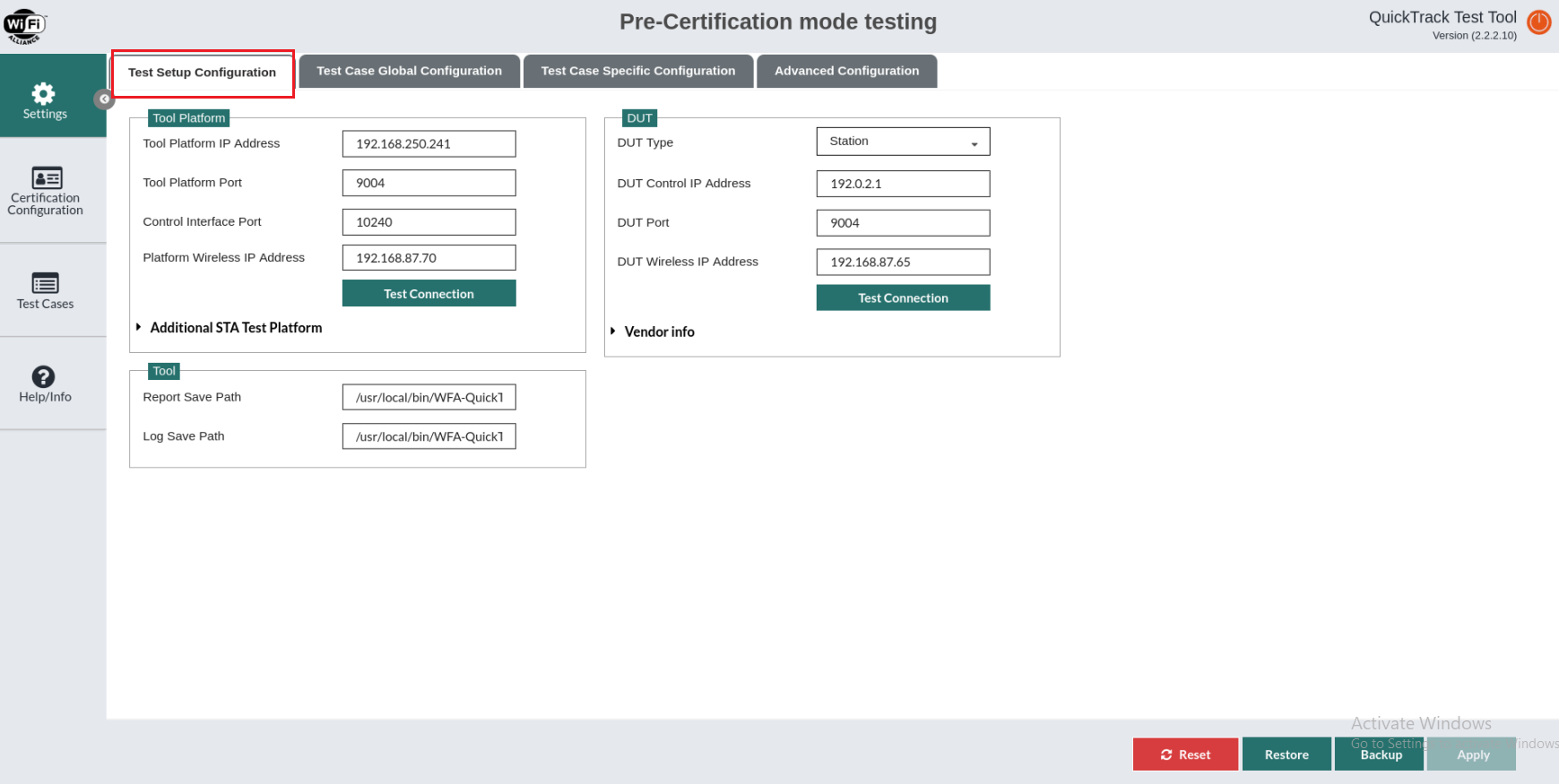
Test Setup Configuration
Tool Platform
You can adjust the Tool Platform settings by providing the following information:
Tool Platform IP Address - The Ethernet IP address of the QuickTrack Test Tool platform.
Tool Platform Port - The port number on which the ControlAppC service is running on the QuickTrack Test Tool platform.
Control Interface Port - This is usually left at its default setting.
Platform Wireless IP Address - The wireless IP address of the QuickTrack Test Tool platform.
Device Under Test (DUT)
You can adjust the DUT settings by providing the following information:
DUT Type - It must be set to
Stationfor STAUT andAccess Pointfor APUT.DUT Control IP Address - The Ethernet IP address of the DUT (it can be either a netUSB or SLIP IP).
DUT Port - The port number on which ControlAppC service is running on the DUT.
DUT Wireless IP Address - The wireless IP address of the DUT, which is in the same subnet as the Platform Wireless IP Address.
Test Case Global Configuration
The following figure shows an overview of the global configuration settings used by most test cases:
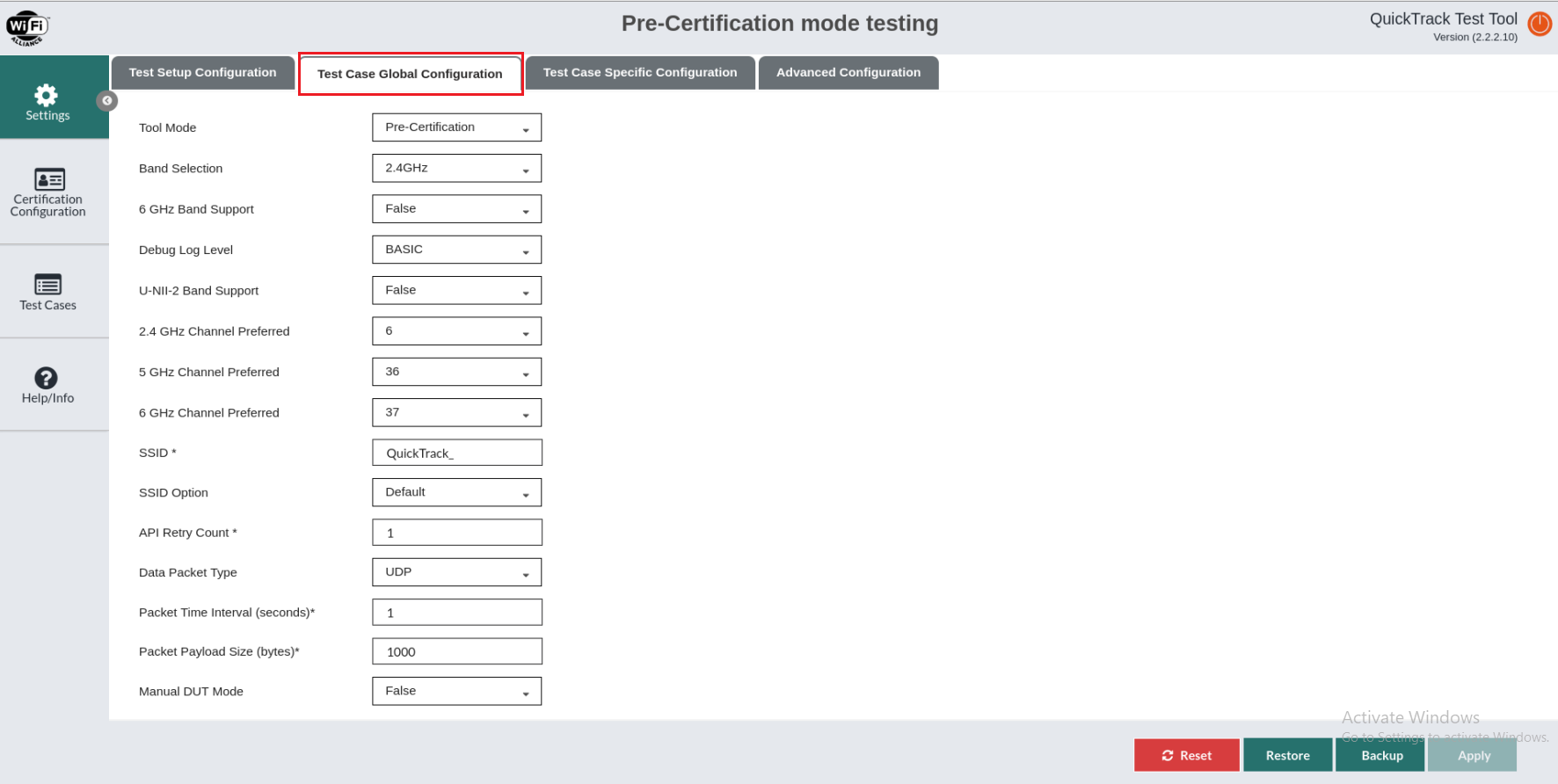
Test Case Global Configuration
Tool Mode
Tool Mode refers to different operational settings such as Development, Pre-Certification, and Certification. Refer to section 3.3.2 in the QuickTrack Test Tool User Manual for more information.
Test Case Specific Configuration
The following figure shows an overview of the DUT-specific capabilities:
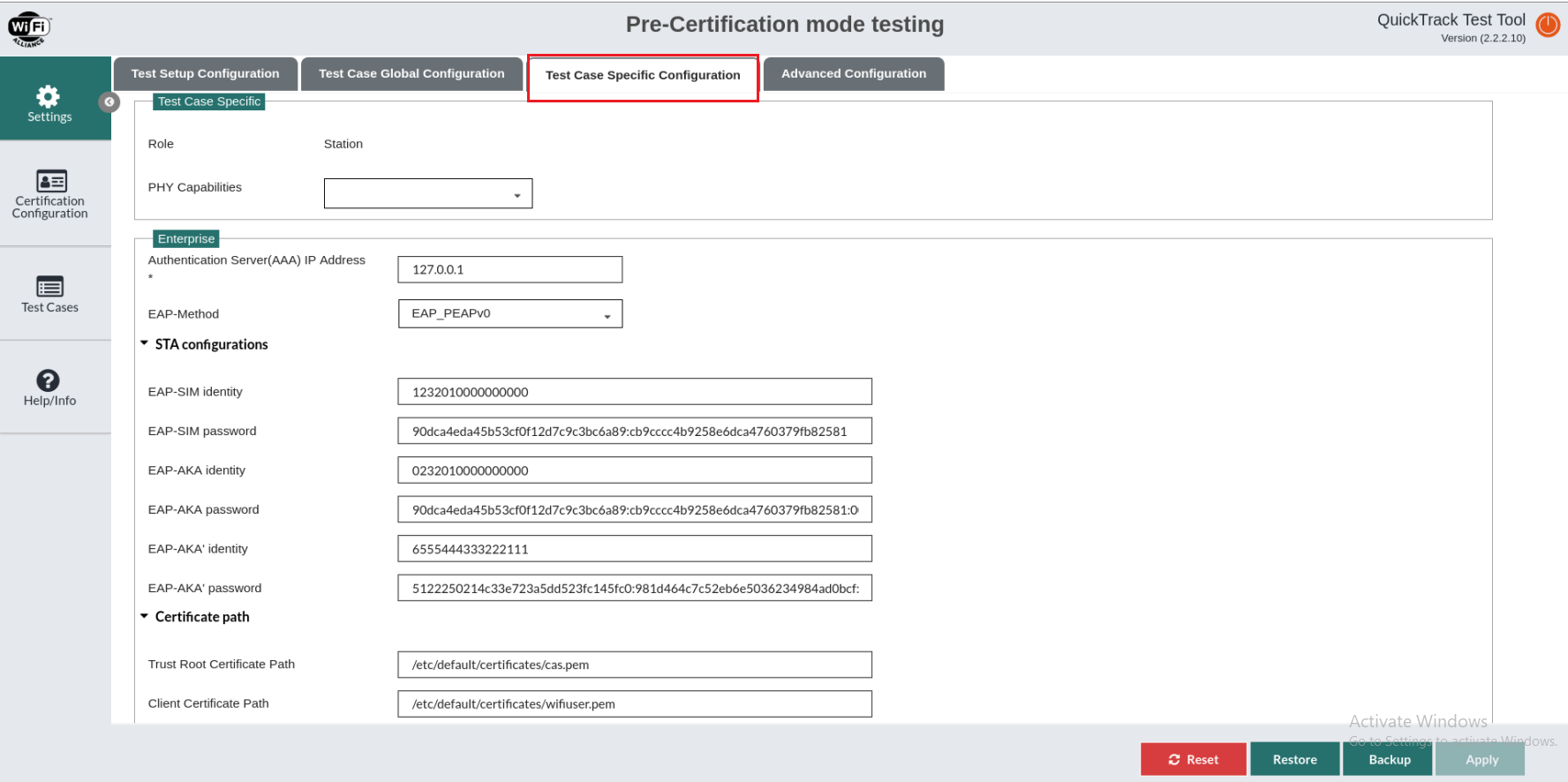
Test Case Specific Configuration
Advanced Configuration
The following figure shows an overview of the advanced configuration settings required for test execution.
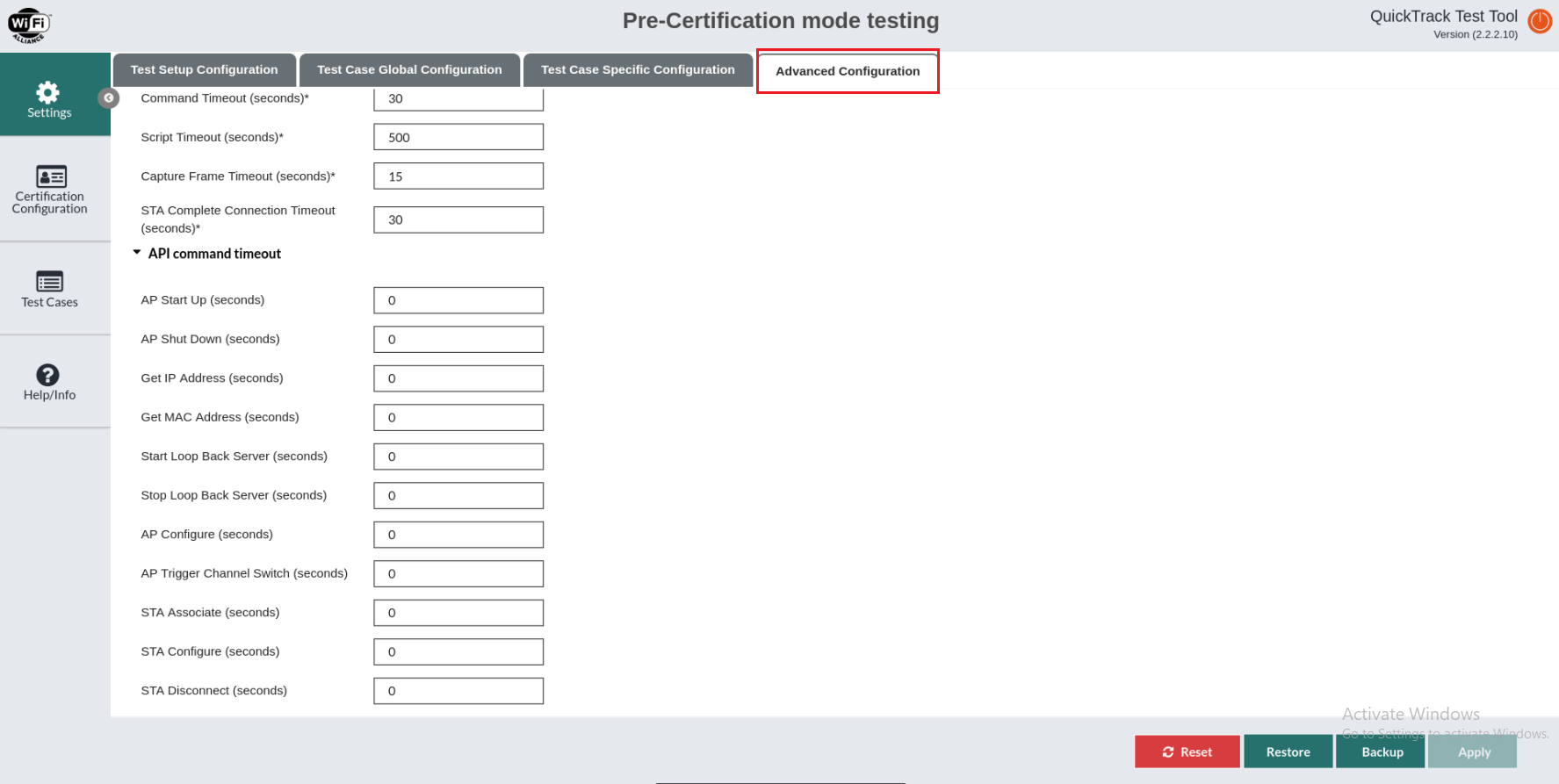
Advanced Configuration
Certification Configuration
The Certification Configuration menu provides the following functionalities for test execution in certification mode.
Update Certification Bundle
Select Update Certification Bundle to launch a file browser and upload the JSON bundle to open.
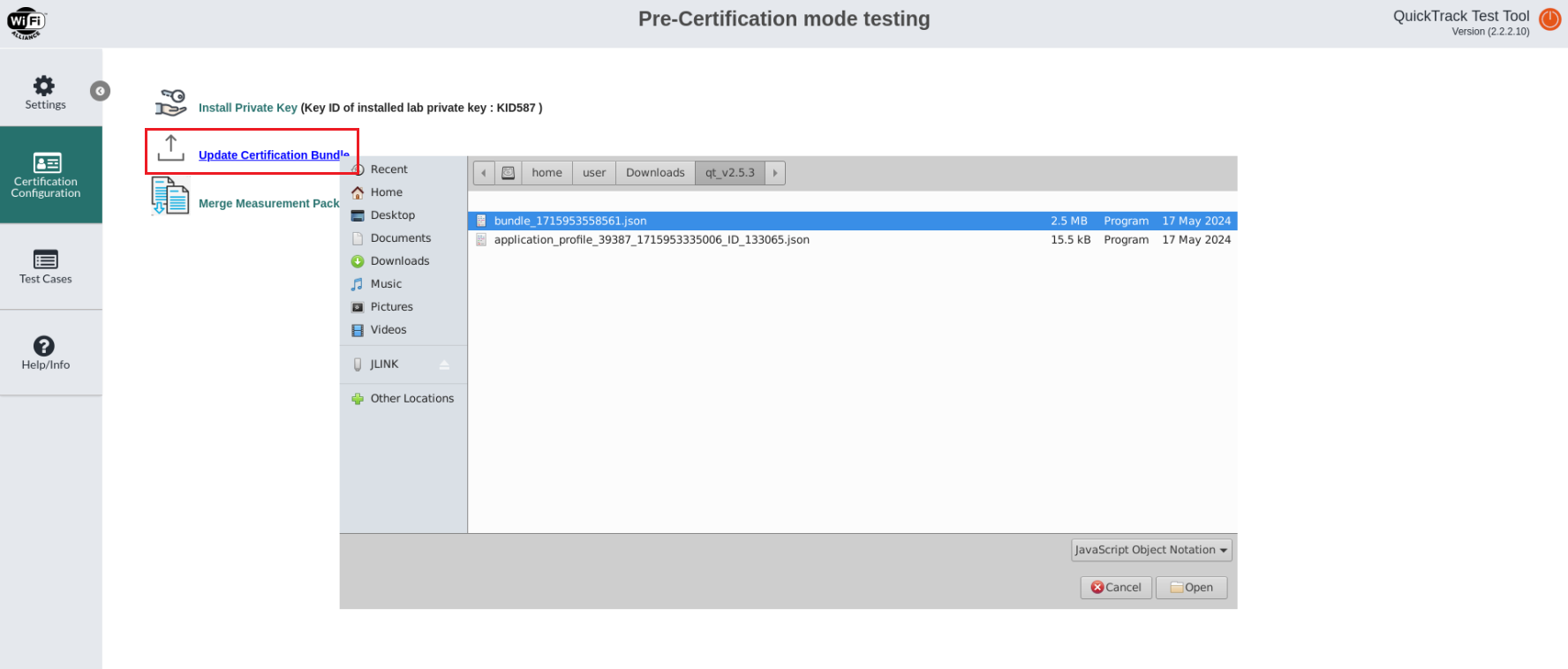
Certification Configuration
Install Private Key
Select Install Private Key and enter the Key ID of the lab key that is imported in the Certification System. Refer to section 3.4 in the QuickTrack Test Tool User Manual for more information.
Merge Measurement Package
Merge Measurement Package allows you to merge multiple measurement data into single measurement JSON file before uploading it to the Certification System.
Test cases
The Test Cases menu is used for test case selection and execution. You can select and execute the test cases by providing the following information:
Load Application Profile
Select Load Application Profile to upload an application profile that includes all the required test cases.
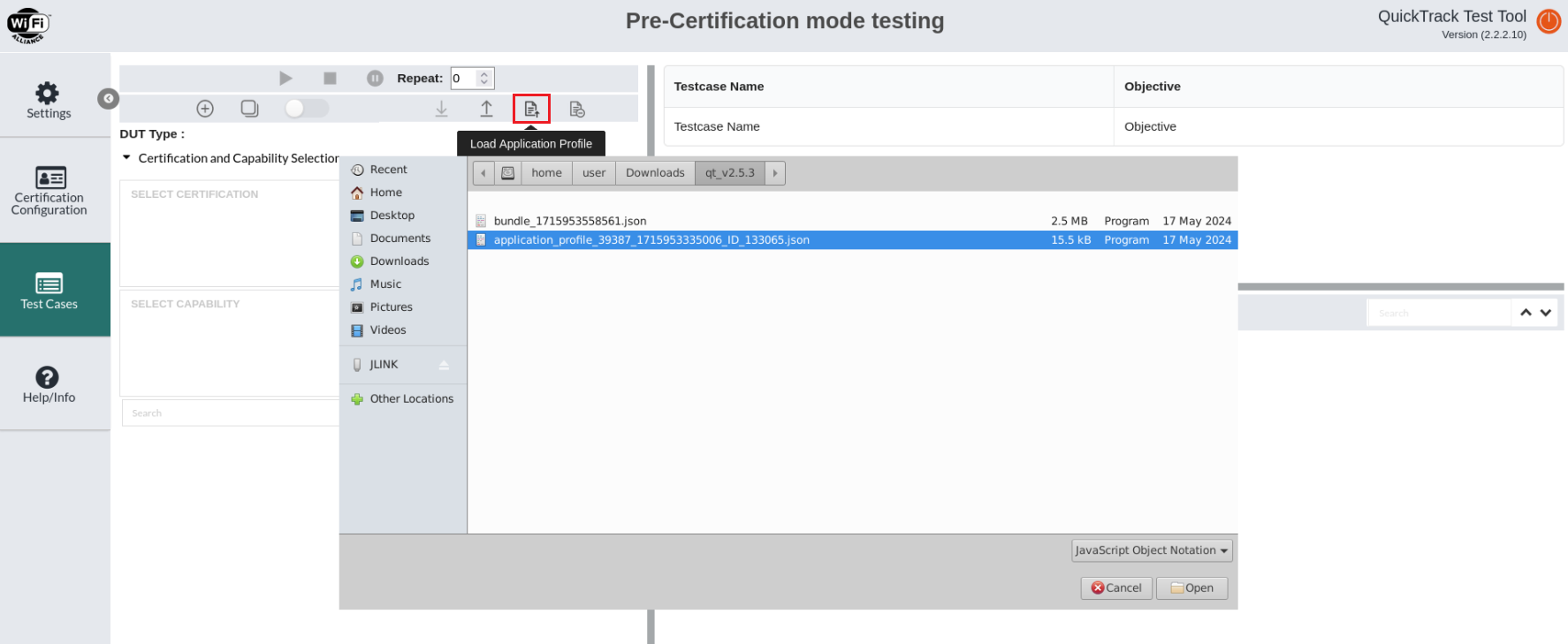
Test Cases
Prerequisites before starting test execution
Before you start the test execution, ensure that the following prerequisites are met:
DUT - Load the pre-compiled
.hexfile onto the DUT.
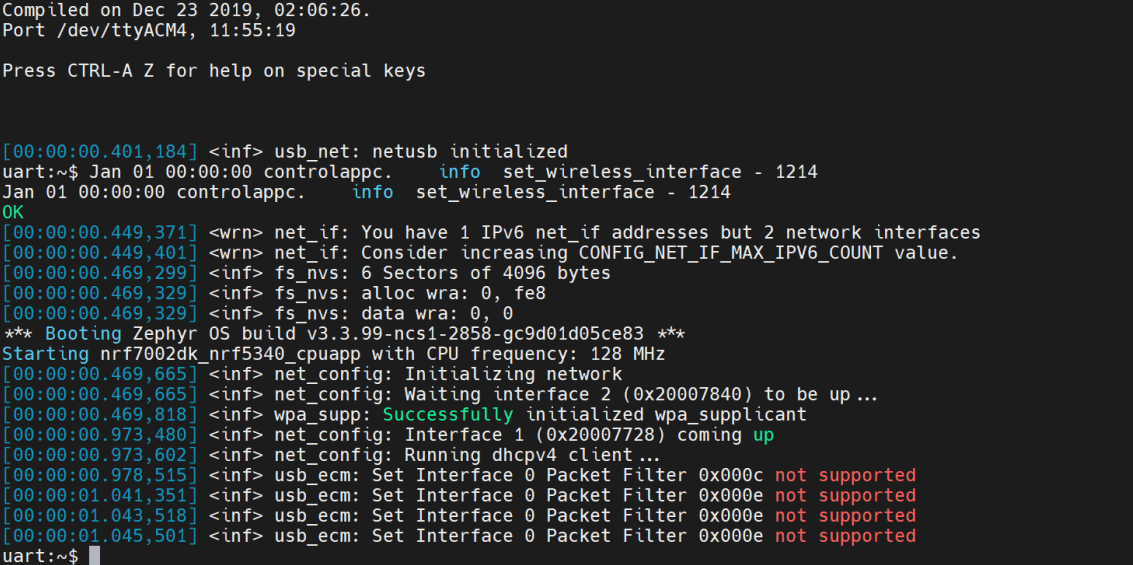
Sample output after loading netUSB related .hex file onto the DUT
OpenWRT AP - Start the ControlAppC service on OpenWRT AP.
To start the ControlAppC service on the OpenWRT AP, use the following command:
/usr/sbin/run.sh platform
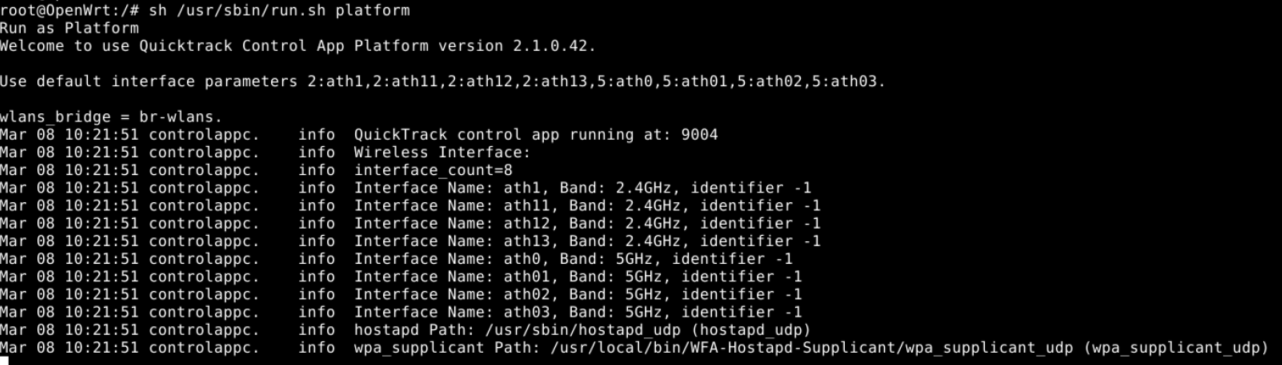
Sample output on openWRT AP
Test connection - In the Test Setup Configuration tab, verify the test connection. If everything is correct, a green checkmark will appear.
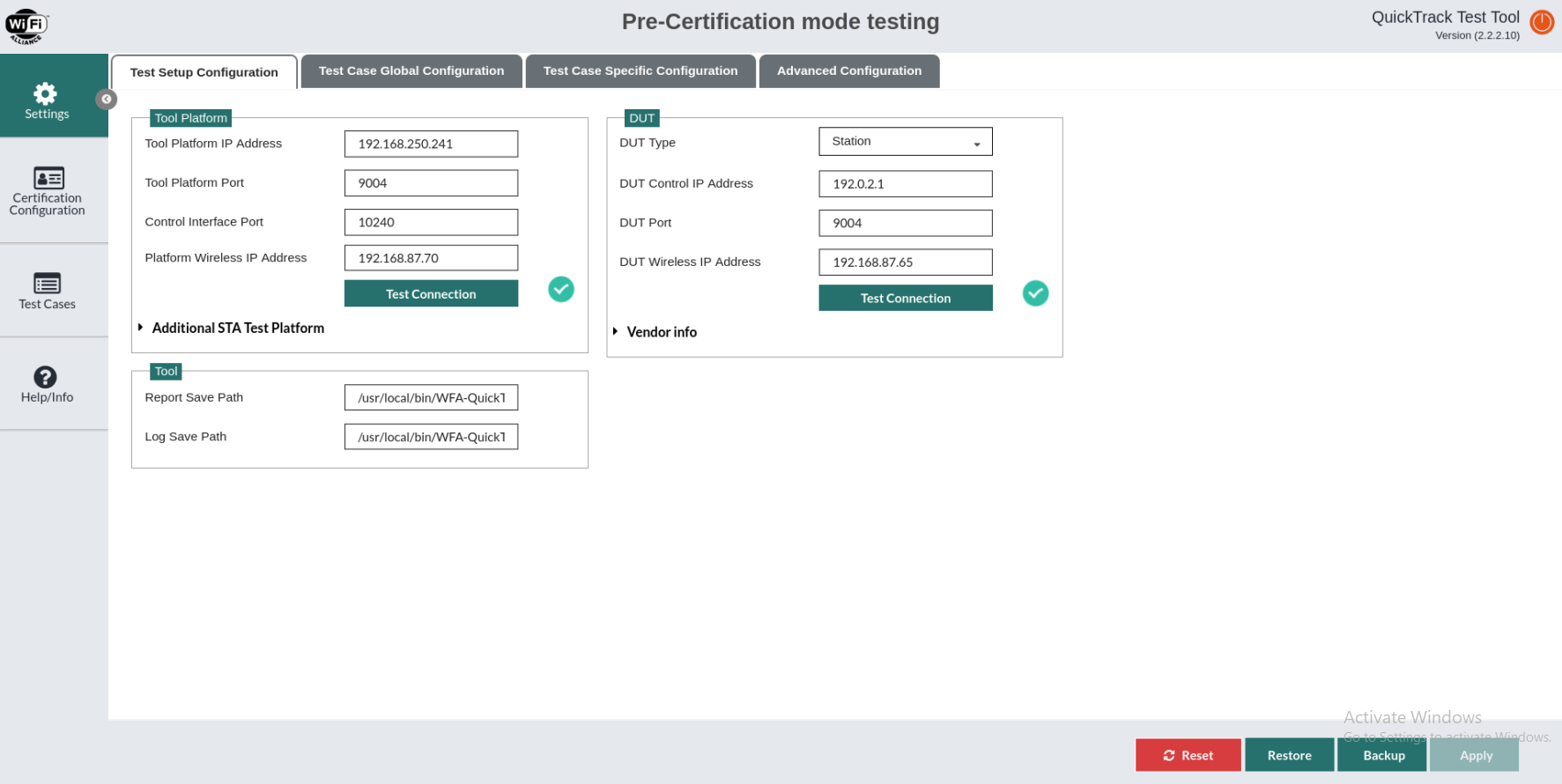
Test Connection
Tests execution
Execute the tests by selecting all the test cases from the test case list and clicking on the Run button.
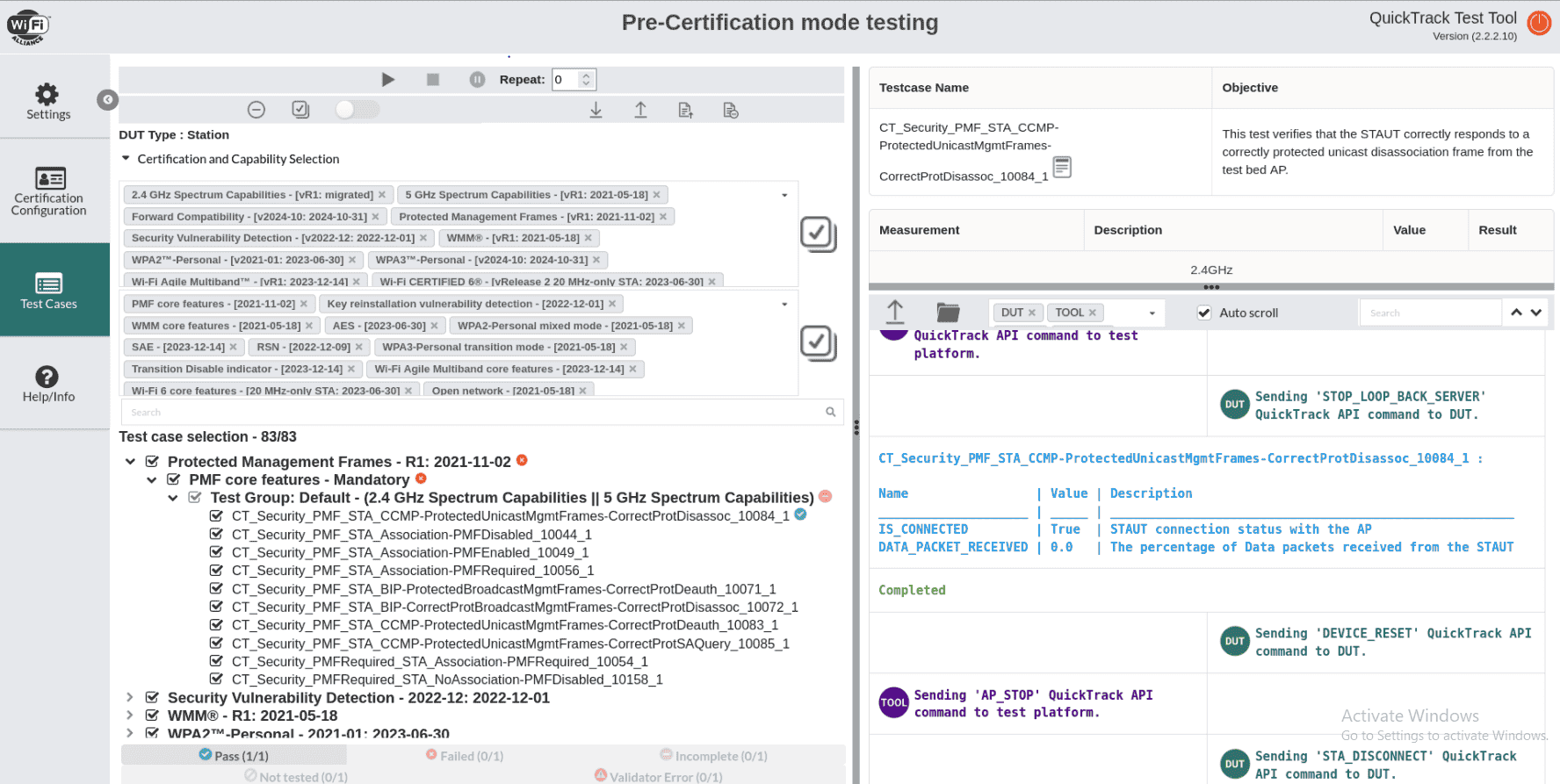
Test cases
Test Logs
At the end of each test execution, test logs and cloud reports will be stored in the path specified in the Test Configuration tab.
Dependencies
This sample uses a module that can be found in the following location in the nRF Connect SDK folder structure:
modules/lib/wfa-qt-control-app