

Bluetooth: Central BAS
The Central BAS sample demonstrates how do use the GATT Battery Service (BAS) Client. It uses the BAS Client to receive battery level information from a compatible device.
Requirements
The sample supports the following development kits:
Hardware platforms |
PCA |
Board name |
|
|---|---|---|---|
PCA10188 |
|
||
PCA10184 |
|
||
PCA10226 |
|
||
PCA10226 |
|
||
PCA10156 |
|
||
PCA10156 |
|
||
PCA10156 |
|
||
PCA10175 |
|
||
PCA10095 |
|
For more security, it is recommended to use the */ns variant of the board target.
When built for this variant, the sample is configured to compile and run as a non-secure application using security by separation.
Therefore, it automatically includes Trusted Firmware-M that prepares the required peripherals and secure services to be available for the application.
The sample also requires a device running a BAS Server to connect with (for example, another development kit running the Bluetooth: Peripheral HIDS mouse or Bluetooth: Peripheral HIDS keyboard sample, or a computer with a Bluetooth® Low Energy dongle and the Bluetooth Low Energy app).
Overview
When connected, the sample subscribes to battery level notifications. Every notification that is received is printed to the terminal.
If the device does not support notifications for the Battery Level Characteristic, press Button 1 to request for reading the battery level.
If the device does not support notifications for the Battery Level Characteristic, press Button 0 to request for reading the battery level.
User interface
- Button 1:
Send read request for the battery level value.
- Button 0:
Send read request for the battery level value.
Building and running
This sample can be found under samples/bluetooth/central_bas in the nRF Connect SDK folder structure.
For more security, it is recommended to use the */ns variant of the board target (see the Requirements section above.)
When built for this variant, the sample is configured to compile and run as a non-secure application using security by separation.
Therefore, it automatically includes Trusted Firmware-M that prepares the required peripherals and secure services to be available for the application.
To build the sample, follow the instructions in Building an application for your preferred building environment. See also Programming an application for programming steps and Testing and optimization for general information about testing and debugging in the nRF Connect SDK.
Note
When building repository applications in the SDK repositories, building with sysbuild is enabled by default.
If you work with out-of-tree freestanding applications, you need to manually pass the --sysbuild parameter to every build command or configure west to always use it.
Testing
After programming the sample to your development kit, you can test it either by connecting to another kit that is running the Bluetooth: Peripheral HIDS keyboard or Bluetooth: Peripheral HIDS mouse sample, or by using the Bluetooth Low Energy app that emulates a BAS Server.
Testing with another kit
Connect to the kit that runs this sample with a terminal emulator (for example, the Serial Terminal app). See Testing and optimization for the required settings and steps.
Reset the kit.
Program the other development kit with the Bluetooth: Peripheral HIDS keyboard or Bluetooth: Peripheral HIDS mouse sample and reset it.
Wait until the BAS Server is detected by the central. In the terminal window, check for information similar to the following:
The discovery procedure succeeded
Observe that the received notifications are output in the terminal window:
[xx.xx.xx.xx.xx.xx (random)]: Battery notification: 99%
[xx.xx.xx.xx.xx.xx (random)]: Battery notification: 98%
[xx.xx.xx.xx.xx.xx (random)]: Battery notification: 97%
Press Button 1 to send a read request and process the response:
Reading BAS value:
[xx.xx.xx.xx.xx.xx (random)]: Battery read: 97%
Connect to the kit that runs this sample with a terminal emulator (for example, the Serial Terminal app). See Testing and optimization for the required settings and steps.
Reset the kit.
Program the other development kit with the Bluetooth: Peripheral HIDS keyboard or Bluetooth: Peripheral HIDS mouse sample and reset it.
Wait until the BAS Server is detected by the central. In the terminal window, check for information similar to the following:
The discovery procedure succeeded
Observe that the received notifications are output in the terminal window:
[xx.xx.xx.xx.xx.xx (random)]: Battery notification: 99%
[xx.xx.xx.xx.xx.xx (random)]: Battery notification: 98%
[xx.xx.xx.xx.xx.xx (random)]: Battery notification: 97%
Press Button 0 to send a read request and process the response:
Reading BAS value:
[xx.xx.xx.xx.xx.xx (random)]: Battery read: 97%
Testing with Bluetooth Low Energy app
Connect to the kit that runs this sample with a terminal emulator (for example, the Serial Terminal app). See Testing and optimization for the required settings and steps.
Reset the kit.
Start nRF Connect for Desktop.
Open the Bluetooth Low Energy app and select the connected dongle that is used for communication.
Open the SERVER SETUP tab. Click the dongle configuration and select Load setup. Load the
hids_keyboard.ncsfile that is located undersamples/bluetooth/central_basin the nRF Connect SDK folder structure.Click Apply to device.
Open the CONNECTION MAP tab. Click the dongle configuration and select Advertising setup.
The current version of the app cannot store the advertising setup, so it must be configured manually. See the following image for the required target configuration:
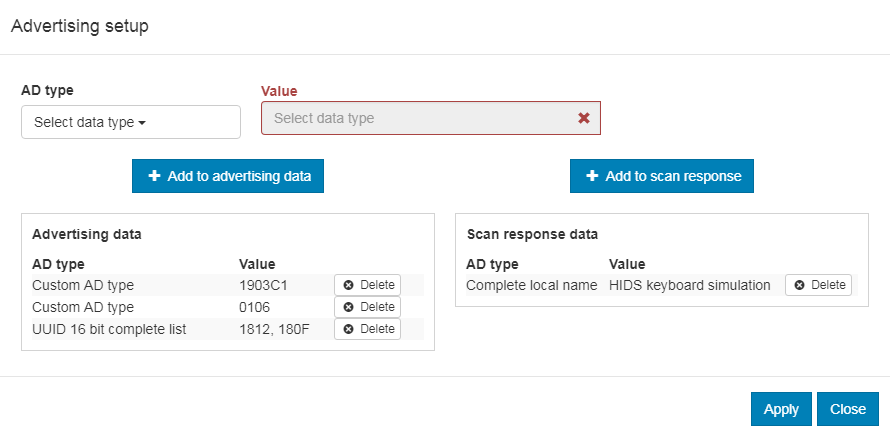
Advertising setup for HIDS keyboard simulator
Complete the following steps to configure the advertising setup:
Delete the default Complete local name from Advertising data.
Add a Custom AD type with AD type value set to
19and Value set to03c1. This is the GAP Appearance advertising data.Add a Custom AD type with AD type value set to
01and Value set to06. This is the AD data with “General Discoverable” and “BR/EDR not supported” flags set.Add a UUID 16 bit complete list with two comma-separated values:
1812and180F. These are the values for HIDS and BAS.Add a Complete local name of your choice to the Scan response data.
Click Apply and Close.
In the Adapter settings, select Start advertising.
Wait until the kit that runs the Central BAS sample connects. In the terminal window, check for information similar to the following:
The discovery procedure succeeded
Press Button 1 to send read request and process the response:
Reading BAS value:
[xx.xx.xx.xx.xx.xx (random)]: Battery read: 100%
Change the value in Battery Service > Battery Level to generate notifications.
Observe that the notification information is displayed:
[xx.xx.xx.xx.xx.xx (random)]: Battery notification: 99%
Connect to the kit that runs this sample with a terminal emulator (for example, the Serial Terminal app). See Testing and optimization for the required settings and steps.
Reset the kit.
Start nRF Connect for Desktop.
Open the Bluetooth Low Energy app and select the connected dongle that is used for communication.
Open the SERVER SETUP tab. Click the dongle configuration and select Load setup. Load the
hids_keyboard.ncsfile that is located undersamples/bluetooth/central_basin the nRF Connect SDK folder structure.Click Apply to device.
Open the CONNECTION MAP tab. Click the dongle configuration and select Advertising setup.
The current version of the app cannot store the advertising setup, so it must be configured manually. See the following image for the required target configuration:
Advertising setup for HIDS keyboard simulator
Complete the following steps to configure the advertising setup:
Delete the default Complete local name from Advertising data.
Add a Custom AD type with AD type value set to
19and Value set to03c1. This is the GAP Appearance advertising data.Add a Custom AD type with AD type value set to
01and Value set to06. This is the AD data with “General Discoverable” and “BR/EDR not supported” flags set.Add a UUID 16 bit complete list with two comma-separated values:
1812and180F. These are the values for HIDS and BAS.Add a Complete local name of your choice to the Scan response data.
Click Apply and Close.
In the Adapter settings, select Start advertising.
Wait until the kit that runs the Central BAS sample connects. In the terminal window, check for information similar to the following:
The discovery procedure succeeded
Press Button 0 to send read request and process the response:
Reading BAS value:
[xx.xx.xx.xx.xx.xx (random)]: Battery read: 100%
Change the value in Battery Service > Battery Level to generate notifications.
Observe that the notification information is displayed:
[xx.xx.xx.xx.xx.xx (random)]: Battery notification: 99%
Dependencies
This sample uses the following nRF Connect SDK libraries:
In addition, it uses the following Zephyr libraries:
include/zephyr/types.hboards/arm/nrf*/board.h-
include/kernel.h
-
include/uart.h
API:
include/bluetooth/bluetooth.hinclude/bluetooth/gatt.hinclude/bluetooth/hci.hinclude/bluetooth/uuid.h
The sample also uses the following secure firmware component: