

AWS FOTA
The Amazon Web Services firmware over-the-air (AWS FOTA) library combines the AWS jobs and FOTA download libraries into a library that can perform an over-the-air firmware update using HTTP and HTTPS.
It connects to the specified broker using the existing or given certificates and uses TLS for the MQTT connection. This means that the data sent in each MQTT message is encrypted.
When an update is available, the library receives a notification that contains metadata about the update. This metadata contains the location of the uploaded firmware image. The library then uses HTTP or HTTPS to download the firmware image, replacing the current firmware with the downloaded firmware. After the new firmware image is downloaded, the application must perform a reboot to run the new image and complete the FOTA process. The library supports the updating of delta images for both the application and modem firmware.
See AWS FOTA implementation for information about the download procedure, and AWS IoT Developer Guide for general information about the Amazon Web Services IoT service.
Requirements
The library requires an AWS account with access to Simple Storage Service (S3) and the IoT Core service.
If you use HTTPS to download the firmware, you must provision the CA certificate of the firmware host in a security tag.
Set the CONFIG_AWS_FOTA_DOWNLOAD_SECURITY_TAG Kconfig option to this security tag.
If you do not set the option, the update job fails with the NO_SEC_TAG error.
The library uses the security tag only to verify the server. The download does not require a client certificate or a private key. The firmware URL, for example, a presigned Amazon S3 URL, authorizes the download (see AWS IoT jobs).
You can use the same security tag as for the MQTT connection if its CA certificate also validates the firmware host. Otherwise, provision a separate security tag that contains the required CA certificate.
Creating a FOTA job
Go to AWS S3 console and sign in.
Click Create bucket and select a name.
Uncheck Block all public access under the Block Public Access settings for this bucket label.
Scroll down and click Create bucket.
Click the newly created bucket, select Permissions and insert the following permissive policy under Bucket Policy:
{    "Version": "2012-10-17",
     "Statement": [
         {
             "Effect": "Allow",
             "Principal": "*",
             "Action": "s3:GetObject",
             "Resource": "arn:aws:s3:::bucket_name/*"
         }
      ]
}
Replace the bucket_name with the name of your bucket.
Note
The policy example is only intended for development environments. AWS best practices recommends that the principal is specified in the Bucket Policy to prevent anonymous users from accessing S3. For more information, refer to the example policies listed in AWS IoT Core policy examples and Security best practices in AWS IoT Core.
Click Objects to go back to the bucket.
Click Upload and Add files.
Select the file
build/<app_name>/zephyr/zephyr.signed.bin(located in thezephyrsubfolder of your build directory).Click Upload and then Close.
Click the uploaded image file
build/<app_name>/zephyr/zephyr.signed.binand copy the Object URL without the https:// prefix and folder path.Create a text file (job document) with content as in the snippet, replacing the following data:
protocol with either
httporhttps.host_url with the Object URL copied in the previous step (for example,
examplebucket.s3.eu-central-1.amazonaws.com).file_path with the path and file name (for example,
build/<app_name>/zephyr/zephyr.signed.bin).
{
  "operation": "app_fw_update",
  "fwversion": "v1.0.2",
  "size": 181124,
  "location": {
    "protocol": "protocol",
    "host": "host_url",
    "path": "file_path"
   }
}
To use a single URL, such as when using presigned AWS S3 URLs, see AWS IoT jobs. See AWS IoT Developer Guide: Jobs for more information about AWS jobs.
In the AWS S3 console Select the bucket, click Upload, and upload your job document. You must now have two files in your bucket, the uploaded image and the job document.
Log in to the AWS IoT console.
Go to Manage -> Remote actions-> Jobs, and select Create job.
Click Create custom job, enter a unique job name and select your Thing.
Click Browse S3 and locate the job document.
Click Next.
Select Snapshot under Job run type
Click the Submit button.
After the job has been submitted, the device picks up the job automatically. This can take several minutes. In the AWS S3 console you can check the status of the job to confirm that it is in progress. To handle the failed statuses, see Troubleshooting.
Configuration
Configure the following parameters when using this library:
CONFIG_AWS_FOTA_PAYLOAD_SIZE- Sets the maximum payload size for AWS IoT job messages. The default value is large enough for a job with a typical presigned URL.CONFIG_AWS_FOTA_DOWNLOAD_SECURITY_TAG- Sets the security tag to be used in case of HTTPS downloads.
Additionally, configure the Downloader library:
CONFIG_DOWNLOADER_MAX_HOSTNAME_SIZE- Sets the maximum length of the host name for the library.CONFIG_DOWNLOADER_MAX_FILENAME_SIZE- Sets the maximum length of the file name for the library.
Implementation
The following sequence diagram shows how a firmware over-the-air update is implemented through the use of AWS IoT MQTT, AWS IoT jobs, and AWS Simple Storage Service (S3).
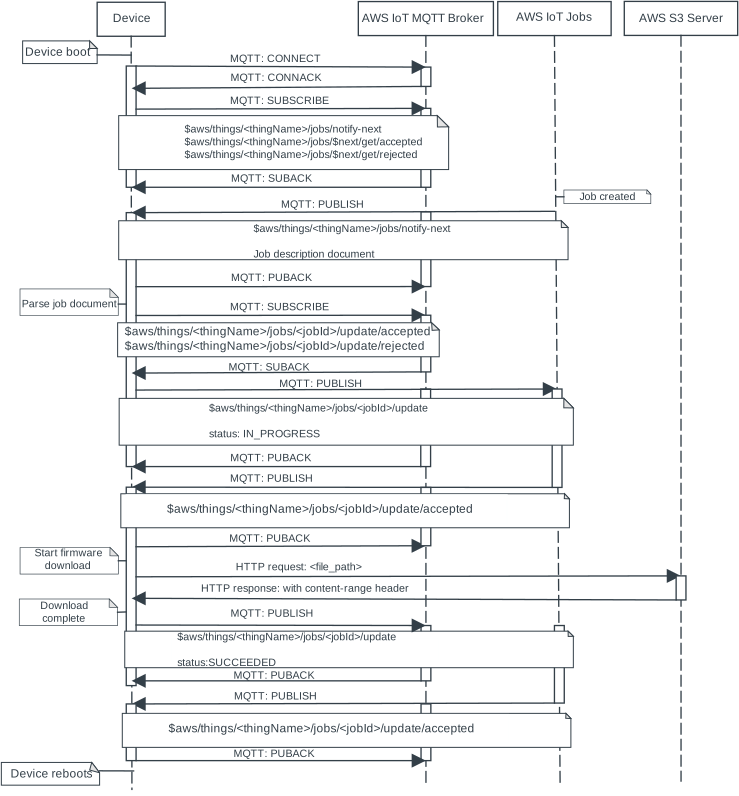
AWS Firmware Over-the-Air
Important
Other devices that are connected to the same AWS MQTT broker receive the same messages if the following conditions are met:
The other device has valid (but different) certificates that use the same AWS IoT policy as the original device.
The other device is subscribed to the same MQTT topic as the original device.
AWS IoT jobs
The implementation uses a job document like the following (where protocol is either http or https, bucket_name is the name of your bucket and file_name is the name of your file) for passing information from AWS IoT jobs to the device:
{
  "operation": "app_fw_update",
  "fwversion": "v1.0.2",
  "size": 181124,
  "location": {
    "protocol": "protocol",
    "host": "bucket_name.amazonaws.com",
    "path": "file_name.bin"
   }
}
Alternatively, to use a single URL, a document like the following can be used:
{
  "operation": "app_fw_update",
  "fwversion": "v1.0.2",
  "size": 181124,
  "location": {
    "url": "url"
   }
}
For information on how to use presigned AWS S3 URLs, refer to AWS IoT Developer Guide: Managing Jobs.
Troubleshooting
The following sections list some common errors and possible solutions to them.
Known error codes
- ERROR:
-NRF_ECONNREFUSED: Connection refused - This indicates an error with the configured certificates.
- ERROR:
-NRF_EHOSTUNREACH: Host is unreachable - This indicates that the download URL provided in the job document is wrong.
- Content range is not defined:
If you host the firmware image on a different server than in an S3 bucket, this error indicates that the Content-Range field is missing in the HTTP GET header. To fix this problem, configure the host server to provide this field. Also, confirm that your file is available from the browser without being logged into your AWS account.
- Job message does not fit in the payload buffer:
If a job message from AWS IoT Jobs is larger than
CONFIG_AWS_FOTA_PAYLOAD_SIZE, the library drops the message and keeps the MQTT connection. The application receives theAWS_FOTA_ERROR_CAUSE_PAYLOAD_TOO_LARGEerror cause. If the library can identify the job from the beginning of the message, it sets the job execution toFAILEDwith thePAYLOAD_TOO_LARGEreason in the status details. AWS IoT Jobs then does not send the job again. To fix this problem, increase the value of theCONFIG_AWS_FOTA_PAYLOAD_SIZEKconfig option and create the job again.
Presigned URLs
When using the presigned URLs, you might need to increase the value of the following Kconfig options to accommodate the long file name and payload size of the presigned URL and the secure download of the image:
CONFIG_AWS_FOTA_PAYLOAD_SIZE- Only if the job message is larger than the default value.CONFIG_MBEDTLS_HEAP_SIZE- If running Mbed TLS on the application core (Wi-Fi® builds).
Limitations
If the
CONFIG_AWS_FOTA_DOWNLOAD_SECURITY_TAGKconfig option is not configured but HTTPS is selected as the protocol, the update job fails. For further information about HTTPS support, refer to the HTTPS section of the Downloader library documentation.The library requires a Content-Range header to be present in the HTTP response from the server. This limitation is inherited from the Downloader library.
API documentation
include/net/aws_fota.hsubsys/net/lib/aws_fota/