

Wi-Fi: Monitor
The Monitor sample demonstrates how to set monitor mode, analyze incoming Wi-Fi® packets, and print packet statistics.
Requirements
The sample supports the following development kits:
Hardware platforms |
PCA |
Board name |
Shields |
|
|---|---|---|---|---|
PCA10217 |
|
|||
PCA10143 |
|
|||
PCA10143 |
|
|||
PCA10184 |
|
|
||
PCA10175 |
|
|
||
PCA10095 |
|
|
Overview
The sample demonstrates how to configure the nRF70 Series device in Monitor mode. It analyzes the incoming Wi-Fi packets on a raw socket and prints the packet statistics at a fixed interval.
To set the wait duration for printing Wi-Fi packet statistics in seconds, use the CONFIG_STATS_PRINT_TIMEOUT Kconfig option.
Configuration
See Configuring and building for information about how to permanently or temporarily change the configuration.
Configuration options
The following sample-specific Kconfig options are used in this sample (located in samples/wifi/monitor/Kconfig):
- CONFIG_MONITOR_MODE_REG_DOMAIN_ALPHA2
Configure the regulatory domain for Monitor mode sample
Specify the regulatory domain for the Monitor mode sample. The regulatory domain is a two-letter country code (alpha2).
- CONFIG_MONITOR_MODE_CHANNEL
Configure the channel for Monitor mode sample
Specify the channel for receiving Wi-Fi packets in Monitor mode. The valid channel range depends on the regulatory domain.
- CONFIG_MONITOR_MODE_WIFI_PACKET_FILTER_ALL
Filter all frames
Enable filtering of all Wi-Fi frames.
- CONFIG_MONITOR_MODE_WIFI_PACKET_FILTER_CUSTOM
Filter specific type of frames
Enable filtering of specific type of frames.
- CONFIG_MONITOR_MODE_WIFI_PACKET_FILTER_MGMT
Filter management frames
Accept only IEEE 802.11 management frames.
- CONFIG_MONITOR_MODE_WIFI_PACKET_FILTER_CTRL
Filter control frames
Accept only IEEE 802.11 control frames.
- CONFIG_MONITOR_MODE_WIFI_PACKET_FILTER_DATA
Filter data frames
Accept only IEEE 802.11 data frames.
- CONFIG_MONITOR_MODE_WIFI_PACKET_FILTER_CAPTURE_LEN
Wi-Fi packet capture length
This option sets the number of bytes to capture from each Wi-Fi packet. Allowed values range from a minimum of 14 bytes (standard ethernet header length) to a maximum of 1552 bytes.
- CONFIG_RX_THREAD_STACK_SIZE
Thread Stack Size
This option sets the stack size for the threads used in the sample.
- CONFIG_STATS_PRINT_TIMEOUT
Periodic statistics print timeout
This option sets the timeout for periodic statistics print in seconds.
Building and running
This sample can be found under samples/wifi/monitor in the nRF Connect SDK folder structure.
For more security, it is recommended to use the */ns variant of the board target (see the Requirements section above.)
When built for this variant, the sample is configured to compile and run as a non-secure application using security by separation.
Therefore, it automatically includes Trusted Firmware-M that prepares the required peripherals and secure services to be available for the application.
To build the sample, follow the instructions in Building an application for your preferred building environment. See also Programming an application for programming steps and Testing and optimization for general information about testing and debugging in the nRF Connect SDK.
Note
When building repository applications in the SDK repositories, building with sysbuild is enabled by default.
If you work with out-of-tree freestanding applications, you need to manually pass the --sysbuild parameter to every build command or configure west to always use it.
To build for the nRF7002 DK, use the nrf7002dk/nrf5340/cpuapp board target.
The following is an example of the CLI command:
west build -b nrf7002dk/nrf5340/cpuapp
Change the board target as given below for the nRF7002 EK.
nrf5340dk/nrf5340/cpuapp -- -DSHIELD=nrf7002ek
Refer to the sample.yaml file for a complete list of supported boards and their corresponding build command options.
Testing
After programming the sample to your development kit, complete the following steps to test it:
Connect the kit to the computer using a USB cable. The kit is assigned a serial port. Serial ports are referred to as COM ports on Windows, /dev/ttyACM devices on Linux, and /dev/tty devices on macOS. To list Nordic Semiconductor devices connected to your computer together with their serial ports, open a terminal and run the
nrfutil device listcommand. Alternatively, check your operating system’s device manager or its equivalent.Connect to the kit with a terminal emulator (for example, the Serial Terminal app). See Testing and optimization for the required settings and steps.
The sample shows the following output:
[00:00:00.422,027] <dbg> net_if: net_if_init: (0x20002d68):
[00:00:00.422,088] <dbg> net_if: init_iface: (0x20002d68): On iface 0x20001448
[00:00:00.422,210] <dbg> net_if: update_operational_state: (0x20002d68): iface 0x20001448, oper state DOWN admin DOWN carrier ON dormant ON
[00:00:00.422,271] <dbg> net_if: net_if_ipv6_calc_reachable_time: (0x20002d68): min_reachable:15000 max_reachable:45000
[00:00:00.422,485] <dbg> net_if: net_if_post_init: (0x20002d68):
[00:00:00.422,485] <dbg> net_if: net_if_up: (0x20002d68): iface 0x20001448
[00:00:00.486,083] <dbg> net_if: update_operational_state: (0x20002d68): iface 0x20001448, oper state DORMANT admin UP carrier ON dormant ON
*** Booting nRF Connect SDK v3.4.99-ncs1-4979-g258a846cfb5d ***
[00:00:00.486,267] <inf> net_config: Initializing network
[00:00:00.486,297] <inf> net_config: Waiting interface 1 (0x20001448) to be up...
[00:00:00.486,419] <inf> monitor: Waiting for packets ...
[00:00:00.487,609] <inf> monitor: Mode set to Monitor
[00:00:00.488,220] <dbg> net_if: update_operational_state: (0x20002e20): iface 0x20001448, oper state UP admin UP carrier ON dormant OFF
[00:00:00.488,220] <dbg> net_if: net_if_start_dad: (0x20002e20): Starting DAD for iface 0x20001448
[00:00:00.488,311] <dbg> net_if: net_if_ipv6_addr_add: (0x20002e20): [0] interface 0x20001448 address fe80::f6ce:36ff:fe00:16 type AUTO added
[00:00:00.488,372] <dbg> net_if: net_if_ipv6_maddr_add: (0x20002e20): [0] interface 0x20001448 address ff02::1 added
[00:00:00.488,647] <dbg> net_if: net_if_ipv6_maddr_add: (0x20002e20): [1] interface 0x20001448 address ff02::1:ff00:16 added
[00:00:00.488,922] <dbg> net_if: net_if_ipv6_start_dad: (0x20002e20): Interface 0x20001448 ll addr F4:CE:36:00:00:16 tentative IPv6 addr fe80::f6ce:36ff:fe00:16
[00:00:00.489,074] <dbg> net_if: net_if_start_rs: (0x20002e20): Starting ND/RS for iface 0x20001448
[00:00:00.489,288] <dbg> net_if: net_if_tx: (0x20002518): Processing (pkt 0x200588a0, prio 1) network packet iface 0x20001448/1
[00:00:00.489,776] <dbg> net_if: net_if_tx: (0x20002518): Processing (pkt 0x2005885c, prio 1) network packet iface 0x20001448/1
[00:00:00.489,837] <dbg> net_if: net_if_tx: (0x20002518): Processing (pkt 0x20058818, prio 1) network packet iface 0x20001448/1
[00:00:00.489,868] <dbg> net_if: net_if_tx: (0x20002518): Processing (pkt 0x200587d4, prio 1) network packet iface 0x20001448/1
[00:00:00.490,509] <inf> monitor: Wi-Fi channel set to 1
[00:00:00.589,172] <dbg> net_if: dad_timeout: (0x20002e20): DAD succeeded for fe80::f6ce:36ff:fe00:16
[00:00:00.589,263] <inf> net_config: IPv6 address: fe80::f6ce:36ff:fe00:16
[00:00:01.489,288] <dbg> net_if: rs_timeout: (0x20002e20): RS no respond iface 0x20001448 count 1
[00:00:01.489,288] <dbg> net_if: net_if_start_rs: (0x20002e20): Starting ND/RS for iface 0x20001448
[00:00:01.489,440] <dbg> net_if: net_if_tx: (0x20002518): Processing (pkt 0x200587d4, prio 1) network packet iface 0x20001448/1
[00:00:02.489,501] <dbg> net_if: rs_timeout: (0x20002e20): RS no respond iface 0x20001448 count 2
[00:00:02.489,532] <dbg> net_if: net_if_start_rs: (0x20002e20): Starting ND/RS for iface 0x20001448
[00:00:02.489,685] <dbg> net_if: net_if_tx: (0x20002518): Processing (pkt 0x200587d4, prio 1) network packet iface 0x20001448/1
[00:00:03.489,746] <dbg> net_if: rs_timeout: (0x20002e20): RS no respond iface 0x20001448 count 3
[00:00:05.492,889] <inf> monitor: Management Frames:
[00:00:05.492,919] <inf> monitor:       Beacon Count: 451
[00:00:05.492,919] <inf> monitor:       Probe Request Count: 20
[00:00:05.492,919] <inf> monitor:       Probe Response Count: 194
[00:00:05.492,919] <inf> monitor: Control Frames:
[00:00:05.492,919] <inf> monitor:        Ack Count 34
[00:00:05.492,950] <inf> monitor:        RTS Count 4
[00:00:05.492,950] <inf> monitor:        CTS Count 82
[00:00:05.492,950] <inf> monitor:        Block Ack Count 0
[00:00:05.492,950] <inf> monitor:        Block Ack Req Count 0
[00:00:05.492,980] <inf> monitor: Data Frames:
[00:00:05.492,980] <inf> monitor:       Data Count: 5
[00:00:05.492,980] <inf> monitor:       QoS Data Count: 0
[00:00:05.492,980] <inf> monitor:       Null Count: 0
[00:00:05.493,011] <inf> monitor:       QoS Null Count: 0
Offline net capture
The sample supports the offline net capture feature in Zephyr, see Zephyr net capture for details.
See the Zephyr net capture Linux setup section for instructions on how to set up the Linux host for offline net capture.
Ensure the requirements from Zephyr net capture are met before proceeding.
To enable this feature in this sample, use the overlay-net-capture.conf and overlay-netusb.conf configuration overlay files.
When the offline net capture feature is enabled, incoming IEEE 802.11 packets are routed to the offline storage over the net capture tunnel. These packets can then be analyzed using Wireshark.
Wireshark decode as IEEE 802.11
The packets from the device are sent to the host over the net capture tunnel using IP in IP tunneling. The nRF70 Series device sends the IEEE 802.11 packets prepended with a custom metadata over the net capture tunnel to the host. To analyze the packets in Wireshark, the payload of the UDP packets must be dissected as IEEE 802.11 packets.
This support is only available in Wireshark 4.3 (under development - master branch). A custom build of Wireshark from the latest sources is required, see Wireshark Unix Build setup for details. Once the custom build is installed, complete the following steps to dissect the payload of the UDP packets as IEEE 802.11 packets:
Ensure Wireshark is compiled with Lua support, see Wireshark with Lua for details.
Open Wireshark and go to Analyze > Decode As > +, then select UDP.
In the Current column, ensure IEEE 802.11 is available.
If not, then the Wireshark version does not have the support to decode the UDP payload as IEEE 802.11 packets, and you need to build Wireshark from the latest sources.
Copy the following Lua script to a file, for example,
nordic_decode_raw_80211.luafile.-- Create a new dissector local nordic_raw_80211 = Proto("nordic_raw_80211", "Nordic Raw 802.11 dissector") -- No built-in helper to convert a number to a signed char in Lua function toSignedChar(value) if value > 127 then return value - 256 else return value end end local nordic_rate_flags = { NORD_RATE_FLAG_LEGACY = 0, NORD_RATE_FLAG_HT = 1, NORD_RATE_FLAG_VHT = 2, NORD_RATE_FLAG_HE_SU = 3, NORD_RATE_FLAG_HE_ER_SU = 4, NORD_RATE_FLAG_MAX = 5 } function getRateFlags(rate_flags) local rate_flags_str = "" if rate_flags == nordic_rate_flags.NORD_RATE_FLAG_LEGACY then rate_flags_str = "Legacy" elseif rate_flags == nordic_rate_flags.NORD_RATE_FLAG_HT then rate_flags_str = "HT" elseif rate_flags == nordic_rate_flags.NORD_RATE_FLAG_VHT then rate_flags_str = "VHT" elseif rate_flags == nordic_rate_flags.NORD_RATE_FLAG_HE_SU then rate_flags_str = "HE-SU" elseif rate_flags == nordic_rate_flags.NORD_RATE_FLAG_HE_ER_SU then rate_flags_str = "HE-ER-SU" else rate_flags_str = "Unknown" end return rate_flags_str end function getRate(rate_flags, rate) local rate_str = "" -- Lgeacy rates if rate_flags == 0x00 then if rate == 55 then rate_str = "Data rate: 5.5 Mbps" else rate_str = "Data rate: " .. rate .. " Mbps" end else rate_str = "MCS Index" .. rate end return rate_str end -- This function will dissect the packet function nordic_raw_80211.dissector(buffer, pinfo, tree) -- Dissect the first 6 bytes (Raw RX custom header) local payload = buffer(6):tvb() local subtree = tree:add(nordic_raw_80211, buffer(), "Nordic Raw 802.11 Dissector") subtree:add(buffer(0, 2), "Frequency: " .. buffer(0, 2):le_uint()) -- Convert mBm to dBm and display as signed char local mBm = buffer(2, 2):le_int() local dBm = toSignedChar(mBm / 100) subtree:add(buffer(2, 2), "Signal (dBm): " .. dBm) subtree:add(buffer(4, 1), "Rate Flags: " .. getRateFlags(buffer(4, 1):uint())) subtree:add(buffer(5, 1), getRate(buffer(4, 1):uint(), buffer(5, 1):uint())) local wlan_dissector_name = "wlan" local wlan_dissector = Dissector.get(wlan_dissector_name) if wlan_dissector == nil then print("Error: No dissector found for " .. wlan_dissector_name) return end -- Call IEEE 802.11 dissector wlan_dissector:call(payload, pinfo, tree) end -- Register the dissector local netcapture_udp_port = 4242 local udp_port = DissectorTable.get("udp.port") udp_port:add(netcapture_udp_port, nordic_raw_80211)
Copy the Lua script to the Wireshark plugin directory.
The plugin directory can be found in the Wireshark preferences.
Open Wireshark and either start capturing packets or open a capture file.
The UDP payload for port
4242is now dissected as follows:Nordic Raw 802.11 header
IEEE 802.11 packet
See the reference image below:
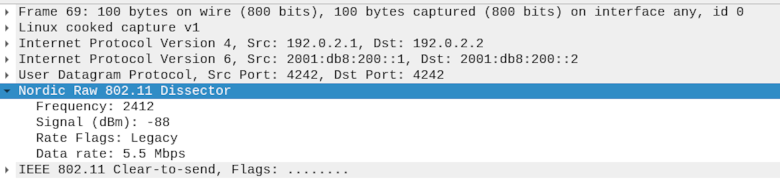
UDP payload
Dependencies
This sample uses the following nRF Connect SDK library: