

Matter: Thermostat
This thermostat sample demonstrates the usage of the Matter application layer to build a thermostat device for monitoring temperature values and controlling the temperature. This device works as a Matter accessory device, meaning it can be paired and controlled remotely over a Matter network built on top of a low-power, 802.15.4 Thread network or on top of a Wi-Fi® network.
This device works as a Matter accessory device, meaning it can be paired and controlled remotely over a Matter network built on top of a low-power 802.11ax (Wi-Fi® 6) or 802.15.4 (Thread) protocol.
In case of Thread, this device works as a Thread Sleepy End Device.
In case of Wi-Fi, this device works in the Legacy Power Save mode. This means that the device sleeps most of the time and wakes up on each Delivery Traffic Indication Message (DTIM) interval to poll for pending messages.
You can use this sample as a reference for creating your own application. See the Adding clusters to Matter application page for an overview of the process you need to follow.
Additionally, this example allows you to connect to a temperature sensor device that can also be used for temperature measurement.
Requirements
The sample supports the following development kits:
Hardware platforms |
PCA |
Board name |
Shields |
|
|---|---|---|---|---|
PCA10184 |
|
|
||
PCA10156 |
|
|||
PCA10095 |
|
|||
PCA10056 |
|
If you want to commission the Thermostat device and control it remotely through a Thread or Wi-Fi network, you need to set-up the Thread Border Router (Matter over Thread only) and control it with the chip-tool, or use a commercial ecosystem controller. When this happens, you will also be able to control it through a Matter controller device configured on PC or smartphone. This requires additional hardware depending on the setup you choose.
Note
Matter requires the GN tool. If you are updating from the nRF Connect SDK version earlier than v1.5.0, see the GN installation instructions.
IPv6 network support
The following development kits for this sample offer IPv6 network support for Matter:
Matter over Thread is supported for the
nrf52840dk/nrf52840,nrf5340dk/nrf5340/cpuapp,nrf54l15dk/nrf54l15/cpuapp,nrf54lm20dk/nrf54lm20b/cpuapp, andnrf54lm20dk/nrf54lm20a/cpuappboard targets.Matter over Wi-Fi is supported for the
nrf54lm20dk/nrf54lm20b/cpuappandnrf54lm20dk/nrf54lm20a/cpuappboard targets with thenrf7002eb2shield attached.
Similarly, if you want to test the sample with External sensor integration, you need additional hardware that incorporates a temperature sensor. For example, Nordic Thingy:53, used for the Matter weather station application.
Overview
The sample can operate in one of the following modes:
Simulated temperature sensor mode - In this mode, the thermostat sample generates simulated temperature measurements and prints it to the terminal. This is the default mode, in which the sample provides simulated temperature values.
Real temperature sensor mode - In this mode, the thermostat sample is bound to a remote Matter temperature sensor, which provides real temperature measurements. This mode requires External sensor integration.
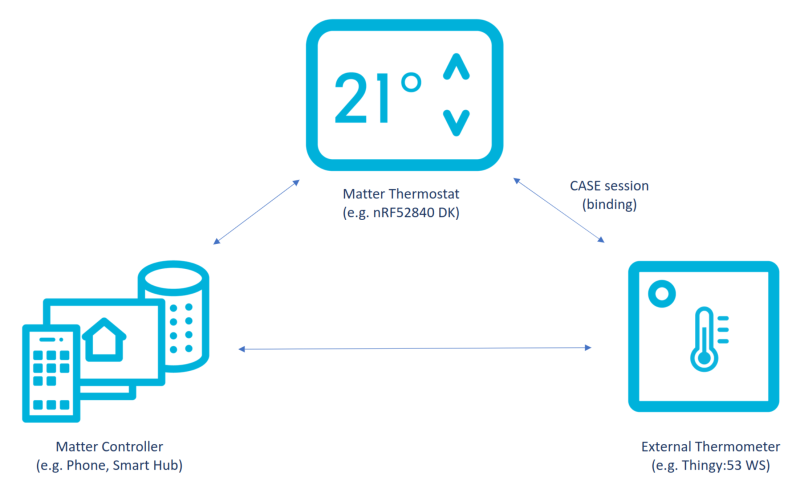
Real temperature sensor mode setup
The sample automatically logs the temperature measurements with a defined interval and it uses buttons for printing the measurement results to the terminal.
You can test the sample in the following ways:
Standalone, using a single DK that runs the thermostat application.
Remotely over the Thread or the Wi-Fi protocol, which in either case requires more devices, including a Matter controller that you can configure either on a PC or a mobile device.
Thermostat features
The thermostat sample implements the following features:
Temperature measurement - The thermostat sample can measure the temperature and print it to the terminal.
Temperature control - The thermostat sample can control the temperature of the connected devices.
Binding - The thermostat sample can bind with the temperature sensor to be able to control it.
Binding
Binding refers to establishing a relationship between endpoints on the local and remote nodes. With binding, local endpoints are pointed and bound to the corresponding remote endpoints. Both must belong to the same cluster type. Binding lets the local endpoint know which endpoints are the target for the client-generated actions on one or more remote nodes.
In this sample, the Thermostat controls one or more bound devices, but does not know their remote endpoints (on remote nodes). Using binding, the Thermostat device updates its Binding cluster with all relevant information about the bound devices, such as their IPv6 address, node ID, and the IDs of the remote endpoints that contain the supported clusters, respectively.
Configuration
This section describes the configuration options for the sample.
See Configuring and building for information about how to permanently or temporarily change the configuration.
The sample uses a prj.conf configuration file located in the sample root directory for the default configuration.
It also provides additional files for different custom configurations.
When you build the sample, you can select one of these configurations using the FILE_SUFFIX variable.
See Custom configurations and Providing CMake options for more information.
Note
If you are working with multiple devices, set a unique discriminator for each one, or commission them one at a time. See Matter device identification for more information.
The sample supports the following build configurations:
Configuration |
File name |
FILE_SUFFIX |
Supported board |
Description |
|---|---|---|---|---|
Debug (default) |
|
No suffix |
All from Requirements |
Debug version of the application. Enables additional features for verifying the application behavior, such as logs. |
Release |
|
|
All from Requirements |
Release version of the application. Enables only the necessary application functionalities to optimize its performance. |
Internal memory only |
— |
|
nRF54LM20 DK |
Debug version of the application with external flash disabled. Enables the Thermostat to work using internal memory only. |
Advanced configuration options
This section describes advanced configuration options that you can apply in this sample.
Use the click to show toggle to expand the content.
External sensor integration
The thermostat sample lets you connect to an external temperature sensor, for example Matter weather station application on Nordic Thingy:53. This establishes the Binding to Matter’s temperature measurement cluster.
By default, the thermostat sample generates simulated temperature measurements that simulate local temperature changes. Additionally, you can enable periodic outdoor temperature measurements by binding the thermostat with an external temperature sensor device. To test this feature, follow the steps listed in the Testing with external sensor section.
Device firmware upgrade support
The sample supports device firmware upgrade (DFU) over-the-air (OTA) using the following protocols:
Matter OTA update protocol that uses the Matter operational network for querying and downloading a new firmware image.
Simple Management Protocol (SMP) over Bluetooth® LE. In this case, the DFU can be done either using a smartphone application or a PC command-line tool. This protocol is not part of the Matter specification.
For detailed information about how to perform an update over Matter or Bluetooth LE, see Performing Device Firmware Upgrade in the nRF Connect examples. In both cases, the MCUboot secure bootloader is used to apply the new firmware image.
The DFU over Matter is enabled by default.
Additionally, you can enable the DFU over SMP by using the -DCONFIG_CHIP_DFU_OVER_BT_SMP=y build flag.
See Providing CMake options for instructions on how to add these options to your build.
The following platforms require external flash memory to perform the DFU:
nRF52840 DK
nRF5340 DK
nRF54L10 DK
nRF54LC10A SoC
You can run DFU without external flash memory on the nRF54L15 and nRF54LM20 DKs using the MCUboot image compression feature.
To see if the sample supports this feature, check whether the internal build configuration is available in the build configuration table.
Note
DFU is not supported on the nRF54LC10 DK.
It is supported for the nRF54LC10A SoC, but the nRF54LC10 DK lacks external flash.
Without external flash there is not enough space to fit two application images required for any type of DFU.
If you want to support DFU on nRF54LC10A SoC, you need to add external flash and configure the additional partitions needed for image swap.
For an example of how to configure such partitions, see the nRF54L10 devicetree files (nrf54l10_cpuapp_partitions.dtsi), since the nRF54L10 SoC is similar to nRF54LC10A and can be used as a reference design.
See External flash for more information.
When building with nRF Connect for VS Code, add your desired dfu_build_flag to Extra CMake arguments.
For example add -DCONFIG_CHIP_DFU_OVER_BT_SMP=y to enable DFU over BT SMP.
When building on the command line, run the following command with board_target replaced with the board target name of the hardware platform you are using (see Requirements), and dfu_build_flag replaced with the desired DFU build flag:
west build -b board_target -- dfu_build_flag
For example:
west build -b nrf54l15dk/nrf54l15/cpuapp -- -DCONFIG_CHIP_DFU_OVER_BT_SMP=y
Support for Trusted Firmware-M
The sample supports using Trusted Firmware-M on the nrf54l15dk/nrf54l15/cpuapp board target.
The memory map of the sample has been aligned to meet the TF-M memory region alignment requirements.
To build the sample with Trusted Firmware-M support, add the ns suffix to the nrf54l15dk/nrf54l15/cpuapp board target board target, and use the FILE_SUFFIX=tfm variable:
When building with nRF Connect for VS Code, complete the following steps:
set the board target to include the
nssuffix (for examplenrf54l15dk/nrf54l15/cpuapp/ns) in your build configuration.Add
-DFILE_SUFFIX=tfmto Extra CMake arguments in your build configuration.
west build -p -b nrf54l15dk/nrf54l15/cpuapp/ns -DFILE_SUFFIX=tfm
Factory data support
In this sample, factory data support specific to the nRF Connect SDK is enabled by default for all configurations. This means that a new factory data set will be automatically generated when building for the target board.
To disable factory data support, set the following Kconfig options to n:
To learn more about factory data, read the Factory provisioning in Matter user guide.
Custom board with Nordic SoC
To prepare the sample to work with a custom board, complete the following steps:
Refer to the Create your board directory Zephyr guide and create your board directory.
Modify the contents of the
board.yamlfile according to the Write your board YAML user guide.Update the Write your devicetree (all .dts and .dtsi files) to match your board’s requirements.
Write Kconfig files to enable all required Kconfig options for your board.
If you want to build your custom board with nRF70 Wi-Fi support, set the
CONFIG_CHIP_WIFIandSB_CONFIG_WIFI_NRF70Kconfig options toy.If your device uses external flash, add its devicetree definition under the
board/<board_name>_<soc_name>.overlayfile, and setnordic,pm-ext-flashin the devicetree’schosenconfiguration.Refer to the Advanced Matter Kconfig options user guide, create your list of advanced configurations for your board, and apply the selected Kconfig options in the
prj.conffile.See the list of threads used in Matter application and adjust stack sizes according to your board and project requirements.
A custom board does not have support for LEDs and buttons by default. Therefore, you need to provide your own implementation of the
nrf/samples/matter/common/src/board/board.cppboard file.
For more information, see the following guides:
Board Porting Guide and Custom Board, Devicetree and SOC Definitions to learn how to create a custom board directory.
Optimizing memory usage in Matter applications to learn how to optimize memory on your board.
Advanced Matter Kconfig options to learn about Matter configuration.
Matter hardware and memory requirements to learn about hardware requirements for Nordic Development Kits and to use as a reference when planning your custom board.
Internal memory only
For the nRF54LM20 DK, you can configure the sample to use only the internal RRAM for storage. It applies to the DFU as well, which means that both the currently running firmware and the new firmware to be updated will be stored within the device’s internal RRAM memory.
The DFU image fits in the internal flash memory if you use MCUboot image compression.
This configuration is disabled by default for the Matter Thermostat sample.
To enable it, set the FILE_SUFFIX CMake option to internal.
To build the sample for the nRF54LM20 DK with support for Matter OTA DFU and DFU over Bluetooth SMP, and using internal RRAM only:
Add -DCONFIG_CHIP_DFU_OVER_BT_SMP=y -DFILE_SUFFIX=internal to Extra CMake arguments in your build configuration.
west build -p -b nrf54lm20dk/nrf54lm20b/cpuapp -- -DCONFIG_CHIP_DFU_OVER_BT_SMP=y -DFILE_SUFFIX=internal
To build the sample for the same purpose in the release configuration:
Add -DCONFIG_CHIP_DFU_OVER_BT_SMP=y -DFILE_SUFFIX=internal -D<sample_name>_EXTRA_CONF_FILE=prj_release.conf to Extra CMake arguments in your build configuration, replacing <sample_name> with the actual sample name (for example light_bulb or matter_bridge).
Replace <sample_name> with the actual sample name and run:
west build -p -b nrf54lm20dk/nrf54lm20b/cpuapp -- -DCONFIG_CHIP_DFU_OVER_BT_SMP=y -DFILE_SUFFIX=internal -D<sample_name>_EXTRA_CONF_FILE=prj_release.conf
In this case, the size of the MCUboot secondary partition used for storing the new application image is approximately 30-40% smaller than it would be when using a configuration with external flash memory support.
User interface
This section describes the user interface available on the development kit in this sample.
Development kit interface
This sample implements the following interface available on a development kit. While reading the names, refer to the Buttons and LEDs map.
- First LED:
Shows the overall state of the device and its connectivity. The following states are possible:
Short Flash On (50 ms on/950 ms off) - The device is in the unprovisioned (unpaired) state and is waiting for a commissioning application to connect.
Rapid Even Flashing (100 ms on/100 ms off) - The device is in the unprovisioned state and a commissioning application is connected over Bluetooth LE.
Solid On - The device is fully provisioned.
- First Button:
Depending on how long you press the button:
If pressed for less than three seconds:
If the device is not provisioned to the Matter network, it initiates the Simple Management Protocol (SMP) server and Bluetooth LE advertising for Matter commissioning. After that, the Device Firmware Update (DFU) over Bluetooth Low Energy can be started. Bluetooth LE advertising makes the device discoverable over Bluetooth LE for the predefined period of time (1 hour by default).
If the device is already provisioned to the Matter network, it re-enables the SMP server. After that, the DFU over Bluetooth Low Energy can be started.
If pressed for more than three seconds, it initiates the factory reset of the device. Releasing the button within three seconds of the initiation cancels the factory reset procedure.
- Second Button:
Prints the most recent thermostat data to terminal.
- SEGGER J-Link USB Port:
Used for getting logs from the device or for communicating with it through the command-line interface.
- NFC port with antenna attached:
Optionally used for obtaining the onboarding information from the Matter accessory device to start the commissioning the device procedure while using a commercial ecosystem. See the Testing with commercial ecosystem section.
Note
The nRF54LC10A SoC does not have an NFC peripheral, thus this feature is not supported on the nRF54LC10 DK.
Building and running
This section describes how to build the sample and commission it to the Matter network.
This sample can be found under samples/matter/thermostat in the nRF Connect SDK folder structure.
To build the sample, follow the instructions in Building an application for your preferred building environment. See also Programming an application for programming steps and Testing and optimization for general information about testing and debugging in the nRF Connect SDK.
Note
When building repository applications in the SDK repositories, building with sysbuild is enabled by default.
If you work with out-of-tree freestanding applications, you need to manually pass the --sysbuild parameter to every build command or configure west to always use it.
When building this sample with Sysbuild for an SoC that has a network core, the IPC radio firmware is automatically applied to the build.
The IPC radio is one of the companion components in the nRF Connect SDK and allows to use the radio peripheral from another core in a multicore device.
If needed, you can modify the IPC radio configuration in the prj.conf source file in the sample’s sysbuild/ipc_radio directory.
Before starting the commissioning procedure, make sure that the device is discoverable over Bluetooth LE. The device becomes discoverable automatically upon the device startup, but only for a predefined period of time (one hour by default). If the Bluetooth LE advertising times out, enable it again.
Advanced building options
Building the Matter over Wi-Fi variant on nRF54LM20 DK with nRF7002-EB II shield
To build the Matter over Wi-Fi sample variant on nRF54LM20 DK with nRF7002-EB II attached, perform the following actions depending on the build tool:
When building an application as described in the nRF Connect for VS Code documentation, follow the steps for setting up the build configuration.
In the Add Build Configuration screen, click the Add argument button under the Extra CMake argument section.
Add the following Kconfig options:
-DSHIELD=nrf7002eb2 -DSB_CONFIG_WIFI_NRF70=y -DCONFIG_CHIP_WIFI=y
Use one of the following options:
west with the following command (
nrf54lm20aSoC variant is also supported):
west build -p -b nrf54lm20dk/nrf54lm20b/cpuapp -- -DSHIELD=nrf7002eb2 -DSB_CONFIG_WIFI_NRF70=y -DCONFIG_CHIP_WIFI=y
CMake with the following command:
cmake -GNinja -Bbuild -DBOARD=nrf54lm20dk/nrf54lm20b/cpuapp -DSHIELD=nrf7002eb2 -DSB_CONFIG_WIFI_NRF70=y -DCONFIG_CHIP_WIFI=y -DAPP_DIR=*app_path* *path_to_zephyr*/share/sysbuild
ninja -C build
Testing
This section shows how to test the sample. You can test it using your PC and the CHIP Tool for Linux or macOS or commercial ecosystem that supports Matter.
Testing with CHIP Tool
Complete the following steps to test the Thermostat device using CHIP Tool:
Prepare Matter network
To set up the Matter network, configure your environment according to the protocol you are using. Choose the appropriate tab below and follow the corresponding steps to prepare your Matter network.
Configure the Thread Border Router. See the Running OTBR using Docker section on the Thread Border Router page.
Download the prebuilt CHIP tool package from the Matter nRF Connect releases GitHub page. Make sure that the package is compatible with your nRF Connect SDK version.
Download the prebuilt CHIP tool package from the Matter nRF Connect releases GitHub page. Make sure that the package is compatible with your nRF Connect SDK version.
Prepare your DK
To flash your DK with the sample and prepare it for testing, complete the following steps:
Connect the kit to the computer using a USB cable. The kit is assigned a serial port. Serial ports are referred to as COM ports on Windows, /dev/ttyACM devices on Linux, and /dev/tty devices on macOS. To list Nordic Semiconductor devices connected to your computer together with their serial ports, open a terminal and run the
nrfutil device listcommand. Alternatively, check your operating system’s device manager or its equivalent.Open a serial port connection to the kit using a terminal emulator that supports VT100/ANSI escape characters (for example, the Serial Terminal app). See Testing and optimization for the required settings and steps.
If the device was not erased during the programming, perform the factory reset procedure.
To restore the device settings and state to its factory set press the First Button for six seconds to initiate the factory reset of the device.
Commission to Matter network
To commission the device to the Matter network complete the following steps:
Obtain a Thread active dataset from OTBR:
Connect to the Raspberry Pi through USB or SSH.
Run the following commands:
sudo ot-ctl
> dataset active -x
Run the following command:
sudo docker exec -it otbr sh -c "ot-ctl dataset active -x"The output should look like:
080000000000000000000300001735060004001fffe00208deadbeefcafe12340708fd123456789abc00000510112233445566778899aabbccddeeff00030a54657374576f726b3031010211220410aabbccddeeff00112233445566778899aa0c0402a0f7f8
Done
Run the following command and fill the <thread dataset> argument obtain in the previous step:
chip-tool pairing ble-thread 1 hex:<thread dataset> 20202021 3840
Collect the following parameters of your Wi-Fi access point:
<ssid> - SSID of your Wi-Fi network.
<password> - A password to your Wi-Fi network associated with the SSID.
Run the following command and fill the <ssid> and <password> arguments:
chip-tool pairing ble-wifi 1 <ssid> <password> 20202021 3840
Read the simulated temperature
Read the simulated temperature by running the following command:
./chip-tool temperaturemeasurement read measured-value <node_id> 1
The received output will look similar to the following:
[1755081048.320] [99348:99350] [TOO] Endpoint: 1 Cluster: 0x0000_0402 Attribute 0x0000_0000 DataVersion: 1994139940
[1755081048.320] [99348:99350] [TOO]   MeasuredValue: 9
Testing with external sensor
Complete the following steps to test communication between the thermostat and the temperature sensor:
Prepare both devices
Follow the steps in the Testing with CHIP Tool section During the commissioning process, write down the values for the thermostat node ID, the temperature sensor node ID, and the temperature sensor endpoint ID. These IDs are going to be used in the next steps (<thermostat_node_ID>, <temperature_sensor_node_ID>, and <temperature_sensor_endpoint_ID>, respectively).
Add proper ACL for the temperature sensor device
Use the CHIP Tool (“Writing ACL to the accesscontrol cluster” section) to add proper ACL for the temperature sensor device.
Use the following command, with <thermostat_node_ID>, <temperature_sensor_node_ID>, and <temperature_sensor_endpoint_ID> values from the previous step about commissioning:
chip-tool accesscontrol write acl '[{"fabricIndex": 1, "privilege": 5, "authMode": 2, "subjects": [112233], "targets": null}, {"fabricIndex": 1, "privilege": 1, "authMode": 2, "subjects": [<thermostat_node_ID>], "targets": [{"cluster": 1026, "endpoint": <temperature_sensor_endpoint_ID>, "deviceType": null}]}]' <temperature_sensor_node_ID> 0
Write a binding table
Write a binding table to the thermostat to inform the device about the temperature sensor endpoint by running the following command, with <thermostat_node_ID>, <temperature_sensor_node_ID>, and <temperature_sensor_endpoint_ID> values from the previous step about commissioning:
chip-tool binding write binding '[{"fabricIndex": 1, "node": <temperature_sensor_node_ID>, "endpoint": <temperature_sensor_endpoint_ID>, "cluster": 1026}]' <thermostat_node_ID> 1
(You can read more about this step in the “Adding a binding table to the binding cluster” in the CHIP Tool guide.)
The thermostat is now able to read the real temperature data from the temperature sensor device. The connection is ensured by Binding to Matter’s temperature measurement cluster.
Press the Second Button
Press the Second Button to print the most recent temperature data from the thermostat device to the UART terminal.
Testing with commercial ecosystem
Before starting testing, ensure that the ecosystem supports the device types enabled in this sample. See the ecosystem manual page for instructions on how to use it.
When you start the commissioning procedure, the ecosystem controller must get the onboarding information from the Matter accessory device. The onboarding information representation depends on your commissioner setup.
For this sample, you can use one of the following onboarding information formats to provide the commissioner with the data payload that includes the device discriminator and the setup PIN code:
Thermostat sample onboarding information QR Code
QR Code Payload
Manual pairing code
Scan the following QR code with the app for your ecosystem:
MT:O4CT342C00KA0648G00
34970112332

When the factory data support is enabled, the onboarding information will be stored in the build directory in the following files:
The
factory_data.pngfile includes the generated QR code.The
factory_data.txtfile includes the QR code payload and the manual pairing code.
This data payload also includes test Device Attestation, with test Certification Declaration, Product ID, and Vendor ID. These are used for Device Attestation within commissioning, and you can generate your own test Certification Declaration when you work on Matter end product.
Dependencies
This sample uses the Matter library that includes the nRF Connect SDK platform integration layer:
In addition, the sample uses the following nRF Connect SDK components:
The sample depends on the following Zephyr libraries: