
Wi-Fi: Coexistence shell
The Coexistence shell sample demonstrates coexistence between the Wi-Fi® and Bluetooth® LE radios of the nRF7120 DK in the 2.4 GHz band.
Requirements
The sample supports the following development kit:
Hardware platforms |
PCA |
Board name |
|
|---|---|---|---|
PCA10217 |
|
The test setup also requires the following hardware and software:
An access point to which the nRF7120 DK can connect.
A test PC that is connected to the same network as the access point and runs the Wi-Fi iPerf application. The test PC runs the iPerf server for the UDP upload test and the iPerf client for the UDP download test. Use iPerf version 2.0.5.
An nRF5340 DK that runs the Bluetooth: Throughput sample as the Bluetooth LE peer device.
Overview
The sample runs on the nRF7120 DK and uses the nRF71 Wi-Fi and Short-Range (SR) coexistence driver to arbitrate access to the 2.4 GHz band and to the shared antenna between the Wi-Fi and Bluetooth LE radios.
Enable the coexistence driver using the CONFIG_NRF71_SR_COEX_DRIVER Kconfig option.
The sample provides shell commands that measure the following test cases:
Wi-Fi UDP throughput only, in the upload or download direction
Bluetooth LE throughput only, with the nRF7120 DK in the central or peripheral role
Wi-Fi and Bluetooth LE throughput simultaneously
Running both throughput tests at the same time with and without coexistence, shows how coexistence shares airtime between the two radios.
The Wi-Fi throughput test supports the following directions:
UDP upload - The nRF7120 DK runs the zperf UDP client and sends data to the iPerf server on the test PC.
UDP download - The nRF7120 DK runs the zperf UDP server and receives data from the iPerf client on the test PC. The download direction requires the
CONFIG_NET_ZPERF_SERVERKconfig option, which is enabled by default in the prj.conf file.
Note
Wi-Fi TCP throughput is not supported in either direction.
The wifi_run_tput command rejects the tcp protocol, even though the command help still lists it as a supported option.
The sample enables Wi-Fi at boot, but it does not enable Bluetooth LE until you run the bt_cfg_tput command for the first time.
When Bluetooth LE is enabled, the sample informs the coexistence driver that the SR radio is powered up.
The sample supports both the central and the peripheral Bluetooth LE roles.
Select the role using the bt_cfg_tput command:
Central (
bt_cfg_tput 1) - The nRF7120 DK scans for the throughput service, discovers it, and exchanges the MTU. It then configures the PHY, connection parameters, and data length. Start the test using thebt_run_tputcommand on the nRF7120 DK, which writes data to the peer.Peripheral (
bt_cfg_tput 0) - The nRF7120 DK advertises the throughput service and waits for the peer central to connect. It then configures the PHY, connection parameters, and data length. Start the test from the peer central, which writes data to the nRF7120 DK.
Only the central can start the throughput test.
Test setup
The following figure shows a reference test setup.
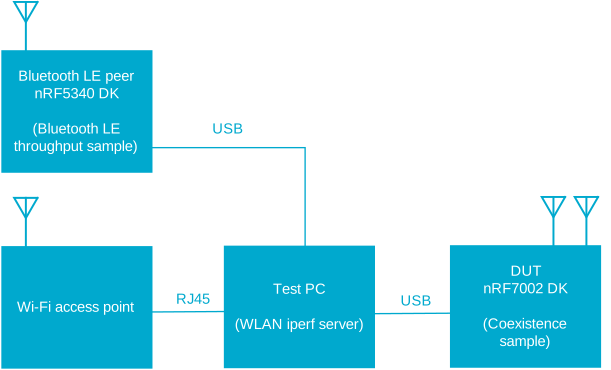
Wi-Fi and Bluetooth LE coexistence reference test and evaluation setup
The reference test setup shows the connections between the following devices:
Device Under Test (DUT) (an nRF7120 DK on which the coexistence shell sample runs)
Wi-Fi peer device (an access point with a test PC that runs iPerf)
Bluetooth LE peer device (an nRF5340 DK on which the Bluetooth LE throughput sample runs)
The following table provides details about the sample or application that runs on the DUT and peer devices:
Device |
Application |
Details |
|---|---|---|
nRF7120 DK (DUT) |
Coexistence shell sample |
The sample runs Wi-Fi throughput only, Bluetooth LE throughput only, or both simultaneously. |
Test PC |
iPerf application |
For UDP upload, the iPerf UDP server runs on the test PC and acts as a peer device to the Wi-Fi UDP client that runs on the nRF7120 DK. For UDP download, the iPerf UDP client runs on the test PC and acts as a peer device to the Wi-Fi UDP server that runs on the nRF7120 DK. TCP is not supported. |
nRF5340 DK (peer) |
Bluetooth LE throughput sample |
The Bluetooth LE throughput sample runs on the nRF5340 DK in the role opposite to the nRF7120 DK. It runs in the peripheral role when the nRF7120 DK is the central, and in the central role when the nRF7120 DK is the peripheral. |
Configuration
See Configuring and building for information about how to permanently or temporarily change the configuration.
Configuration options
The following sample-specific Kconfig options are used in this sample (located in samples/wifi/coex_shell/Kconfig):
- CONFIG_BT_CTLR_DATA_LENGTH_MAX
(unknown)
- CONFIG_BT_CTLR_PHY_2M
(unknown)
- CONFIG_BT_CTLR_PHY_CODED
(unknown)
- CONFIG_SAMPLE_BT_INTERVAL_MIN
(int) Bluetooth LE minimum connection interval
Minimum connection interval requested for the throughput test, in units of 1.25 ms. For example, 6 is 7.5 ms and 80 is 100 ms. The value must not be larger than SAMPLE_BT_INTERVAL_MAX.
- CONFIG_SAMPLE_BT_INTERVAL_MAX
(int) Bluetooth LE maximum connection interval
Maximum connection interval requested for the throughput test, in units of 1.25 ms. The connection is only updated when the current interval differs from this value.
- CONFIG_SAMPLE_BT_CONN_LATENCY
(int) Bluetooth LE connection latency
Peripheral latency, in number of connection events that the peripheral may skip. It is used for both the initial connection and the throughput test.
- CONFIG_SAMPLE_BT_SUPERVISION_TIMEOUT
(int) Bluetooth LE supervision timeout
Supervision timeout requested for the throughput test, in units of 10 ms. It must be longer than twice the maximum connection interval multiplied by (1 + SAMPLE_BT_CONN_LATENCY). This is checked at build time.
- CONFIG_SAMPLE_COEX_BRINGUP_IN_MAIN
(bool) Bring up the coexistence manager from main
After the network interface is up, main() waits for the Wi-Fi FMAC transport and then for the coexistence driver to finish sending the coexistence configuration to the Coexistence Manager on the RPU and enabling it. The driver starts this sequence itself when Wi-Fi comes up.
- CONFIG_SAMPLE_COEX_SR_NOTIFY_IN_MAIN
(bool) Report the Short-Range radio as ready from main
Send an NRF71_SR_COEX_SR_POWERED_UP_READY notification from main() using nrf71_sr_coex_sr_power_notify() after the CM becomes active. This opens the coexistence gate without waiting for Bluetooth. The sample sends the same notification when Bluetooth is enabled by the first bt_cfg_tput command, so sending it twice is harmless. Disable this option to keep coexistence off until Bluetooth is enabled.
Building and running
This sample can be found under samples/wifi/coex_shell in the nRF Connect SDK folder structure.
For more security, it is recommended to use the */ns variant of the board target (see the Requirements section above.)
When built for this variant, the sample is configured to compile and run as a non-secure application using security by separation.
Therefore, it automatically includes Trusted Firmware-M that prepares the required peripherals and secure services to be available for the application.
To build the sample, follow the instructions in Building an application for your preferred building environment. See also Programming an application for programming steps and Testing and optimization for general information about testing and debugging in the nRF Connect SDK.
Note
When building repository applications in the SDK repositories, building with sysbuild is enabled by default.
If you work with out-of-tree freestanding applications, you need to manually pass the --sysbuild parameter to every build command or configure west to always use it.
To build for the nRF7120 DK, use the nrf7120dk/nrf7120/cpuapp board target, set the SB_CONFIG_WIFI_NRF70 sysbuild option to n.
The following are examples of the build commands for the test cases:
Build (default):
west build -p -b nrf7120dk/nrf7120/cpuappBuild with a different Bluetooth LE connection interval (in units of 1.25 ms):
west build -p -b nrf7120dk/nrf7120/cpuapp -- -DCONFIG_SAMPLE_BT_INTERVAL_MIN=100 -DCONFIG_SAMPLE_BT_INTERVAL_MAX=100
Use the Bluetooth LE throughput sample from the nrf/samples/bluetooth/throughput folder on the peer nRF5340 DK.
Build for the nRF5340 DK:
west build -p -b nrf5340dk/nrf5340/cpuapp -- -DCONFIG_BT_THROUGHPUT_DURATION=20000
Supported CLI commands
The sample supports the following shell commands. Use the Tab key to autocomplete commands and enter a command without parameters to view its usage.
Command |
Description |
|---|---|
|
Connects to a Wi-Fi access point.
<key_mgmt> is 0 for no security and 1 for WPA2-PSK.Example:
wifi connect -s wifi_sr_coex_5 -k 1 -p 12345678 |
|
Runs the Wi-Fi UDP upload throughput test towards the iPerf server.
The command returns immediately and prints the result when the test is complete.
<peerIP> is the IPv4 address of the test PC.<destPort> is the port of the iPerf server.<duration> is the test duration in seconds.<pktSize> is the UDP payload size in bytes, or in kilobytes with the K suffix.The maximum size is set by
CONFIG_NET_ZPERF_MAX_PACKET_SIZE.<baudrate> is the target rate in bit/s, or in kbit/s or Mbit/s with the K or M suffix.Only the
udp protocol is supported. The tcp protocol is rejected.Example:
wifi_run_tput udp upload 192.168.1.253 5001 40 1K 5M |
|
Starts the zperf UDP server on the nRF7120 DK for the Wi-Fi UDP download throughput test.
The command prints the iPerf client command to run on the test PC.
The result is printed when the iPerf client ends the session.
The server keeps running for further sessions until you stop it with
wifi_stop_tput udp.<port> is the local port of the zperf server. The default value is 5001.Only the
udp protocol is supported. The tcp protocol is rejected.Example:
wifi_run_tput udp download 5001 |
|
Stops the zperf UDP server started for the Wi-Fi UDP download throughput test. |
|
Enables Bluetooth LE on the first run, connects to the peer in the selected role, and configures the connection for the throughput test.
<bt_role> is 1 for central and 0 for peripheral.In the central role, the nRF7120 DK scans for the peer. In the peripheral role, it advertises and waits for the peer central to connect.
The command times out if a connection is not established within 20 seconds.
Example:
bt_cfg_tput 1 (central) or bt_cfg_tput 0 (peripheral) |
|
Runs the Bluetooth LE throughput test.
Only the central can run this command.
When the nRF7120 DK is the peripheral, start the test from the peer central instead.
<duration> is the test duration in seconds.Example:
bt_run_tput 20 |
|
Prints the Bluetooth LE configuration used for the throughput test. |
|
Disconnects the Bluetooth LE connection. |
|
Zephyr network shell command that brings the Wi-Fi interface down, disabling Wi-Fi RX and Wi-Fi TX.
Use
net iface to find the index of the Wi-Fi interface.There is no
wifi if_down command in the Wi-Fi shell.Use
net iface up <index> to bring the interface back up. |
|
Enables both Wi-Fi and SR coexistence by calling |
|
Disables both Wi-Fi and SR coexistence by calling |
The coex_enable_wifi_sr and coex_disable_wifi_sr commands are available only when the coexistence driver is enabled with the CONFIG_NRF71_SR_COEX_DRIVER Kconfig option.
The option is enabled by default in the prj.conf file.
Note
Use the same duration for the Wi-Fi throughput test and for the Bluetooth LE throughput test when you run both at the same time.
Note
The coexistence driver configures the Coexistence Manager and enables Wi-Fi coexistence each time the Wi-Fi interface is brought up.
Therefore, the coex_disable_wifi_sr command lasts only until the next time the Wi-Fi interface is brought up.
Run coex_enable_wifi_sr and coex_disable_wifi_sr after the nRF71 SR coexistence configured message is printed.
While the Coexistence Manager is being configured, the commands fail with a busy error and do not change either Wi-Fi or SR coexistence.
If this happens, run the commands again later.
While the Wi-Fi interface is down, the commands change only SR coexistence.
Testing
After programming the sample to your development kit, complete the following steps to test it:
Connect the kit to the computer using a USB cable. The kit is assigned a serial port. Serial ports are referred to as COM ports on Windows, /dev/ttyACM devices on Linux, and /dev/tty devices on macOS. To list Nordic Semiconductor devices connected to your computer together with their serial ports, open a terminal and run the
nrfutil device listcommand. Alternatively, check your operating system’s device manager or its equivalent.Connect to the kit with a terminal emulator (for example, the Serial Terminal app). See Testing and optimization for the required settings and steps.
Run the following command to list the connected devices and their serial ports:
Use the serial port that corresponds to VCOM0 on the nRF7120 DK and VCOM1 on the nRF5340 DK. Connect to each kit using a terminal emulator at 115200 baud.
Programming DKs
Complete the following steps to program the DKs:
Start the toolchain environment in a terminal window.
Navigate to the
<ncs code>/nrf/samples/bluetooth/throughput/folder.Run the following command to program the nRF5340 DK with the Bluetooth LE throughput sample:
west flash --dev-id <device-id>
Start the toolchain environment in a terminal window.
Navigate to the
<ncs code>/nrf/samples/wifi/coex_shell/folder.Run the following command to program the nRF7120 DK with this sample:
west flash --dev-id <device-id>
Test procedure
Run the test cases in the following order. Enable and disable coexistence at runtime using shell commands, so you do not need to rebuild the sample between measurements.
Wi-Fi-only UDP upload throughput:
On the test PC, run the following command to start the iPerf server:
iperf -s -i 1 -uOn the nRF7120 DK, connect to the access point and wait for the
Connectedmessage:wifi connect -s <SSID> -k 1 -p <passphrase>On the nRF7120 DK, start the Wi-Fi UDP upload:
wifi_run_tput udp upload <test PC IP address> 5001 40 1K 5MFor example, if the IP address of the test PC is
192.168.1.253:wifi_run_tput udp upload 192.168.1.253 5001 40 1K 5M
Wi-Fi-only UDP download throughput:
On the nRF7120 DK, connect to the access point as described in the previous test case.
On the nRF7120 DK, start the zperf UDP server:
wifi_run_tput udp download 5001On the test PC, start the iPerf client towards the nRF7120 DK:
iperf -c <nRF7120 DK IP address> -i 1 -t 40 -u -b 5M -p 5001For example, if the IP address of the nRF7120 DK is
192.168.1.88:iperf -c 192.168.1.88 -i 1 -t 40 -u -b 5M -p 5001The nRF7120 DK also prints an example iPerf client command with its IP address when the zperf UDP server starts.
When you have completed the download tests, stop the zperf UDP server on the nRF7120 DK:
wifi_stop_tput udp
Bluetooth LE-only throughput with the nRF7120 DK as the central:
On the nRF5340 DK, run the Bluetooth LE throughput sample in the peripheral role. See the Bluetooth: Throughput sample for how to select the role.
On the nRF7120 DK, connect in the central role:
bt_cfg_tput 1On the nRF7120 DK, start the Bluetooth LE throughput test:
bt_run_tput 20
Bluetooth LE-only throughput with the nRF7120 DK as the peripheral:
On the nRF7120 DK, start advertising in the peripheral role:
bt_cfg_tput 0On the nRF5340 DK, run the Bluetooth LE throughput sample in the central role. See the Bluetooth: Throughput sample for how to select the role.
On the nRF5340 DK, start the Bluetooth LE throughput test using the
runcommand.
Combined Wi-Fi and Bluetooth LE throughput:
Prepare the Wi-Fi test in the selected direction and connect the nRF7120 DK to the access point as described in the previous test cases. For UDP upload, start the iPerf server on the test PC. For UDP download, start the zperf UDP server on the nRF7120 DK with
wifi_run_tput udp download.Connect the nRF7120 DK to the Bluetooth LE peer in the selected role, with
bt_cfg_tput 1for central orbt_cfg_tput 0for peripheral. Run the Bluetooth LE throughput sample on the nRF5340 DK in the opposite role.On the nRF7120 DK, run
coex_disable_wifi_srto measure with coexistence disabled.Start the Wi-Fi test. For UDP upload, run the
wifi_run_tput udp uploadcommand on the nRF7120 DK. The command returns immediately, and the Wi-Fi test runs in the background. For UDP download, run the iPerf client on the test PC.Start the Bluetooth LE throughput test from the central, using the same duration, and wait for the results. Use the
bt_run_tputcommand on the nRF7120 DK when it is the central, or theruncommand on the nRF5340 DK when the nRF7120 DK is the peripheral.On the nRF7120 DK, run
coex_enable_wifi_srto measure with coexistence enabled, and repeat steps d and e.
The Wi-Fi throughput result is printed on the nRF7120 DK terminal when the Wi-Fi test is complete, and on the test PC terminal that runs iPerf. The Bluetooth LE throughput result is printed on the nRF7120 DK terminal and the nRF5340 DK terminal.
Sample output
The following example shows the output on the nRF7120 DK terminal after boot, when you scan for and connect to an access point. The SSIDs, addresses, and signal levels depend on your environment.
I: Starting nrf7120dk with CPU frequency: 256 MHz
I: Initializing network
I: Waiting interface 1 to be up...
I: IPv4 address: 192.168.1.99
I: Running dhcpv4 client...
I: wpa_supplicant initialized

uart:~$ wifi scan
Scan requested

Num  | SSID                             (len) | Chan (Band)   | RSSI | Security             | BSSID
1    | SSID                             4     | 6    (2.4GHz) | -35  | WPA2-PSK             | 10:C3:7B:CE:A0:60
2    | SSID_5                           6     | 36   (5GHz  ) | -48  | WPA2-PSK             | 10:C3:7B:CE:A0:64
Scan request done
uart:~$ wifi connect -s SSID_5 -k 1 -p PASSWORD
Connection requested
I: wlan0: CTRL-EVENT-CONNECTED - Connection to 10:c3:7b:ce:a0:64 completed [id=0 id_str=]
Connected
I: Received: 192.168.1.88
After the Bluetooth LE throughput test, the sample prints the throughput measured locally and the throughput reported by the peer.
The values in < > depend on the test:
uart:~$ bt_cfg_tput 1
Bluetooth LE tput config - SUCCESS
uart:~$ bt_run_tput 20
I: [local] sent <bytes> bytes (<KB> KB) in <ms> ms at <rate> kbps
I: [peer] received <bytes> bytes (<KB> KB) in <count> GATT writes at <rate> bps
Bluetooth LE throughput - SUCCESS
The measured Wi-Fi and Bluetooth LE throughput depend on the RSSI, the Wi-Fi band, the antenna configuration, and the level of interference. When Wi-Fi and Bluetooth LE throughput tests are executed simultaneously with coexistence enabled, airtime is shared between the two radios rather than increasing the combined throughput.
Dependencies
This sample uses the following nRF Connect SDK library: